Remember when creating a wireframe meant hours of pixel-pushing and endless revisions?
I do, and I don’t miss those days at all. AI has revolutionized UX and UI design, turning what used to be days of work into minutes of conversation with intelligent tools. Whether you’re a seasoned designer, a product manager, or a startup founder wearing multiple hats, AI design tools can dramatically accelerate your workflow while maintaining (or even improving) quality.
In this article, we’ll review the top picks to help you choose the perfect AI companion for your design journey.
What are AI UX and UI Design Tools?

AI UX and UI design tools leverage artificial intelligence to automate and enhance the design process. These tools can generate wireframes, mockups, and even high-fidelity designs based on text prompts, sketches, or reference images. They use machine learning algorithms trained on thousands of professional designs to understand design principles, user experience patterns, and aesthetic trends.
Unlike traditional design software that requires manual creation of every element, AI design tools can interpret your instructions and generate complete designs in seconds. They can also help with user research, information architecture, and even code generation.
The best part?
You don’t need to be a design expert to get professional results – these tools democratize design while helping professionals work faster.
Who Should Use AI Tools for UI Design?
AI UX and UI design tools benefit a wide range of professionals:
I’ve seen these tools transform workflows across organizations of all sizes. Whether you’re a solo entrepreneur or part of a large enterprise, AI design tools can give you a significant competitive advantage.
Benefits of Using AI Tools for UI Design
Dramatic Time Savings
What used to take days now takes minutes. AI tools can generate multiple design options in seconds, allowing you to iterate rapidly and explore more possibilities. I’ve personally seen design cycles reduced by up to 80% when using AI effectively.
Enhanced Creativity
AI tools can suggest design approaches you might not have considered, helping you break out of creative ruts. They excel at generating variations and alternatives, expanding your creative horizons while maintaining design coherence.
Accessibility
These tools democratize design by allowing non-designers to create professional-looking interfaces. This is particularly valuable for small teams and startups where resources are limited and team members wear multiple hats.
Consistency
AI tools can maintain design consistency across multiple screens and components, ensuring your product feels cohesive. They can automatically apply your brand guidelines and design systems to new elements.
Reduced Development Time
Many AI design tools can generate code alongside visuals, bridging the gap between design and development. This reduces handoff friction and accelerates the implementation process.
Data-Driven Design
Advanced AI tools can incorporate user behavior data and best practices into their design suggestions, helping you create interfaces that are not just beautiful but also effective and user-friendly.
AI UX and UI Design Tool Criteria
Before diving into the reviews, let me explain how I evaluated these tools. As someone who’s been working with AI and design tools since 2018, I’ve developed a framework for assessment that focuses on real-world utility rather than just flashy features.
I tested these tools based on real use cases, creating actual designs and prototypes for various projects. This hands-on approach revealed strengths and limitations that might not be apparent from marketing materials alone.
Why Should You Trust Me?
I am an AI Engineer with an MS in Data Science and Machine Learning and a BS in Software Engineering. I’ve been a working professional since 2018, ghost-developed numerous AI applications, and have deep knowledge of how AI tools work and their inner workings.
My background gives me a unique perspective on AI UX and UI design tools. I understand both the technical underpinnings of these tools and the practical needs of designers and product teams. I’ve used these tools in real-world projects, experiencing their strengths and limitations firsthand.
Beyond my technical expertise, I’ve collaborated with designers, product managers, and developers, giving me insight into how these tools fit into diverse workflows. My goal is to provide you with honest, experience-based guidance that helps you make informed decisions based on your specific needs.
Top AI UX and UI Design Tools Comparison Chart
| Rank | Tool | Key Features | Best For | Rating | Pricing |
| 1 | UX Pilot.AI | Hi-fi UI, Wireframes, Flows, Code Generation | Complete UX/UI workflow | 4.8/5 | Free trial, Credit-based |
| 2 | UXMagic.AI | Multi-input UI generation, Code export | Fast design-to-dev handoff | 4.7/5 | $30-50/mo |
| 3 | 21st.Dev | Community React components, Magic AI generation, Copy-paste + remix | Community-driven UI blocks + AI customization | 4.6/5 | Freemium (~$20/mo Pro, 50 tokens) |
| 4 | Banani | Interactive prototypes, Smart layouts | Quick interactive prototyping | 4.6/5 | Freemium |
| 5 | Emergent | Layout intelligence, Vibe-based generation | Matching existing app styles | 4.5/5 | $20/mo (100 credits) |
| 6 | Magic Patterns | Design system matching, Real-time collab | Brand-consistent prototyping | 4.4/5 | Subscription-based |
| 7 | Lovable.dev | Component libraries, One-click deploy | Developer-focused UI frameworks | 4.4/5 | Subscription-based |
| 8 | Untitled UI | 10k+ components, Design-code sync | Component-based design | 4.3/5 | $129-349 one-time |
| 9 | Uxcel | Interactive learning, AI fundamentals | UX/UI skill development | 4.3/5 | Subscription-based |
Top 3 AI UX and UI Design Tools Picks

🥇
UX Pilot.AI
The ultimate all-in-one AI UX and UI design powerhouse that cuts design time by up to 80% with truly custom, high-quality outputs.

🥈
UXMagic.AI
Versatile prompt-to-UI tool with exceptional code export capabilities, perfect for streamlining the design-to-development handoff.

🥉
21st.dev
21st.dev specializes in a huge community library of copy-paste React + Tailwind UI components, plus Magic AI to generate custom ones fast.
1. UX Pilot.AI (Best For Flexible full-flow UX)

UX Pilot.AI stands as the undisputed champion in the AI UX and UI design arena. This powerhouse tool is designed to accelerate the entire UX workflow, from initial concept to polished designs.
What impressed me most during testing was how it maintains the perfect balance between automation and customization – it generates truly unique designs that don’t have that generic “AI-generated” look.
4.8
OVERALL RATING
Pain Points & Solutions Offered By UX Pilot.AI:
Highlight Features:
Case Study
A fintech startup used UX Pilot.AI to redesign their mobile banking app. The team was facing tight deadlines and limited design resources.
Using UX Pilot, they generated a complete app redesign in just two days – a process that would have typically taken 2-3 weeks. The AI-generated designs were so well-received that they required minimal revisions before implementation.
The startup reported that the new interface increased user engagement by 37% and reduced customer support inquiries related to UI confusion by 42%.
Demo Experience
When I tested UX Pilot, I was impressed by how intuitive the interface was.
I started with a simple prompt: “A dashboard for tracking personal fitness goals.”
Within seconds, I had a beautifully designed dashboard with thoughtfully organized metrics, charts, and navigation. The wireframe-to-UI progression felt natural, and I could easily make adjustments by chatting with the AI.
The Figma integration was seamless, allowing me to continue refining the designs in my preferred design platform.
Pros and Cons


Integrations & Support:
UX Pilot.AI integrates seamlessly with Figma, making it a natural extension of many designer’s existing workflows.
The support team is responsive and helpful, typically replying within hours. The growing community around the tool also provides valuable resources, templates, and tips for getting the most out of the platform.
Pricing Structure:
UX Pilot.AI offers flexible pricing for designers at every stage. The Free plan includes 7 screens and 45 credits. Standard ($19/month) suits solo creators, Pro ($29/month) unlocks advanced workflows, while Teams ($39/user/month) enables collaboration with higher credits and shared design features.
Ready to transform your design workflow?
Experience the power of UX Pilot.AI with a free trial – no credit card required.
2. UXMagic.AI (Best For Versatile prompt-to-UI)
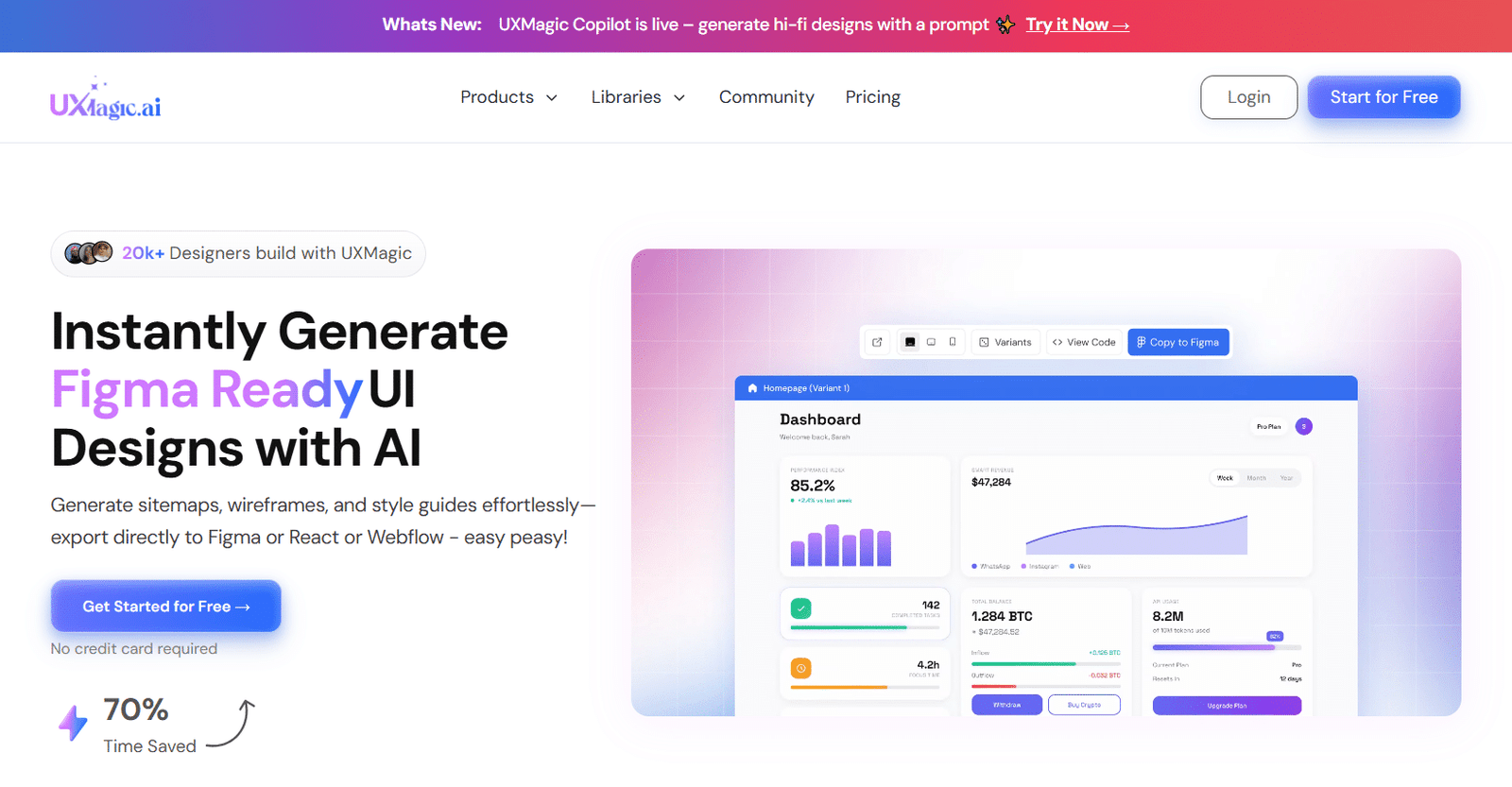
UXMagic.AI earns its second-place ranking through versatility and exceptional code export capabilities.
This tool excels at handling various input types – from text prompts to sketches and screenshots – making it incredibly adaptable to different design workflows and starting points.
4.7
OVERALL RATING
Pain Points & Solutions Offered By UXMagic.AI:
Highlight Features:
Case Study
A digital agency used UXMagic.AI to redesign an e-commerce platform for a fashion retailer. The client had provided rough sketches and screenshots of competitors they liked.
Using UXMagic’s multi-input capabilities, the agency was able to transform these references into a cohesive design system within days.
The code export feature allowed developers to implement the designs 40% faster than their typical process. The client was particularly impressed by how well the AI maintained the brand’s aesthetic while modernizing the interface.
Demo Experience
During my testing, I was particularly impressed with UXMagic’s ability to work from references. I uploaded screenshots of a competitor’s app along with a brief description of the changes I wanted.
The tool generated designs that captured the structural strengths of the reference while implementing my requested modifications.
The code export was clean and well-organized, with thoughtful component structuring that would make any developer happy.
Pros and Cons
Integrations & Support:
UXMagic integrates with popular design and development tools, including Figma, GitHub, and various code frameworks.
The support team is knowledgeable and responsive, with comprehensive documentation and tutorial videos available. The growing community provides additional resources and inspiration.
Pricing Structure:
UXMagic offers a free tier with 30 one-time credits (enough for about 5 screens). Paid plans range from $25/month for the Premium tier (480 credits) to $50/month for the Ultimate tier (1,500 credits).
Enterprise plans with custom pricing are also available. While not inexpensive, the time savings and quality justify the cost for professional teams.
Streamline your design-to-code workflow
Try UXMagic.AI’s multi-input generation and code export capabilities.
3. 21st.dev (Best For Community UI components + AI generation)
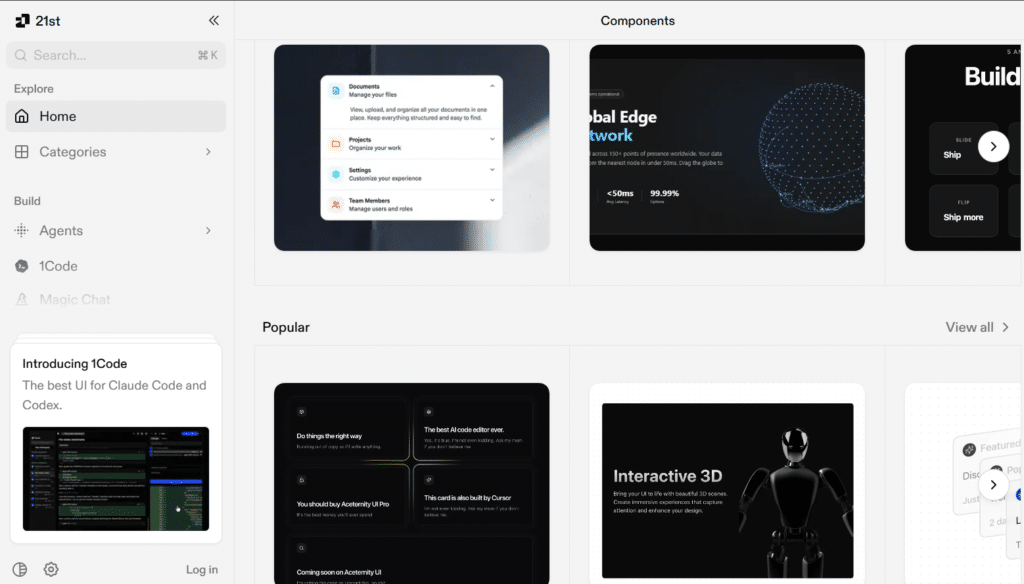
21st.dev grabs a solid spot as the go-to hub for discovering, copying, and remixing thousands of high-quality React components built by the community. It’s perfect for devs and design engineers who want ready-to-use blocks (think buttons, heroes, pricing sections, AI chat UIs, animated cards) without building from scratch every time.
With its Magic AI feature, you can even generate custom components right in your IDE like Cursor – describe what you need, get multiple variations, pick the best one. Super handy for speeding up frontend work while keeping that modern, customizable vibe.
4.6
OVERALL RATING
Pain Points & Solutions Offered By 21st.dev:
Highlight Features:
Case Study
“This definitely simplifies the workflow for frontend developers. Having a centralized space for high-quality UI components saves a lot of time compared to searching for scattered solutions. Curious to see how the platform evolves with more community input.”
— Stepan Solodnev, ProductHunt, 21st.Dev User
Demo Experience
I used 21st.dev components along with Lovable.dev to vibe code a interactive landing page. I jumped in and searched for “AI chat component” – boom, dozens of options from simple text bubbles to voice-input ones with shimmers.
Pasted one into a test project; it dropped in clean with Tailwind classes. Then tried Magic by typing “/ui animated testimonial carousel” – got 4 different styles in seconds.
Super intuitive, and the code felt production-ready right away.
Pros and Cons
Integrations & Support
21st.dev has acts seamless with React, Tailwind, shadcn/ui, and AI IDEs via MCP. The Discord community and documentation are active and helpful; support responds quickly for a tool of this type.
Pricing Structure:
Accelerate your frontend with community components and AI
Head over to 21st.dev – it’s one of the smartest ways to build modern UIs faster in the automation landscape.
4. Banani (Best For Fast interactive prototypes)

Banani takes the bronze medal with its focus on simplicity, speed, and interactive prototyping. This tool excels at quickly turning text descriptions into clickable prototypes, making it ideal for early-stage ideation and validation.
Its smart layout logic creates interfaces that not only look good but also make functional sense.
4.6
OVERALL RATING
Pain Points & Solutions Offered By Banani:
Highlight Features:
Case Study
A product manager at a SaaS company used Banani to quickly prototype a new feature for their analytics dashboard.
Starting with just a text description of the feature’s requirements, they generated an interactive prototype in under 30 minutes. This prototype was shared with stakeholders and potential users for early feedback, resulting in several critical insights that shaped the final design.
The team estimated that using Banani saved them at least a week of back-and-forth between product and design teams.
Demo Experience
When testing Banani, I was impressed by how quickly I could go from idea to interactive prototype. I entered a description for a meal planning app, and within seconds had a clean, logical interface.
The interactive elements were particularly useful – clicking on a meal card automatically generated a detailed view screen. The editing tools were intuitive, allowing me to refine the design without starting over.
Exporting to Figma preserved all the structure and components, making further refinement seamless.
Pros and Cons
Integrations & Support
Banani integrates well with Figma and provides HTML/CSS export options. The support team is responsive, though the documentation isn’t as comprehensive as some competitors.
The tool’s simplicity means fewer support issues arise, and most questions are answered in their straightforward guides.
Pricing Structure:
Banani offers a freemium model, though specific pricing tiers aren’t clearly listed on their website. The free version provides enough functionality to evaluate the tool, with paid tier starting at ($20/mo) offering more generations and advanced features.
Based on industry standards, expect subscription pricing comparable to other mid-tier design tools.
Turn ideas into interactive prototypes instantly
Experience Banani’s rapid prototype generation capabilities.
5. Emergent (Best For Vibe-matched redesigns)

Emergent stands out for its exceptional layout intelligence and style-matching capabilities.
This tool excels at generating UIs through prompting that seamlessly match your existing application’s look and feel, making it perfect for extending or redesigning established products while maintaining visual consistency.
4.6
OVERALL RATING
Pain Points & Solutions Offered By Emergent:
Highlight Features:
Case Study
A large enterprise was expanding their HR management system with new modules. Using Emergent, the design team was able to generate new interfaces that perfectly matched their existing application’s look and feel.
What impressed stakeholders most was how the new screens felt like a natural extension of the product, with consistent interaction patterns and visual language. The design team estimated that Emergent reduced their design time by 60% while improving consistency across the expanded product.
Demo Experience
During my testing, I uploaded screenshots from a mobile app and asked Emergent to create new screens that matched the style.
The results were impressive – the generated screens adopted the same color scheme, typography, component styles, and even subtle details like shadow treatments and corner radii. The layout intelligence was evident in how elements were arranged in a logical, user-friendly manner.
The collaborative features made it easy to share and iterate on designs with team members.
Pros and Cons
Integrations & Support
Emergent offers integrations with major design and development tools. The support team is knowledgeable and responsive, with enterprise customers receiving dedicated support channels. Documentation is comprehensive, with detailed tutorials for common use cases.
Pricing Structure
Emergent.sh pricing starts with Free ($0/month) for 10 credits and core features. Standard ($20/month) adds private hosting and GitHub integration. Pro ($200/month) offers 750 credits, custom AI agents, and priority support.
Team ($300/month) provides 1,250 shared credits and collaboration tools. Enterprise has custom pricing and advanced features.
Create perfectly matched designs for your existing products
Experience Emergent’s powerful style-matching and layout intelligence.
6. Magic Patterns (Best For On-brand prototyping)

Magic Patterns excels at maintaining brand consistency while enabling rapid prototyping. This tool is particularly valuable for product teams, designers, and founders who need to quickly experiment with new features while ensuring they align perfectly with established design systems and brand guidelines.
4.4
OVERALL RATING
Pain Points & Solutions Offered By MagicPatterns:
Highlight Features:
Case Study
A product team at a mid-sized SaaS company used Magic Patterns to prototype new features for their customer dashboard. The team had a well-established design system but struggled with the time it took to create prototypes that adhered to it.
Using Magic Patterns, they were able to import their design system and generate consistent prototypes in hours instead of days. The real-time collaboration feature allowed designers, product managers, and developers to work together, significantly reducing the feedback loop and accelerating the development process.
Demo Experience
When testing Magic Patterns, I was impressed by how well it handled design system integration. After uploading a simple style guide, the tool consistently applied the correct colors, typography, and component styles to all generated designs.
The collaborative features were smooth and intuitive, making it easy to work with others in real-time. The contextual suggestions were particularly helpful, offering relevant design options based on what I was currently working on.
Pros and Cons
Integrations & Support
Magic Patterns integrates with popular design tools and version control systems. The support team is responsive and knowledgeable, with comprehensive documentation available. Enterprise customers receive dedicated support channels and implementation assistance.
Pricing
MagicPatterns offers flexible pricing for individuals and teams. The Hobby plan ($19/seat/month, billed annually) suits light use with private generations and 100 credits. Pro ($75/seat/month) adds shared design systems and team collaboration. Enterprise provides custom pricing with SSO, priority support, training, and advanced admin controls.
Keep your prototypes perfectly on-brand
Experience Magic Patterns’ design system matching and collaborative prototyping.
7. Lovable.dev (Best For Full-stack UI frameworks)

Lovable.dev takes a developer-centric approach to AI UX and UI design, focusing on generating entire component libraries and frameworks from descriptions.
This tool feels like having a “superhuman” builder at your disposal, making it ideal for developers and product creators who need to quickly build scalable UI frameworks or complete applications.
4.4
OVERALL RATING
Pain Points & Solutions Offered By Lovable.dev:
Highlight Features:
Case Study
A startup building a new analytics platform needed to create a comprehensive component library that would scale with their product.
Using Lovable.dev, their small development team generated a complete UI framework in days instead of weeks. The AI bug-fixing feature caught several accessibility and responsive design issues that might have been overlooked.
The one-click deployment allowed them to quickly share working prototypes with investors, helping secure additional funding. The team estimated that Lovable.dev saved them at least 200 hours of development time.
Demo Experience
When testing Lovable.dev, I was impressed by how quickly it generated a complete component library from a simple description. The live rendering made it easy to see changes in real-time, and the select-and-edit feature allowed for precise modifications.
The AI bug-fixing caught several issues I hadn’t noticed, including some accessibility concerns. The GitHub integration was seamless, making it easy to maintain version control and collaborate with team members.
Pros and Cons
Integrations & Support
Lovable.dev integrates well with developer tools like GitHub, popular hosting platforms, and code editors. The support team is technically knowledgeable, with comprehensive documentation geared toward developers. Community forums provide additional resources and code examples.
Pricing
Lovable.dev offers flexible pricing for teams of all sizes. The Free plan includes daily credits and public projects. Pro ($25/month) adds custom domains, rollovers, and AI usage at scale. Business ($50/month) introduces SSO and advanced controls, while Enterprise delivers custom pricing, governance, and dedicated support.
Build complete UI frameworks in minutes
Experience Lovable.dev’s developer-focused AI design capabilities.
8. Untitled UI (Massive component library)

Untitled UI takes a different approach to AI UX and UI design. Rather than being an AI-driven design generator, it’s a massive, meticulously crafted component library that’s AI-ready and designed to accelerate your workflow.
With over 10,000 components and perfect sync between design and code, it’s a powerful foundation for both designers and developers.
4.3
OVERALL RATING
Pain Points & Solutions Offered By Untitled UI:
Highlight Features:
Case Study
A startup building a new fintech platform needed to move quickly while maintaining a professional, consistent interface.
By adopting Untitled UI, they were able to design and implement their entire application in weeks instead of months. The perfect sync between Figma components and React code eliminated handoff issues between designers and developers.
The comprehensive nature of the library meant they rarely needed to create custom components, significantly accelerating their timeline. The startup launched two months ahead of schedule, giving them a competitive advantage in their market.
Demo Experience
When exploring Untitled UI, I was impressed by the sheer comprehensiveness of the library. The components were meticulously designed with attention to detail, consistency, and flexibility.
The design system variables made it easy to customize the look and feel to match brand guidelines. The React implementation was clean and well-documented, making it straightforward to implement in code.
The dark mode support was particularly well-executed, with thoughtful consideration of contrast and readability.
Pros and Cons
Integrations & Support
Untitled UI integrates seamlessly with Figma and provides React components that work with modern frameworks. The support team is responsive, with comprehensive documentation and examples. The growing community provides additional resources and implementation tips.
Pricing
Untitled UI follows a one-time purchase model rather than a subscription: – Figma kit: ~$129 one-time – React library: ~$349 one-time – Icons: ~$59 one-time – Free limited versions are available for evaluation
While the upfront cost is higher than a monthly subscription, the lifetime access and updates make it cost-effective in the long run.
Build with a comprehensive, professional component library
Get Untitled UI and accelerate your design and development workflow.
9. Uxcel (Best For AI and UX skill learning)

Uxcel takes a unique approach compared to other tools on this list. Rather than being a design generation tool, it’s a comprehensive learning platform focused on UX, product management, and AI design skills.
It’s the perfect companion for anyone looking to build the knowledge foundation needed to effectively leverage AI in their design workflow.
4.3
OVERALL RATING
Pain Points & Solutions Offered By Uxcel:
Highlight Features:
Case Study
A junior designer looking to transition into UX/UI design used Uxcel to build their skills. Through the structured courses and hands-on projects, they developed a strong foundation in UX principles and modern design practices.
The AI design curriculum helped them understand how to effectively leverage AI tools in their workflow. After completing several certifications, they were able to demonstrate their knowledge to potential employers, ultimately landing a UX designer role at a tech startup.
The hiring manager specifically mentioned that the Uxcel certifications helped the candidate stand out from other applicants.
Demo Experience
When exploring Uxcel, I was impressed by the quality and structure of the learning content. The bite-sized lessons made complex concepts accessible, and the interactive assessments reinforced learning effectively.
The AI design curriculum was particularly valuable, offering practical guidance on integrating AI tools into real design workflows. The mobile app made it easy to continue learning during commutes or other downtime.
The certification process was rigorous enough to feel meaningful while remaining achievable with dedicated study.
Pros and Cons
Integrations & Support
Uxcel doesn’t offer traditional software integrations but does provide team management features for organizations. The support team is responsive and helpful, with comprehensive FAQs and learning resources. The community aspects of the platform provide additional support through peer learning.
Pricing
Uxcel offers learning plans for individuals and teams. The Starter plan is free with limited access, skill assessments, and projects.
Pro ($19/month, billed annually) unlocks 45+ courses, certifications, and career paths. Teams ($25/seat/month) adds team management, progress tracking, and assignments.
Build the skills to master AI UX and UI design
Start learning with Uxcel’s comprehensive UX and AI design curriculum.
Key Features to Look For in AI UX and UI Design Tools

- Time-consuming manual design work → Hours saved with automation → Prompt-to-UI Generation: Look for tools that can generate complete designs from text descriptions, allowing you to explore multiple directions quickly.
- Difficulty maintaining brand consistency → Cohesive brand experience → Design System Integration: Ensure the tool can import and apply your brand guidelines and design system to all generated designs.
- Design-to-development handoff friction → Seamless implementation → Code Generation: Choose tools that produce clean, usable code alongside visual designs to accelerate development.
- Limited design exploration → More creative possibilities → Variation Generation: Prioritize tools that can create multiple design variations from a single prompt to expand your creative options.
- Inefficient collaboration → Streamlined teamwork → Real-time Collaboration: Look for tools with multiplayer editing and feedback features to improve team efficiency.
- Starting from different reference points → Flexible workflow → Multi-input Support: Choose tools that accept various inputs (text, images, sketches) to accommodate different starting points.
- Adapting to different devices → Consistent user experience → Responsive Design Generation: Ensure the tool can create designs that work across different screen sizes and devices.
- Difficulty iterating quickly → Rapid refinement → Conversational Editing: Look for tools that allow you to refine designs through natural language instructions.
Best Practices for Using AI UX and UI Design Tools
I recently worked on a complex dashboard redesign and found that combining tools yielded the best results.
I used UX Pilot to generate the initial layout concepts, refined them with UXMagic’s editing capabilities, and then implemented them using Untitled UI’s component library. This hybrid approach leveraged the strengths of each tool while mitigating their individual limitations.
Key Takeaways
- AI is transforming UX and UI design by automating repetitive tasks, generating creative variations, and bridging the gap between design and development.
- Different tools excel in different areas – from high-fidelity UI generation to wireframing, prototyping, and learning resources.
- UX Pilot.AI leads the pack with its comprehensive feature set, high-quality outputs, and seamless Figma integration.
- The best tool depends on your specific needs – consider your workflow, team structure, and project requirements when making your choice.
- AI tools enhance rather than replace human designers – they’re most effective when combined with human creativity and judgment.
- The field is evolving rapidly – stay updated on new tools and features to maintain your competitive edge.
Conclusion
After thoroughly testing these nine AI UX and UI design tools, UX Pilot.AI emerges as the clear winner for most users. Its combination of high-quality outputs, comprehensive feature set, and intuitive interface makes it the most versatile and powerful option for accelerating your design workflow.
That said, each tool on this list has its strengths and ideal use cases. UXMagic.AI excels at design-to-code handoff, Banani shines for quick interactive prototyping, and Uxcel is perfect for building your AI design knowledge foundation.
The AI UX and UI design landscape is evolving rapidly, with new capabilities emerging regularly. The question isn’t whether to adopt these tools, but which ones will best complement your specific workflow and help you stay competitive in an increasingly AI-enhanced design world.
Ready to transform your design workflow?
Start with UX Pilot.AI’s free trial and experience the future of AI-powered design today.