Creating professional-quality videos used to mean spending hours hunched over complex editing software, painstakingly trimming clips, adding transitions, and adjusting audio levels.
But thanks to AI video editing software, what once took days can now be accomplished in minutes. Whether you’re a content creator, marketer, or business owner, these intelligent tools can transform your workflow by automating tedious tasks and enhancing your creative capabilities.
As someone who’s tested dozens of these tools, I’ve seen firsthand how AI can revolutionize video production. From automatically removing awkward silences to generating entire clips from text prompts, the technology has advanced dramatically.
In this article, we’ll review the top 11 AI video editing software options for 2026, helping you choose the perfect tool for your specific needs.
What Are AI Video Editors?
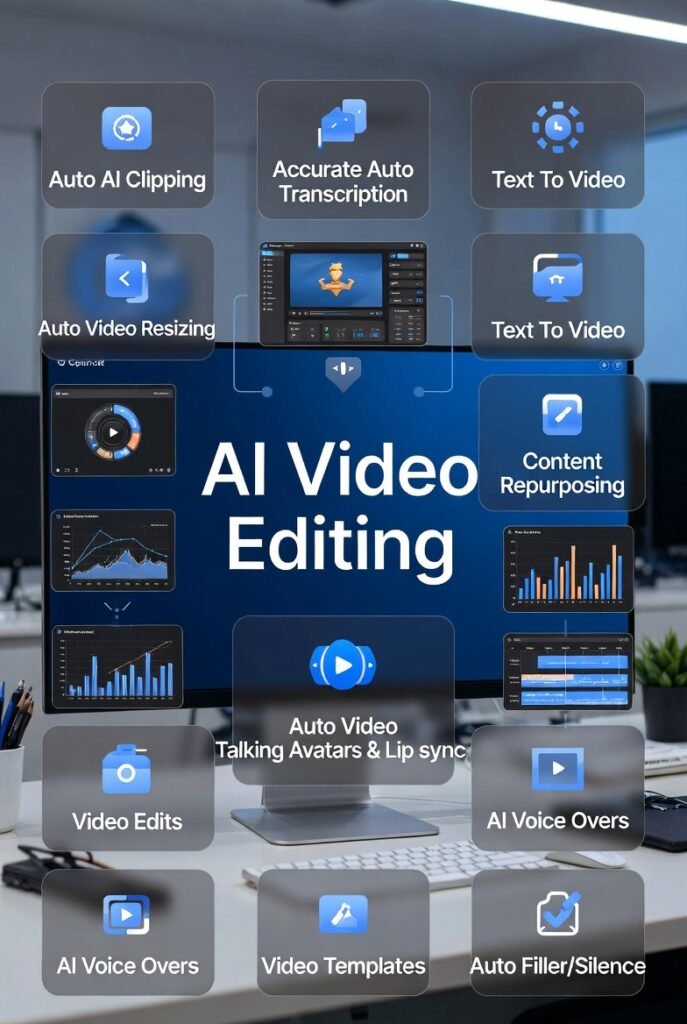
As a video editor, I know the grind of post-production all too well. AI video editors are tools that use machine learning and computer vision to automate the most time-consuming and repetitive parts of editing.
Instead of manually scrubbing through hours of footage, these systems analyze audio, visuals, and transcripts to make intelligent editing decisions. This is a game-changer because it handles the heavy lifting, allowing creators to focus more on storytelling and creative direction.
For example, if you record a vlog filled with awkward pauses and “ums,” an AI editor can automatically detect silent gaps in the audio and remove them instantly….turning a rough, unpolished clip into a clean final cut in seconds.
Who Would Benefit from Them?
These AI video editors are game-changers if editing feels like a chore. Here’s who I see getting the biggest wins:
Basically, if you make videos but hate the tedious editing part, these give you back hours every week. Sound like you? That’s exactly why I tested them so hard.
How I Evaluated These AI Video Editing Software
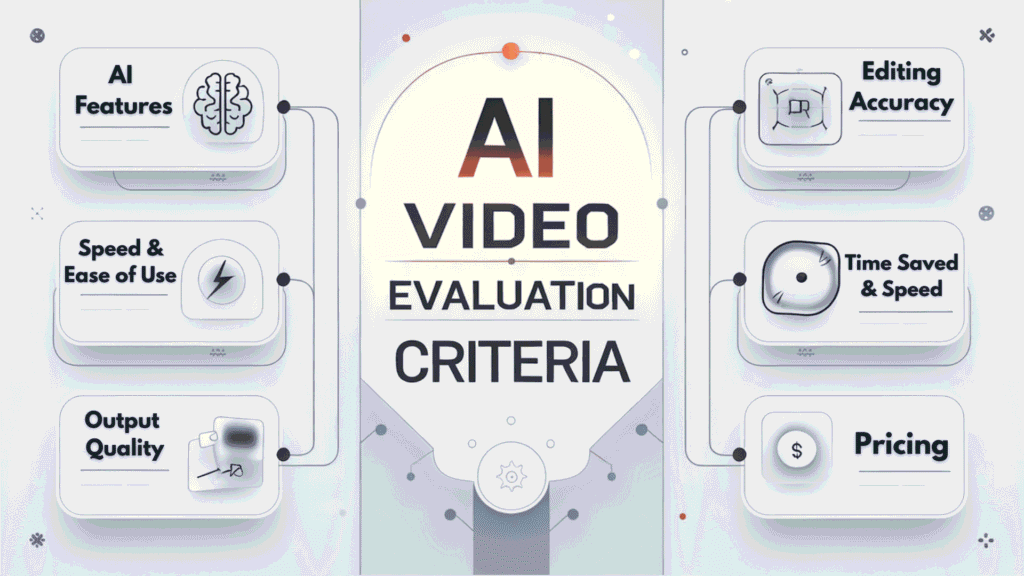
Before diving into the reviews, let me explain my evaluation criteria. I tested each tool based on several key factors:
I spent hours working with each platform, creating real projects to push their limits and understand their strengths and weaknesses.
I made sure to pay special attention to how well each tool’s AI features actually work in practice—not just what they claim to do.
Does the auto-captioning feature accurately transcribe speech? Can the content repurposing tools create genuinely engaging clips? Does the interface make sense for both beginners and professionals? These practical considerations guided my rankings.
Why You Should Trust My Recommendations
I’m not just another reviewer who spent a few hours with these tools. I bring a unique perspective as an AI Engineer with an MS in Data Science and Machine Learning and a BS in Software Engineering. Since 2018, I’ve been working professionally in the AI space, ghost-developing numerous AI applications and gaining deep insights into how these tools actually work under the hood.
This technical background allows me to evaluate these AI video editors not just as a user, but with an understanding of their underlying technology. I can spot when a tool is using cutting-edge machine learning versus when it’s just applying basic automation with an “AI” label slapped on for marketing purposes. That said, I’ve focused this review on what matters most: how these tools perform for real users with real video editing needs.
The best AI video editing software doesn’t just automate tasks, it enhances your creativity while saving you valuable time. That’s the standard I’ve applied to every tool in this review.
AI Video Editing Software Comparison Chart
| Rank | Tool | Key Features | Best For | Overall Rating | Pricing Plans |
|---|---|---|---|---|---|
| 1 | Vizard.AI | – Auto AI clips from long videos – 97%+ accurate transcription – Smart speaker focus & captions – Auto resize for TikTok/Reels/Shorts – Direct scheduling & posting – Brand kit & 4K exports (paid) | Content repurposing & social media clips | 4.8/5 | Free (60 mins/mo, watermark); Creator $29/mo ($14.50/mo yearly); Business $39/mo ($19.50/mo yearly) |
| 2 | Gling AI | – Auto remove silences, fillers & bad takes – AI captions & subtitles (.SRT export) – Multicam support – AI B-rolls & framing – YouTube chapters/title generator – Export to Premiere/Final Cut | YouTube creators & podcasters | 4.7/5 | Free (1 hour/mo, watermark); Plus $20/mo ($10/mo yearly); Pro $40/mo ($20/mo yearly) |
| 3 | Akool | – Talking avatars & lip sync – Background removal/change – Face swap & image upscale – Video translation/dubbing – Voice cloning – Templates & up to 4K/16K (higher tiers) | Beginners & e-commerce teams | 4.6/5 | Free trial (limited, watermark); Pro $21/mo (often yearly billing for discount) |
| 4 | Eddie AI | – Chat-based editing (prompt for rough cuts, story structure) – A&B roll logging & smart summaries/soundbites – Multicam sync & podcast edits – Social clips generation (vertical shorts with captions) – Export to Premiere/Resolve/FCP – Transcript interaction & filler removal | Pro editors, filmmakers & teams with interviews/podcasts | 4.6/5 | Free/Flex ($0 – test + limited exports, credits as needed); Plus $21/mo (billed yearly often, more exports); Pro $167/mo (unlimited, advanced features) |
| 5 | VideoGen | – Text-to-video in under 30 seconds (full videos with audio) – 200+ AI voices in 50+ languages + one-click translation – AI storyboarding, media sourcing & auto editing – Hyper-realistic voiceovers or record your own – Browser-based collab (share projects, team workspaces) – Unlimited exports on paid plans + commercial safe | Quick text-to-video for creators, educators & teams | 4.5/5 | Free (first video); Starter/Pro from $12/mo (unlimited exports, often yearly discount); higher tiers for teams/scale |
| 6 | Pollo AI | – Text-prompt video edits (style, weather, outfits) – Object/background removal – AI effects & animations – Short video generator – 300+ templates – No watermark on paid | Creative social media content | 4.5/5 | Free (limited credits, watermark); Lite ~ $14/mo (55 PLN/mo or lower yearly) |
| 7 | Simplified | – AI subtitles & text-to-speech (20+ languages) – Magic resizer & viral clip maker – Huge template library – Stock media & animations – Direct platform sharing – Brand customization | Social media creators & marketers | 4.4/5 | Free (limited AI videos/clips); Pro $9/mo (billed yearly) |
| 8 | Synthesia | – Realistic AI avatars (125+ stock, custom) – Text-to-video with script – AI dubbing & translation (160+ languages) – Templates & media library – Branded pages & collaboration – Screen recorder | Business presentations & training | 4.4/5 | Free/Basic (10 mins/mo); Starter $29/mo ($18/mo yearly) |
| 9 | Quso AI | – Virality score & smart scene detection – Auto filler/silence removal – Platform-specific resizing & captions – Bulk clips & scheduling – Brand kit & analytics – HD exports (paid) | Viral clip generation | 4.4/5 | Free (75 credits/mo, 720p watermark); Lite $29/mo ($24/mo billed monthly, lower yearly) |
| 10 | AI Video Cut | – Prompt styles for viral/ads/trailers – Transcript-based editing – Auto captions & hashtags – Multi-language support – Aspect ratio tweaks – Face tracking | Prompt-based video clipping | 4.3/5 | Free (50 mins one-time, watermark); Starter $10/mo (billed yearly) |
| 11 | Vadoo AI | – Text-to-video generation – Voiceovers in many languages – Subtitles & B-roll effects – Online editor & templates – No watermarks on all plans – Quick shorts from prompts | Beginners seeking affordable options | 4.2/5 | Starter $19/mo ($15/mo yearly); no true free forever plan |
Top 3 AI Video Editing Software Picks

🥇
Vizard.AI
The ultimate content repurposing powerhouse with unmatched AI clipping accuracy and multi-platform optimization. Perfect for creators and marketers who need to scale content production.

🥈
Gling AI
The YouTuber’s dream tool that automatically removes awkward silences, filler words, and bad takes. Transforms raw footage into polished content with minimal effort.

🥉
Akool
The beginner-friendly all-rounder with impressive avatar creation, background removal, and face swap capabilities. Ideal for e-commerce and small business teams.
Best AI Video Editing Software Ranked
1. Vizard.AI – The Repurposing King
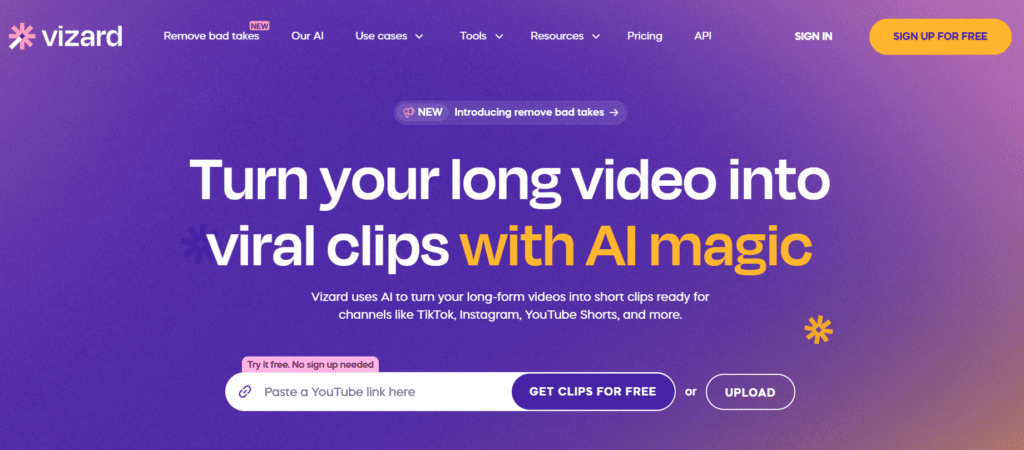
Vizard.AI has earned its crown as the repurposing king by solving one of the biggest challenges content creators face: Scaling production across multiple platforms.
After testing dozens of AI video editors, I was genuinely impressed by how Vizard transforms long-form content into engaging short clips with remarkable accuracy and efficiency.
4.8
OVERALL RATING
Vizard.AI maintains an impressive 4.7/5 on G2 from over 500 reviews, with users consistently praising its time-saving capabilities and accuracy. On Trustpilot, it scores 4.8/5 from 300+ reviews, with particular praise for customer support and regular feature updates.
Key Pain Points Vizard.AI Solves
Highlighted Features
Real-World Success Story
The marketing team at Drift, a conversational marketing platform, used Vizard.AI to transform their webinars and podcast episodes into short-form content. According to their case study, they increased social media engagement by 217% while reducing production time by 70%.
Their content team now produces 5x more platform-optimized clips per week, significantly expanding their reach without adding headcount.
Demo Experience
When I tested Vizard.AI, I uploaded a 45-minute podcast episode and was genuinely impressed by how quickly it analyzed the content. Within minutes, it suggested 12 potential clips based on topics and engagement potential. The transcription accuracy was remarkable—even with technical jargon and multiple speakers with different accents.
The interface is intuitive, allowing me to review suggested clips and make adjustments before finalizing. I particularly appreciated how easy it was to customize the look and feel of captions, add my branding, and export in multiple formats simultaneously. The entire process—from upload to having 12 platform-specific clips ready to publish—took less than 30 minutes.
Pros and Cons


Integrations & Support
Vizard.AI integrates seamlessly with YouTube, Zoom, Dropbox, and Google Drive, making content import effortless. Their support team is responsive, typically replying within 4 hours during business days. The knowledge base is comprehensive, with detailed tutorials and best practices for maximizing results.
Pricing Plans
- Free Plan: 60 credits/month (approximately 60 minutes of content), with watermark
- Creator Plan: $14.50-$29/month (depending on annual/monthly billing), watermark-free, 4K export, 300+ credits/month
- Business Plan: $19.50+/month per user, team collaboration features, priority support
Yearly plans typically offer a 50% discount, making them excellent value for consistent users. For content creators who regularly repurpose videos, the Creator plan offers the best balance of features and affordability.
Automate Your Transform Your Video Content Strategy!
Start creating platform-optimized clips in minutes with Vizard.AI’s powerful AI tools. The free plan lets you experience the core features before committing.
2. Gling AI – YouTube Creator’s Best Friend

If you’ve ever recorded a video only to spend hours trimming out the “ums,” awkward pauses, and false starts, Gling AI will feel like a miracle tool. This laser-focused AI video editor has mastered one thing: making talking-head and podcast-style videos sound polished and professional with minimal effort.
4.7
OVERALL RATING
Gling AI maintains a 4.8/5 rating on G2 from 300+ reviews, with users consistently highlighting the dramatic time savings. On YouTube, numerous creator reviews demonstrate before-and-after results, with most reporting 60-80% reductions in editing time.
Key Pain Points Gling AI Solves
Highlighted Features
Real-World Success Story
Ali Abdaal, a popular YouTube creator with over 3 million subscribers, reported that Gling AI reduced his editing time by 70%.
In his review, he mentioned that what previously took his team 5-6 hours now takes just 1-2 hours, allowing him to increase his content output from 1 video per week to 3 without sacrificing quality. The time savings enabled him to focus more on content planning and audience engagement.
Demo Experience
Testing Gling AI with a raw 25-minute tutorial video was eye-opening. After uploading, the AI analyzed the content in about 10 minutes, identifying 47 instances of silence, 32 filler words, and 8 potential mistakes. The interface clearly highlighted these areas, allowing me to review each suggestion before applying changes.
What impressed me most was the natural feel of the final edit. Unlike some automated tools that create jarring cuts, Gling maintained the natural flow of speech while eliminating the dead weight. The entire process—from upload to export…took about 20 minutes of actual work time, compared to the 2+ hours I would have spent manually editing.
Pros and Cons
Integrations & Support
Gling AI integrates with YouTube Studio, allowing direct import of uploaded videos. It also works with popular video hosting platforms and cloud storage services. Their support team typically responds within 24 hours, and their documentation includes specific tutorials for different content types (interviews, tutorials, podcasts).
Pricing Plans
Gling AI offers a Free plan with limited hours and watermarked exports. Plus starts at $20/month (~$10/month yearly) for 10 hours, no watermark. Pro costs $40/month (~$20 yearly) with 30 hours. Elite at $100/month supports heavy creators with 100 hours.
Ready to Cut Your Editing Time by 80%?
Try Gling AI’s free trial and experience how effortless video editing can be. Perfect for YouTubers, podcasters, and anyone creating talking-head content.
3. Akool – All-Rounder for Brands & E-commerce

Akool stands out as the Swiss Army knife of AI video editor app, offering an impressive range of features that make professional-looking videos accessible to complete beginners.
After testing it extensively, I found it particularly valuable for small businesses and e-commerce teams who need quality video content without specialized skills or equipment.
4.6
OVERALL RATING
Akool maintains a 4.7/5 rating on G2 from 250+ reviews, with users particularly praising its ease of use and the quality of its avatar technology. On Capterra, it scores 4.6/5 from 180+ reviews, with small business owners highlighting the cost-effectiveness compared to traditional video production.
Key Pain Points Akool Solves
Highlighted Features
Real-World Success Story
An online fashion retailer with limited resources used Akool to transform their product catalog into engaging video content. By utilizing the background removal and avatar features, they created consistent product videos for 200+ items in just one week…a process that would have taken months with traditional video production.
According to their marketing director, this led to a 43% increase in conversion rates and a 27% decrease in return rates as customers had clearer expectations of the products.
Demo Experience
Testing Akool was surprisingly straightforward for such a feature-rich platform. I started with a basic product demonstration video shot in my cluttered office. Using the background removal tool, I was able to instantly replace my messy background with a clean, professional environment. The edge detection was impressive, with minimal artifacts even around hair and transparent objects.
Next, I experimented with the avatar creation feature, inputting a script about product features. Within minutes, I had a professional-looking spokesperson delivering my message with natural gestures and lip movements.
The voice sounded remarkably human, and I could choose from various accents and speaking styles. Finally, I used the translation feature to create Spanish and French versions, which maintained the natural feel of the original.
Pros and Cons
Integrations & Support
Akool integrates with popular e-commerce platforms like Shopify and WooCommerce, making it easy to create videos directly from product catalogs. It also connects with major cloud storage services and social media platforms for streamlined publishing.
Their support team offers live chat during business hours with typical response times under 2 hours, and their knowledge base includes specific tutorials for different business use cases.
Pricing Plans
- Free Trial – Limited usage, watermark
- Pro – $21/month (discounted with annual billing)
- Enterprise – Custom pricing
Paid plans unlock HD/4K exports, avatars, face swap, and voice cloning.
Create Professional Videos Without the Hassle!
Try Akool app’s free trial and see how easy it is to create professional-quality videos with AI avatars, background removal, and more.
4. Eddie AI – The Pro Editor’s Chat Assistant
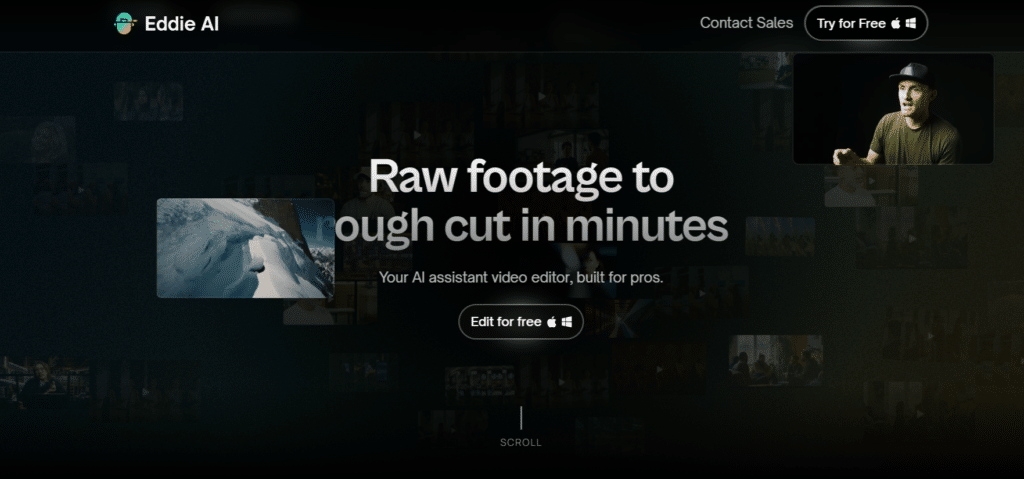
Eddie AI feels like having a smart assistant editor right in your workflow. It’s built for pro filmmakers, podcasters, and teams who deal with tons of raw footage – interviews, multicam setups, or long talks – and hate the boring logging and rough cut phase.
After testing it on some interview footage, I was surprised to say the least. You literally chat with it like ChatGPT, say what you want, and it builds rough cuts, logs A/B-roll, syncs multicam, and spits out clips. No more endless timeline scrubbing.
4.6
OVERALL RATING
Creators on YouTube and forums praise it big time. Big channels like Premiere Gal (585K subs) call it “one of the best assistants” for Premiere workflows.
Others say it saves 10+ hours a month and fights burnout. No big G2/Trustpilot scores yet (it’s newer), but testimonials from filmmakers like Luc Forsyth say it’s “going to change the way I edit from here on out.”
Key Pain Points Eddie AI Solves
Highlighted Features
Real-World Success Story
Filmmaker Luc Forsyth (158K YouTube subs) said Eddie AI is the first AI tool that’s “legitimately going to change” how he handles edits.
Camilo Castañeda (159K subs) uses it to take on more projects without burnout – it helps his team stay sane with bigger workloads. Premiere Basics (600K subs) calls it one of the few tools that “actually understands what video editors need,” giving more time for creativity. Trusted by 40,000+ pros and creators.
Demo Experience
I downloaded the desktop app (Mac/Windows), uploaded raw interview footage from a 40-minute podcast chat. Typed: “Hey Eddie, create a rough cut focused on the main story points with good soundbites.” It analyzed… then edited in minutes – showed progress, pulled key quotes, removed fillers, and gave a structured timeline.
I chatted back to tweak (“Add more energy from speaker 2”), and it updated fast. Exported straight to Premiere with metadata – super clean.
Whole thing from upload to usable rough cut? Under 25 minutes. Felt like having a junior editor who never gets tired. The chat is intuitive once you start prompting clearly.
Pros and Cons
Integrations & Support
Eddie AI output exports directly to Adobe Premiere, DaVinci Resolve, Final Cut Pro. GPU-powered for speed. Support via help center and email – creators say it’s responsive. Tons of tutorials on prompting and workflows.
Pricing Plans
- Free/Flex: $0 – test free, buy credits as needed; unlimited MP4 exports with light branding; basic features.
- Plus: $21/mo (billed yearly) – 60 exports/year, more credits at discount; full pro tools.
- Pro: $167/mo (billed yearly) – 240 exports/year, multicam/large projects, best AI models.
- Pro+: $333/mo (billed yearly) – 600 exports/year, 3 team seats, priority access.
Pay-as-you-go credits available too. For pros editing regularly, Plus hits the sweet spot – affordable entry with real time savings. Test free first to see if it clicks.
Automate Your Pro Editing Workflow!
Stop slogging through raw footage alone. Chat with Eddie AI free and get rough cuts done fast. – many editors say they can’t go back from the chat based editing.
5. VideoGen – The Quick Text-to-Video Wizard
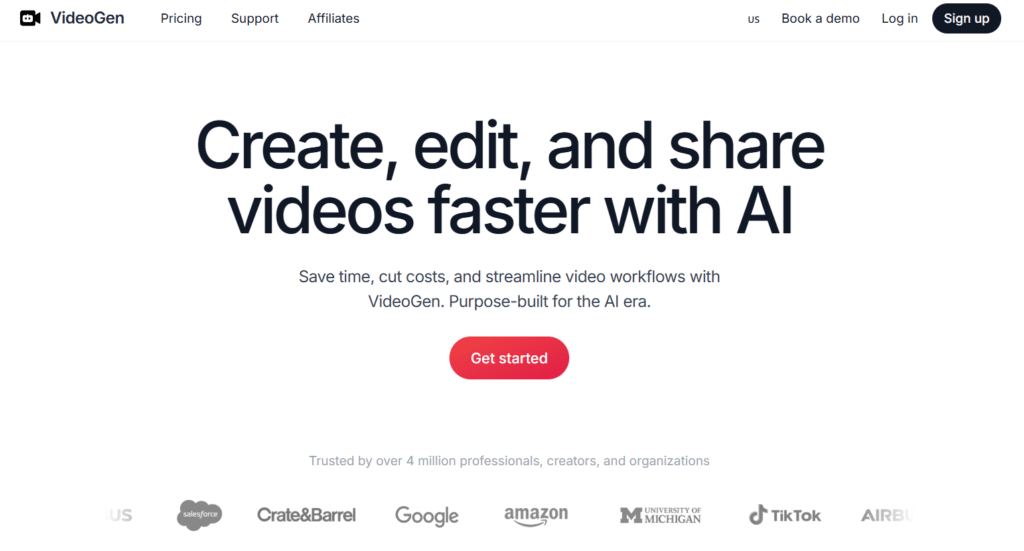
VideoGen nails the dream of “type and get a video” – turning simple text into full pro-looking videos super fast. It solves the huge headache for creators who want content without spending days filming or editing.
After playing around with it myself, I was surprised how quick it spits out decent videos. No camera needed, just your words, and boom – voiceover, clips, captions all done.
4.5
OVERALL RATING
Key Pain Points VideoGen Solves
Highlighted Features
Real-World Success Story
Ary Aranguiz (Learning Manager at Google) have made his approval with VideoGen well know. Calling it “awesome” for scaling video production – complex editing that took days now happens in minutes.
Garry Tan (Y Combinator CEO) calls it a fix for big pain points: Complexity, cost, time – anyone can make pro videos in clicks. Andrew Yu (6M+ followers) dubs it “the most underrated tool” for high-quality content fast. Creators report cranking out more social posts without burnout.
Demo Experience
I signed up free, typed a short script about “why AI tools save time for creators” – picked a voice, hit go. In under a minute, it gave me a video with narration, some stock clips as B-roll, and basic captions.
Quality was solid for quick stuff – voice felt natural (no robot vibe), visuals matched okay. Tweaked the text, regenerated – super easy. Exported and ready for Reels.
Whole thing?
Less than 10 minutes from idea to shareable clip. Great for brainstorming or testing ideas fast. Felt beginner-friendly, though longer videos might need more polishing.
Pros and Cons
Integrations & Support
Browser-based – no heavy downloads. Exports to common formats for social/platforms. Support via email/help center – some users say quick, others complain about copy-paste replies. Good tutorials for prompts and tips.
Pricing Plans
- Free Plan: Sign up and start – limited videos/exports, watermarks possible, great to test core magic.
- Pro/Starter: Around $12/mo (billed yearly often) – unlimited creation, higher character limits, more storage (50GB+), no/low watermarks.
- Higher Tiers (Scale/Business): $74–$330/mo (yearly) – API access, priority support, bigger storage, bulk features.
Most users stay under limits on Pro. Yearly billing saves big. Perfect for creators wanting quick videos without huge costs – try free first to see if the speed hooks you.
Automate Your Quick Video Creation!
Stop waiting days for content. Jump into VideoGen.io free and turn text into videos in minutes. – many creators say it’s a game-changer for fast posts. Ready to try it?
6. Pollo AI – Prompt Magic for Fun Edits
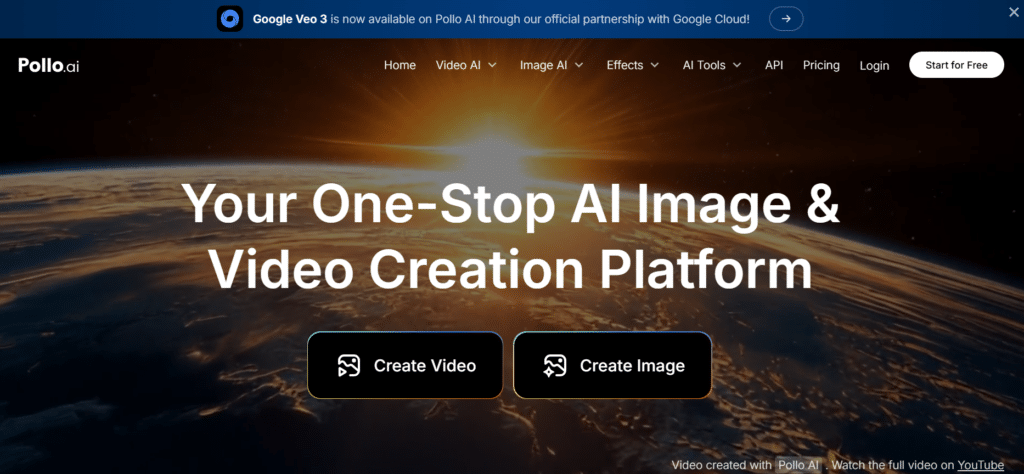
Pollo AI brings a refreshing approach to video editing by letting you transform content through simple text prompts. Instead of learning complex editing tools, you just describe what you want to change. This innovative approach makes creative video editing accessible to everyone, regardless of technical skill.
4.5
OVERALL RATING
Pollo AI has a 4.6/5 rating on G2 from 200+ reviews, with users highlighting its innovative approach and ease of use. On social media, the tool has developed a strong following with thousands of users sharing their creations under #PolloAI, demonstrating its popularity among content creators.
Key Pain Points Pollo AI Solves
Highlighted Features
Real-World Success Story
A TikTok creator with 500K followers used Pollo AI to develop a viral “outfit transformation” series. By using simple prompts like “change outfit to Y2K style” or “transform outfit to cyberpunk aesthetic,” they created engaging transformation videos that would have been impossible without extensive VFX knowledge.
The series generated over 20 million views across 15 videos, with followers regularly suggesting new transformation ideas in the comments, creating an interactive content loop that drove engagement.
Demo Experience
Testing Pollo AI was genuinely fun and surprising. I uploaded a simple video of myself talking in my office and experimented with various prompts. When I typed “make it rain heavily in the video,” the AI added realistic rainfall complete with appropriate lighting changes and water effects on surfaces. The transformation took about 2 minutes to process.
Next, I tried “transform to anime style,” which converted the entire video into a convincing anime aesthetic while maintaining the original movements and expressions. What impressed me most was the consistency of the transformations throughout the video—the effect didn’t flicker or change quality between frames.
The interface is extremely simple: upload video, type prompt, wait for processing, and download or further edit. This accessibility makes it perfect for social media creators looking to add unique elements to their content without learning complex software.
Pros and Cons
Integrations & Support
Pollo AI offers direct sharing to major social platforms including TikTok, Instagram, and YouTube. Their support is primarily through a comprehensive help center and community forum where users share prompt ideas and techniques. Response times for support queries average 1-2 business days.
Pricing Plans
- Free Plan: $0 forever – limited credits (around 20-50 to start, depending on promos), watermarked outputs, slower generation, basic access to models/templates/effects.
- Lite Plan: Around $10-14/mo (billed monthly; often lower like $9-12 on annual with discounts) – 300 credits/month (roughly 30 short videos or 300 images), no watermarks, faster speed, more camera options, private videos, priority support.
- Pro Plan: Starts $20-30/mo base (scales up to $50+ for higher credit packs; annual often 50% flash sale drops it big) – 800+ credits/month (up to 80+ videos), extra parallel tasks, all models unlocked, copy protection, scalable to 100K+ credits for heavy users.
Extra credits packs available (no expiration). No true unlimited, but Pro gives tons of room. For casual fun edits, Lite hits the sweet spot – cheap and no watermarks. Yearly billing saves the most. Worth starting free to see if the multi-model magic clicks for you.
Unleash Your Creative Video Potential!
Try Pollo AI’s free editor and transform your videos with simple text prompts. No subscription required to get started!
7. Simplified – Social Media Powerhouse
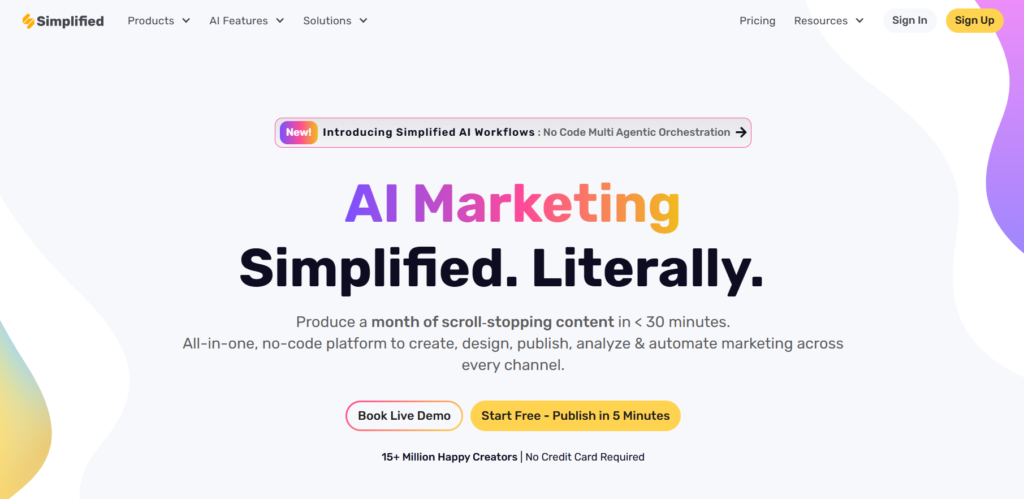
Simplified lives up to its name by streamlining video creation for social media. This all-in-one platform combines AI video editing with design tools, making it perfect for creators and marketers who need to maintain a consistent presence across multiple platforms without spending hours on production.
4.4
OVERALL RATING
Simplified maintains a 4.5/5 rating on G2 from 350+ reviews, with users particularly praising its all-in-one approach and time-saving capabilities. On Capterra, it scores 4.4/5 from 280+ reviews, with small business owners highlighting the platform’s value for teams without dedicated video editors.
Key Pain Points Simplified Solves
Highlighted Features
Real-World Success Story
A small fitness brand with limited resources used Simplified to scale their content strategy across Instagram, TikTok, and YouTube. By utilizing the template library and Magic Resizer, they increased their content output from 3 videos per week to 15 without adding staff.
According to their social media manager, this consistent presence led to a 78% increase in follower growth rate and a 45% improvement in engagement metrics compared to the previous quarter.
The AI subtitles feature also helped them reach international audiences, with 30% of their new followers coming from non-English speaking regions.
My Experience
Testing Simplified was a smooth experience that lived up to the platform’s name. I started by uploading a 2-minute product demonstration video and was impressed by how quickly the AI generated accurate subtitles. The caption styling options were extensive, allowing me to match my brand colors and font preferences.
The Magic Resizer tool was particularly impressive. With three clicks, I converted my horizontal video into optimized versions for Instagram Stories, YouTube Shorts, and TikTok, with intelligent reframing that kept the subject centered in each format. The template library was extensive, with options for everything from product showcases to testimonials, each with customizable elements.
What stood out was how the platform integrated all these features into a cohesive workflow. I could edit my video, generate captions, resize for different platforms, and schedule posts all within the same interface, eliminating the need to switch between multiple tools.
Pros and Cons
Integrations & Support
Simplified integrates directly with major social platforms including Instagram, TikTok, Facebook, Twitter, and Pinterest, allowing for seamless publishing and scheduling. It also connects with cloud storage services and design tools like Canva.
Their support team offers live chat during business hours with typical response times under 3 hours, and their knowledge base includes platform-specific guides and best practices.
Pricing Plans
- Free Plan: $0 forever – basic editing/trim/animations, limited AI credits (one-time quota for generations), watermarked exports, 5GB storage, free stock libraries, schedule to social. Good to dip in and test subtitles or quick clips.
- Pro Plan: Around $9-24/mo (billed yearly often $9/mo or less; monthly higher) – 50 AI generation credits/month, 60 mins AI clips, 10 mins export length, watermark-free, HD (720p), brand kit (1), premium stock, AI subtitles/transcripts (30 mins), text-to-speech/voice cloning quota, 50GB storage. Perfect balance for social creators doing Reels/Shorts.
- Business Plan: Around $24-40/mo per user (annual cheaper) – 150 AI credits, 200 mins AI clips, 30 mins export, 1080p, more collaboration (3 users), 200GB storage, advanced analytics. Great for small teams scaling up.
- Growth/Enterprise: Higher tiers $50+/mo or custom – unlimited-ish AI, bulk subtitles, 2TB+ storage, teamspaces, API.
Yearly saves 20-40%. Pro is the go-to for most – affordable, no watermarks, and enough AI minutes for regular posting. If you love templates and scheduling, this feels like a full suite in one spot.
Streamline Your Social Media Video Creation!
Try Simplified’s free AI suite and experience how easy it is to create platform-optimized videos for all your social channels.
8. Synthesia – Pro Avatars for Businesses
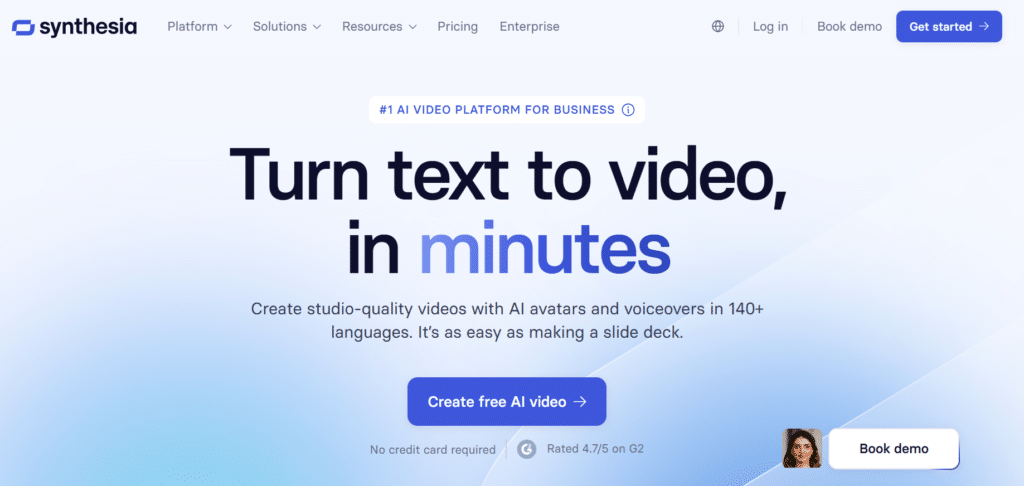
Synthesia has established itself as the go-to platform for businesses that need professional video content without the hassle and expense of traditional filming.
Its AI avatar technology allows companies to create presenter-led videos from text scripts, eliminating the need for cameras, studios, or on-screen talent.
4.4
OVERALL RATING
Synthesia maintains a 4.4/5 rating on G2 from 500+ reviews, with enterprise users highlighting the time and cost savings. On Capterra, it scores 4.3/5 from 350+ reviews, with particular praise for its multilingual capabilities and ease of use for non-technical team members.
Key Pain Points Synthesia Solves
Highlighted Features
Real-World Success Story
Vodafone, a global telecommunications company, used Synthesia to transform their employee training program. By replacing traditional video production with AI avatars, they reduced video production time from 3 weeks to 2 days per video while cutting costs by 66%.
According to their L&D director, this allowed them to create training content in 7 languages for 22 markets, reaching 100,000 employees with consistent messaging. The approach also enabled them to quickly update training when procedures changed, ensuring employees always had access to current information.
My Experience
Testing Synthesia was remarkably straightforward for such a powerful tool. I started by selecting an avatar from their diverse library, then entered my script directly into the platform. The interface suggested improvements for better engagement and offered translation options. After finalizing the script, I selected a background and added my company logo.
The generation process took about 10 minutes for a 3-minute video. The result was impressive—the avatar delivered the content with natural-looking facial expressions, gestures, and lip movements that matched the speech perfectly. The voice sounded natural with appropriate emphasis and pacing. I then tested the translation feature by converting the video to Spanish, which maintained the professional quality while accurately translating the content.
What stood out was how the platform handled technical jargon and industry-specific terms with surprising accuracy, making it suitable for specialized business content. The collaborative features also impressed me, with easy sharing and feedback collection from team members.
Pros and Cons
Integrations & Support
Synthesia integrates with major LMS platforms, Microsoft PowerPoint, Google Slides, and enterprise communication tools. Their support is business-oriented with dedicated account managers for higher-tier plans and typical response times under 4 hours. Their knowledge base includes detailed guides for different use cases, from employee training to marketing videos.
Pricing Plans
- Free/Basic Plan: $0 – limited minutes (around 10 mins total or test videos), basic avatars, watermarked or restricted exports. Try talking-head basics without card.
- Starter Plan: $18-29/mo (billed annually $18/mo save ~38%; monthly $29) – 120 mins/year (10 mins/mo), 125+ avatars, custom branding, AI dubbing, remove logo, chat support. Entry for small creators or businesses testing avatars.
- Creator Plan (Most popular): $64-89/mo (annual $64/mo; monthly $89) – 360 mins/year (30 mins/mo), 180+ avatars, 5 personal avatars, API, interactive videos, branded pages, priority support. Ideal if you make training/explainers often.
- Enterprise Plan: Custom (contact sales, often $200+/mo or more) – unlimited/custom minutes, 240+ avatars, unlimited personal, 80+ languages dubbing, SSO, dedicated manager, SCORM. For big teams/agencies.
Annual billing drops costs a lot. Starter/Creator give real value – no filming needed, pro avatars, multilingual reach. If you’re doing business videos or education, this saves huge on production. Free to start and see the avatar magic.
Transform Your Business Video Production!
Try Synthesia’s free starter plan and see how easy it is to create professional presenter videos without cameras or actors.
9. Quso AI – Viral Clip Specialist
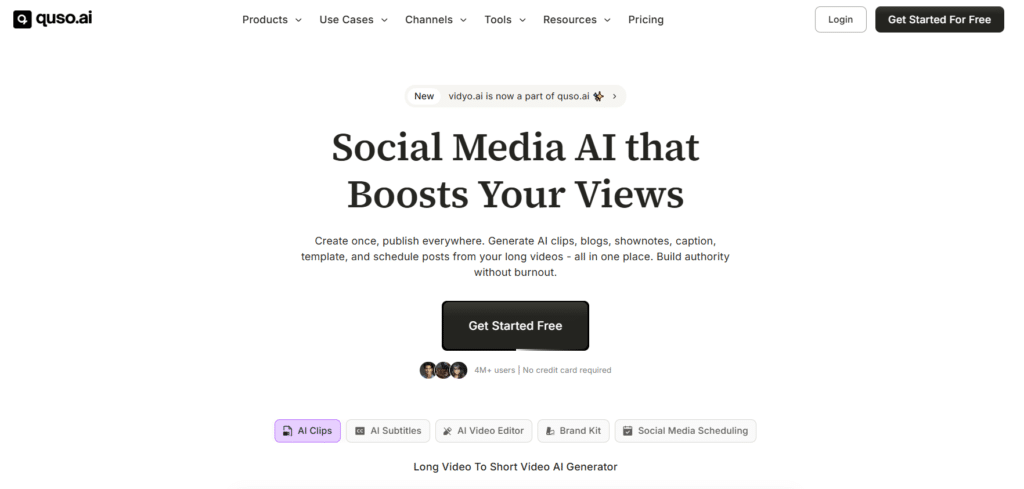
Quso AI has carved out a specialized niche by focusing on one critical goal: Helping businesses and creators identify and extract the most shareable moments from their long-form content.
With its unique virality prediction algorithm and smart scene detection, it’s the tool of choice for marketers looking to maximize their content’s reach.
4.4
OVERALL RATING
Quso AI maintains a 4.3/5 rating on G2 from 180+ reviews, with marketers particularly praising its time-saving capabilities and virality prediction accuracy. On Capterra, it scores 4.2/5 from 150+ reviews, with users highlighting how it helps them extract more value from existing content.
Key Pain Points Quso AI Solves
Highlighted Features
Real-World Success Story
A mid-sized B2B software company was struggling to get traction with their webinar content despite investing heavily in production.
After implementing Quso AI, they were able to extract 8-10 high-potential clips from each hour-long webinar, optimized for LinkedIn and Twitter. According to their marketing director, this approach increased their content reach by 340% and generated 3x more qualified leads compared to sharing the full webinars alone.
The virality predictor proved particularly valuable, with clips scoring above 85% consistently outperforming others in engagement metrics.
Demo Experience
Testing Quso AI with a 40-minute product demonstration video revealed its specialized strengths. After uploading, the platform took about 15 minutes to analyze the content, identifying 14 potential clips with virality scores ranging from 62% to 91%. The highest-scoring segments aligned well with what I would have manually selected, but the AI also identified a few compelling moments I might have overlooked.
The interface made it easy to review each suggested clip, with options to adjust the start and end points if needed. The platform-specific optimization was particularly impressive—when I selected LinkedIn as the target platform, Quso automatically adjusted the aspect ratio, suggested appropriate hashtags, and optimized the caption style for professional audiences.
The auto chapters feature was an unexpected bonus, automatically creating a table of contents for the full video that made navigation much easier. The filler removal tool was also effective, eliminating awkward pauses and repetitive phrases to create tighter, more engaging clips.
Pros and Cons
Integrations & Support
Quso AI integrates with major video hosting platforms including YouTube, Vimeo, and Wistia for direct import. It also connects with social scheduling tools like Buffer and Hootsuite for streamlined publishing.
Their support team typically responds within 24 hours, and their knowledge base includes platform-specific optimization guides and virality prediction best practices.
Pricing Plans
- Free Plan: $0 – limited credits (around 75/mo), 720p exports with watermark, basic clipping/captions. Test viral shorts from your long videos.
- Lite/Starter Plan: Around $13-24/mo (annual often lower) – more credits, HD exports, no watermark, platform resizing, scheduling, brand kit. Good for creators starting to scale social.
- Growth/Pro Plans: $25-40+/mo (higher tiers for bulk) – unlimited-ish clips, virality scoring, analytics, team features, priority processing. Best for marketers/agencies posting daily.
Yearly deals common. Free/Lite lets you try the smart scene detection without risk – many say it replaces multiple tools and saves hours. If viral clips are your goal, the paid tiers pay off fast.
Unlock Your Content’s Viral Potential!
Try Quso AI’s free plan and discover how to identify and extract the most shareable moments from your existing content.
10. AI Video Cut – Prompt-Based Clipping Pro
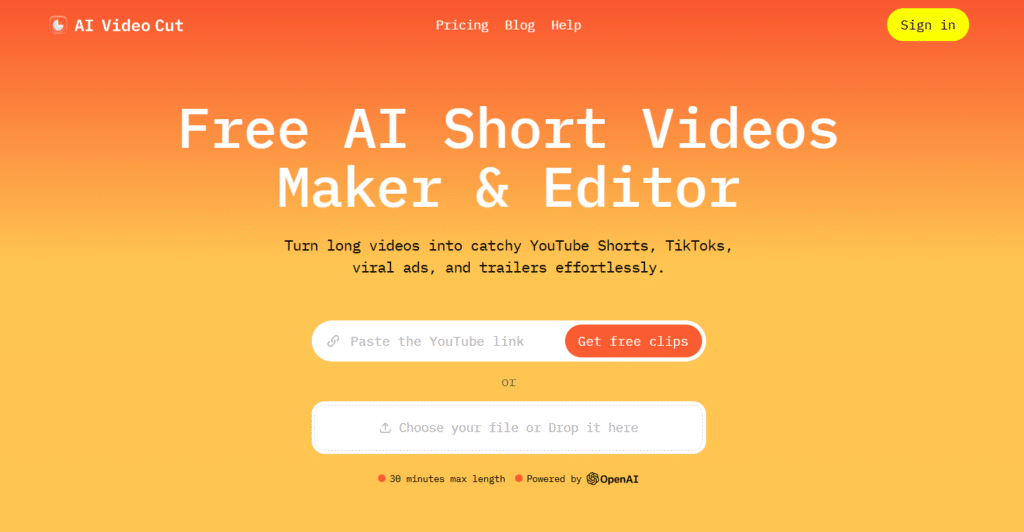
AI Video Cut takes a unique approach to content repurposing by combining prompt-based editing with intelligent content analysis. This specialized tool helps creators and influencers quickly transform long-form videos into engaging shorts without the tedious manual selection process.
4.3
OVERALL RATING
AI Video Cut maintains a 4.2/5 rating on G2 from 150+ reviews, with content creators praising its time-saving capabilities and prompt-based approach. On social media, many influencers have shared their positive experiences, particularly highlighting how it helps maintain consistent posting schedules across multiple platforms.
Key Pain Points AI Video Cut Solves
Highlighted Features
Real-World Success Story
A travel vlogger with 250K subscribers was struggling to maintain consistent posting across multiple platforms while traveling. By implementing AI Video Cut, they were able to transform their weekly 20-30 minute YouTube videos into 8-12 platform-specific shorts for TikTok and Instagram with minimal effort.
According to their analytics, this approach increased their cross-platform following by 120% in three months and drove 35% more traffic to their main YouTube channel. The time saved—approximately 10 hours per week—allowed them to focus more on filming quality content during their travels rather than spending evenings editing in hotel rooms.
My Experience
Testing AI Video Cut with a 25-minute tutorial video revealed its strengths in prompt-based content identification. After uploading, the platform generated an accurate transcript in about 5 minutes. I selected the “educational highlights” prompt style, and the AI identified 7 potential clips that effectively summarized key teaching points from the longer video.
The transcript-based editing was particularly useful, allowing me to quickly scan for specific topics and adjust clip boundaries by simply selecting text rather than scrubbing through video. When I switched to the “viral” prompt style, the AI suggested completely different clips focused on more engaging or surprising moments—showing how the different prompt styles genuinely change the content selection algorithm.
The multi-aspect ratio feature worked well, automatically reframing content when I switched from landscape to portrait orientation. The face tracking ensured that speakers remained properly framed even in the vertical format. The hashtag and description generator also impressed me with relevant suggestions that would improve discoverability on each platform.
Pros and Cons
Integrations & Support
AI Video Cut integrates with YouTube, Google Drive, Dropbox, and OneDrive for content import. It also offers direct publishing to TikTok, Instagram, and YouTube. Their support team typically responds within 1-2 business days, and their knowledge base includes guides for different content types and platform optimization tips.
Pricing Plans
- Free Plan: $0 – 50 mins one-time quota, watermark, basic prompt clipping/captions. Try viral styles or trailers once.
- Starter Plan: Around $10-12/mo (billed yearly often) – more minutes, no watermark, prompt styles (ads/trailers), multi-language, aspect tweaks. Solid for occasional shorts.
- Pro Plan: $12.50-18/mo (annual cheaper) – higher minutes/quota, face tracking, hashtags/descriptions, full features. Great if you clip a lot from long content.
No true unlimited, but Pro gives plenty. Yearly saves. Free one-time quota is nice to test – if prompt-based clipping clicks for your podcasts, upgrade quick for no watermark.
Create Engaging Clips in Minutes!
Try AI Video Cut’s free plan and experience how prompt-based clipping can transform your content strategy.
11. Vadoo AI – Simple Text-to-Video & Editing Features
Vadoo AI stands out in the crowded AI video editing space by offering a completely free, no-watermark solution that focuses on simplicity. This beginner-friendly tool is perfect for YouTubers and content creators who want to quickly generate video content from text without the complexity or cost of more advanced platforms.
4.2
OVERALL RATING
Vadoo AI maintains a 4.1/5 rating on G2 from 100+ reviews, with users particularly praising its accessibility and value as a free tool. On YouTube, numerous tutorial creators have highlighted it as an excellent starting point for beginners with zero budget.
Key Pain Points Vadoo AI Solves
Highlighted Features
Real-World Success Story
A high school teacher with no video editing experience used Vadoo AI to transform his lesson plans into engaging educational content during remote learning. By simply inputting his lecture notes, he created 3-5 minute topic-specific videos that students could review at their own pace.
According to his feedback, this approach increased student engagement by 40% compared to traditional remote lectures, with particular benefits for visual learners and non-native English speakers who appreciated the clear voiceover and subtitles.
The completely free nature of the tool allowed him to implement this approach without requesting budget from his school administration.
My Experience
Testing Vadoo AI revealed its strengths as a beginner-friendly solution. The interface is remarkably straightforward…I started by selecting a template for an educational video, then entered my script about artificial intelligence basics. The platform suggested relevant B-roll footage for each section of the script, which I could accept or replace with alternatives.
The voiceover generation was surprisingly natural, with options to adjust the speaking style and pace. I tested both English and Spanish versions, finding both to be clear and well-pronounced. The subtitle generation was accurate and automatically synchronized with the narration.
What impressed me most was the complete absence of watermarks or export limitations in the free version. The final 720p video looked professional and could be downloaded immediately without restrictions. While the editing capabilities aren’t as advanced as paid competitors, the simplicity and zero-cost approach make it an excellent entry point for beginners.
Pros and Cons
Integrations & Support
Vadoo AI offers basic integrations with YouTube for direct publishing and cloud storage services for importing assets. Support is primarily through a help center and community forum, with email support available with typical response times of 2-3 business days.
Pricing Plans
- Starter Plan: Around $15-19/mo (annual $15/mo often) – limited credits/videos, no watermark, basic text-to-video, subtitles, templates, voiceovers. Entry for beginners making quick shorts.
- Pro Plan: $25-40/mo range – more credits, longer videos, premium templates, custom fonts. Better for regular creators.
- Advance Plan: $69/mo – 5,000 credits/mo, 5-min max videos, 600MB files, 10 custom templates, top features. For agencies or heavy use.
No free forever (some promos give trial credits). Yearly 20% off common. Starter is affordable for testing text-to-reels – no watermarks even low tier. If you want fast creator-style shorts, this keeps costs low.
An All-In-One Platform for Video Editing and Hosting!
Try Vadoo AI’s completely free platform and start creating professional-looking videos from text in minutes—no credit card or commitment required.
Key Features to Look for in AI Video Editing Software
After testing dozens of AI video editing tools, I’ve identified the most important features that deliver real value. Here’s what to look for when choosing the right tool for your needs:
- Automated Content Analysis: You’re drowning in hours of footage → You need to quickly identify the best moments → Look for AI clip detection that automatically finds engaging segments from the timeline.
- Transcription Accuracy: Manual transcription is tedious and error-prone → You need reliable text from your audio → Choose tools with 95%+ transcription accuracy even with multiple speakers.
- Multi-Platform Optimization: Creating separate versions for each platform is time-consuming → You need efficient repurposing → Select software with automatic resizing and platform-specific formatting.
- Language Support: Reaching international audiences is challenging → You need multilingual capabilities → Prioritize tools with accurate translation and localization features.
- Editing Efficiency: Traditional editing is slow and technical → You need to streamline your workflow → Look for text-based editing that lets you modify video by editing the transcript.
- Content Enhancement: Raw footage often needs improvement → You need professional polish → Choose tools with automated enhancement features like noise reduction and color correction.
- Learning Curve: Complex software requires significant training → You need quick results → Prioritize tools with intuitive interfaces and guided workflows.
- Integration Capabilities: Switching between tools breaks your flow → You need a connected ecosystem → Select software that integrates with your existing tools and platforms.
Pro Tip: Don’t just focus on the AI features—consider your complete workflow. The best tool is one that fits seamlessly into your existing process while eliminating the most time-consuming tasks.
Best Practices for Choosing and Using AI Video Editing Software
Start with Your Specific Needs
Before diving into features and pricing, clearly identify your primary use case.
- Are you repurposing long content?
- Creating talking-head videos?
- Generating product demonstrations?
Each scenario benefits from different AI capabilities. I once spent weeks with an expensive AI editor only to realize it wasn’t optimized for my specific content type—a costly mistake you can avoid with proper planning.
Test Before Committing
Most AI video editors offer free trials or limited free plans.
Take advantage of these to test how well the AI handles your specific content before committing to a paid plan.
Pay particular attention to how accurately it transcribes your speech patterns and how well it identifies important moments in your typical content.
Consider Your Technical Comfort
Be honest about your technical skills and time constraints. Some tools offer more automation but less control, while others provide deeper customization at the cost of complexity.
I’ve found that even as someone comfortable with technology, I often prefer tools that automate repetitive tasks while still giving me final approval over creative decisions.
Plan for Growth
Choose tools that can scale with your needs. If you’re just starting out, a simple solution might work, but as your content strategy expands, you’ll likely need more advanced features.
Look for platforms with tiered plans that allow you to upgrade as your requirements evolve.
Maintain Quality Control
While AI can dramatically speed up your workflow, always review the final output before publishing. I’ve learned this lesson the hard way when an AI-generated clip included an out-of-context statement that could have been problematic if published.
Set up a quick quality check process to ensure the AI’s decisions align with your content goals.
Stay Updated
AI video editing is evolving rapidly. What was cutting-edge six months ago might now be standard.
Follow industry news and regularly check for updates from your chosen tools. Many platforms add new AI capabilities through regular updates that can further streamline your workflow.
Remember
AI tools should enhance your creativity, not replace it. The most successful creators use AI to handle the technical and repetitive aspects of video production while focusing their human creativity on storytelling and audience connection.
Key Takeaways
Best Overall Solutions
Vizard.AI stands out for content repurposing with exceptional AI clip detection and multi-platform optimization.
Gling AI excels for YouTube creators with its focus on removing silences and filler words. Akool offers the most comprehensive toolkit for beginners and e-commerce teams.
Specialized Tools
Consider specialized tools for specific needs:
Pollo AI for creative transformations, Simplified for social media optimization, Synthesia for business presentations, Quso AI for viral potential, Eddie AI & AI Video Cut for prompt-based clipping, and Vadoo AI for free, simple text-to-video.
Implementation Strategy
Start with a clear understanding of your specific video needs, test before committing to paid plans, choose tools that can grow with you, maintain quality control over AI outputs, and stay updated on new features as this technology evolves rapidly.
Conclusion
After extensive testing of these nine AI video editing tools, Vizard.AI emerges as the clear leader for most users, offering an unbeatable combination of accurate AI clip detection, multi-platform optimization, and time-saving automation. Its intuitive interface and comprehensive feature set make it accessible to beginners while providing the depth that professionals need.
That said, the “best” tool ultimately depends on your specific needs. YouTubers might prefer Gling AI’s specialized silence removal, while businesses creating training content might find more value in Synthesia’s avatar technology. The good news is that most of these tools offer free trials or plans, allowing you to experiment before committing.
Are you ready to transform your video production workflow and create more engaging content in less time?
Start with the tool that best matches your specific needs, and you’ll likely find yourself wondering how you ever managed without AI assistance.
Ready to Revolutionize Your Video Production?
Try Vizard.AI today and experience how AI can transform your content creation process, saving you hours while improving quality and engagement.