You spend hours trimming talking-head footage, hunting down filler words and dead air. That slow editing loop kills momentum and costs publishing time—especially when your channel needs steady output.
It’s frustrating: rewatching takes, fixing sync, and exporting captions feels like busywork. You’ve got ideas to share, but the editing drain keeps you from creating the content that grows your audience.
In this Gling.ai Review, We will be discussing an AI-driven video editor speeds that workflow. I’ll explain how the software trims bad takes, adds captions, and integrates with Final Cut, Premiere, and DaVinci Resolve—so you keep using familiar tools.
I tested it on tutorials and talking-head videos. You’ll see where the tool cuts minutes off edits, which features actually save time, and when human judgment still matters. Expect clear pricing, plan tips, and a real workflow that halved my edit time without losing quality.
Ready to decide if this is right for your channel? Let’s dive in.
Key Takeaways: Gling.Ai Review
- The review evaluates speed gains for talking-head video edits.
- Highlights include auto-trim, caption export, and NLE integrations.
- Plans range from a free hour to Pro tiers for heavier workflows.
- Best for creators who publish tutorials and talking-head videos.
- I share a tested workflow and honest limits where human edits win.
Gling.Ai Review: An Overview

Raamish’s Take
Gling stands out as an AI video editing tool tailored for Video content creators & YouTubers. It simplifies workflows by automatically removing bad takes, silences, and filler words from raw footage, helping creators save hours on editing.
Key features include AI captions for engaging text overlays, auto framing with zoom effects, and noise removal for clean audio.
It also generates YouTube titles, chapters, and video ideas to boost discoverability. The seamless integration with editors like Final Cut Pro or Adobe Premiere makes exporting smooth.
With a 3-day free trial, it’s easy to test. Gling has helped users streamline content from upload to polished export in three steps.
This tool is a reliable choice for efficient video production.
Introduction to Gling.Ai: Where It Fits in Today’s AI Video Editing Landscape
Editing long takes used to eat my afternoons; now rough cuts can appear in minutes. The modern shift from manual timeline scrubbing to assisted workflows means creators can spend less time on repetitive trims and more time on ideas.
Founders: Sefi Keller and Helen Pikovski launched their platform in early 2024 to simplify post-production. Their goal was clear—automate captions, strip background noise, and cut filler words so everyday creators can move faster.
“Automation should handle the boring parts so you can keep the creative fingerprint.”
From manual edits to smarter workflows
The AI-driven landscape has matured: what once took hours now becomes a usable rough cut in minutes. This tool leans into dialogue-focused work—silences, stumbles, and bad takes are trimmed automatically.
Who benefits and why
YouTubers, tutorial makers, and talking-head creators see the most gain because their videos depend on clear speech and tight pacing. If your process involves repetitive dialogue cleanup, this workflow helps you save time and scale output without adding hands.
- Focus: fast transcription to export-ready captions.
- Outcome: cleaner audio and quicker assembly for NLE finishing.
- Best fit: creators producing regular batches of videos who want consistent pacing.
What is Gling.ai?
The engine reads speech, flags dead air and suggests cuts so you start with a clean draft. I find that approach saves hours on long takes. The platform turns your clips into a time-aligned transcript and marks issues for quick removal.
Under the hood: text-aligned editing, transcription, and smart cut detection
How it works: The software transcribes your footage and aligns each word to the timeline. That makes text-based trimming possible—delete a sentence in the transcript and the timeline trims to match.
Smart cut detection scans for silences, filler words, and bad takes. It also offers basic cleanup for background noise so your audio reads clearer before you add music or B-roll.
Who benefits most
YouTube creators, educators, podcasters-on-camera, and solo editors get the biggest gains. If your process relies on tight pacing and clear speech, this video editing tool automates the repetitive parts and keeps output steady.
How it plugs into your stack
The workflow exports MP4, MP3, and SRT, and works with Final Cut Pro, Adobe Premiere, and DaVinci Resolve. You get a fast rough cut in the browser, then finish in the NLE you already trust.
| Feature | What it does | Benefit |
|---|---|---|
| Text-aligned transcript | Maps words to timecode | Edit by script for faster cuts |
| Smart cut detection | Finds silences & filler words | Cleaner pacing, less manual trimming |
| Export & NLE support | MP4/MP3/SRT + import workflows | Finish in Final Cut, Premiere, or Resolve |
| Audio cleanup | Background noise reduction | Clearer voice before mix |
Best Features of Gling.Ai
A suite of practical features turns raw footage into a usable draft in minutes. Below I walk through the standout tools and how each one helps you ship better video, faster.
1. Quality Content: Enhancing Video and Audio Excellence
Gling.Ai’s features elevate video quality for content creation, particularly for talking head videos.
These tools streamline video editing, ensuring professional output. Users seeking high-impact content benefit from AI-driven enhancements, saving time and boosting audience engagement on platforms like YouTube.
1.1 Auto Zooming (Auto Framing – Zoom In/Out)
Auto zooming enhances video editing by dynamically adjusting framing. AI identifies key moments in talking head videos, zooming to highlight expressions.
Users save time in the editing process, focusing on content. This feature supports languages like Spanish, ensuring global appeal. Searchers for dynamic video tools find it simplifies production, keeping viewers engaged.
The interface previews adjustments, aiding content creation. It optimizes videos for retention, ideal for YouTube success.
1.2 Noise Removal (Background Noise Removal)
Noise removal refines video audio with one-click processing. It eliminates background distractions, ensuring clarity in talking head videos.
Users benefit from studio-quality sound, enhancing content focus. Supporting multiple languages, it suits diverse videos. Searchers for audio tools value its efficiency in video editing.
The interface offers seamless integration, streamlining workflows. Editors produce polished content creation outputs, keeping audiences immersed in video narratives without manual tweaks.
1.3 AI Captions and Subtitles (Captivating Subtitles and Captions)
AI captions enhance video accessibility by generating text overlays. Available in languages like French and Russian, this feature supports global users.
It optimizes video editing for SEO, boosting discoverability. Searchers for subtitle generators appreciate its one-click precision.
The interface allows customization, aligning with brand aesthetics. Users improve retention in talking head videos, as captions clarify content. This streamlines content creation, fostering inclusivity and engagement.
1.4 Generating Short Clips
Short clip creation transforms videos into shareable assets. AI extracts highlights from talking head content, ideal for social media.
Users seeking clip generators save time in video editing, repurposing content efficiently. Supporting languages like Portuguese, it ensures versatile outputs. The interface simplifies clip previews, enhancing content creation.
This feature drives traffic to full videos, increasing visibility for editors focused on talking head videos.
2. Maximize Success: Optimizing for YouTube Growth and Engagement
These features optimize video performance, helping users scale their YouTube presence. By refining metadata, Gling.Ai enhances discoverability and retention in content creation.
2.1 Generate Click-Worthy Titles (YouTube Title Generator)
The title generator crafts SEO-optimized headlines for videos. Analyzing transcripts, it boosts click-through rates for talking head content.
Users searching for title generators benefit from quick, algorithm-friendly suggestions. Supporting languages like German, it broadens reach.
This video editing tool integrates into the editing process, saving time. The interface lists options, aiding editors. Users improve video rankings, driving growth through targeted content.
2.2 Automatic Chapter Creation (YouTube Chapters)
Chapter creation organizes videos with AI-placed markers. It enhances navigation in talking head videos, improving retention. Users streamline content with this generator, saving video editing effort.
Supporting languages like Italian, it ensures accuracy. Searchers for chapter generators value its SEO benefits. The interface allows adjustments, refining videos.
This feature boosts watch time, helping users deliver structured content creation for YouTube audiences.
2.3 Generate Next Video Suggestions
Next video suggestions fuel content creation with AI-driven ideas. Analyzing performance, this generator tailors recommendations for videos. Users planning talking head videos avoid creative blocks.
Supporting languages like Hebrew, it suits global users. Searchers for idea generators find it streamlines planning.
The interface prioritizes suggestions, enhancing video editing. This feature sustains channel momentum, ensuring relevant content keeps audiences engaged.
3. Save Time: Streamlining Editing Workflow
Gling.Ai’s time-saving features automate repetitive video editing tasks, allowing users to focus on content quality. These streamline workflows for efficient video production.
3.1 Remove Bad Takes
Bad take removal refines videos by excising retakes with one click. Users producing talking head videos ensure polished content.
This video editing tool supports languages like Dutch, maintaining accuracy. Searchers for take removers value its speed. The interface highlights edits, simplifying reviews. Editors save time, focusing on content creation.
This feature delivers clean videos, enhancing professionalism with minimal effort in the editing process.
3.2 Remove Silences and Filler Words (Auto Cut Silences & Remove Filler Words)
Eliminating silences and filler words streamlines video flow. AI detects pauses and filler words like “um,” cutting them automatically. Users refine talking head videos, ensuring concise content. This video editing tool supports multiple languages, broadening appeal.
Searchers for filler words removers appreciate its efficiency. The interface offers undo options, aiding precision. Users produce tighter videos, enhancing viewer engagement with minimal editing effort.
3.3 AI Text-Based Video Trimmer
The text-based trimmer revolutionizes video editing by editing via transcript text. Changes to words reflect in videos, simplifying refinements.
Users streamline talking head content, ideal for searchers of trimming tools. Supporting languages like English, it ensures global usability.
The interface merges text and timeline views, enhancing video editing. This feature saves time, delivering precise content for efficient video production workflows.
3.4 Transcription and Analysis
Transcription converts video audio to editable text, enabling AI analysis. Users streamline video editing for talking head videos.
Supporting diverse languages, it ensures accuracy. Searchers for transcription tools value its speed. This feature sets up rapid content refinements, optimizing workflows.
Users use Gling to process files, enhancing video editing efficiency across the platform.
4. Workflow and Integration: Seamless Production and Export
Integration features ensure seamless video production, connecting with professional editors for polished content.
4.1 Upload Raw Recordings
Uploading raw videos initiates video editing. Users integrate voiceovers for content creation, supporting talking head videos.
This feature processes files in various languages, aiding global users. Searchers for upload solutions use Gling for quick setups. It streamlines video workflows, preparing content for AI enhancements efficiently.
4.2 Edit and Refine Timeline
Timeline editing offers control over AI suggestions. Users adjust videos, ensuring precise content. This video editing tool simplifies refinements for editors.
The interface supports drag-and-drop edits, streamlining content creation. Searchers for timeline tools benefit from its flexibility, enhancing video outputs with minimal effort.
4.3 Download or Export Options
Export options deliver videos as MP4/MP3 with SRT captions. Integration with editors like Premiere Pro enhances workflows.
Users finalize content, meeting professional standards. This feature supports searchers needing versatile exports, ensuring video compatibility across platforms.
- Quick takeaway: these features pair to save time across editing, captions, and exports.
Pricing Plans of Gling.Ai
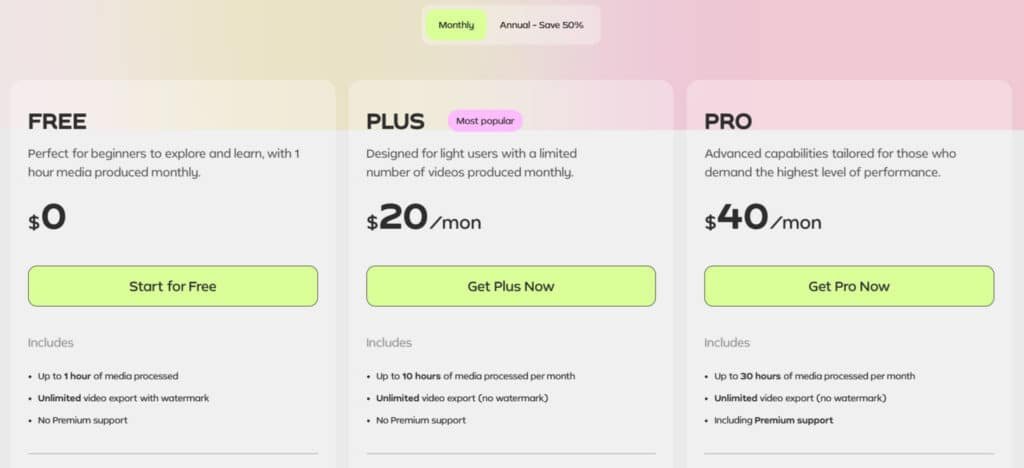
Cost and included hours shape how this software fits your editing schedule. Pick a plan by matching monthly needs to available processing hours and the support level you want.
All plans include core features like removing bad takes, auto-removing silences and filler words, YouTube Title Generator, Chapters Generator, Next Video suggestions, AI Captions, subtitle generation (SRT export), auto framing, multicam editing, AI B-rolls, and speech audio enhancement.
Export options cover MP4/MP3 and XML integration with Premiere, Final Cut Pro, and Resolve. Annual plans save 50%.
Free Plan
The entry-level $0 plan suits beginners, processing up to 1 hour of media monthly. Exports include watermarks and lack premium support. It provides essential features for basic video editing exploration, enabling watermark-free trials via limited usage.
Plus Plan
Designed for light users, the $20/month monthly option processes up to 10 hours monthly, with unlimited watermark-free exports and no premium support.
The annual $10/month (billed yearly) offers the same, at 50% savings. This tier expands on Free by removing watermarks, ideal for consistent content creators scaling production.
Pro Plan
For advanced users, the $40/month monthly plan handles up to 30 hours, watermark-free exports, and premium support.
The annual $20/month (billed yearly) mirrors this with 50% off. It builds on Plus via support, supporting high-volume workflows for professional editors demanding reliability.
| Feature/Limit | Free ($0/mo) | Plus ($20/mo or $10/mo annual) | Pro ($40/mo or $20/mo annual) |
| Media Processed/Month | 1 hour | 10 hours | 30 hours |
| Exports (Watermark) | Yes | No | No |
| Premium Support | No | No | Yes |
| Core Features | All listed | All listed | All listed |
| Annual Discount | N/A | 50% | 50% |
“If you publish 1–2 videos weekly, Plus often hits the sweet spot; daily posters usually need Pro.”
- Annual discounts: expect roughly 33% off with yearly billing—handy if the tool proves valuable.
- Track your average runtime before committing—long tutorials burn hours faster than short explainers.
- Remember: this software complements your NLE; budget for both if you finish in Premiere, Final Cut, or Resolve.
Pros & Consof Gling.Ai
Here’s a clear tally of what works and where the tool still needs a human touch. I’ll keep this short so you can decide fast.
Pros
- Saves time: It automates repetitive trims and tightens pacing so you save time on every video.
- Dialogue cleanup: Removes silences and common filler words, and applies light noise cleanup to improve audio quality early in the draft.
- Easy onboarding: Upload, process, export — the workflow is quick and plays nicely with popular editing software.
- Scales with batch work: If you publish series or many videos, the productivity boost compounds across content.
Cons
- AI judgment: Automated cuts sometimes miss nuance — you’ll still need human review for timing and tone.
- Limited free access: The free tier can feel restrictive when testing longer footage or multiple drafts.
- No mobile app: There’s no native phone workflow, so on-the-go editing is limited.
- Not ideal for all formats: Complex cinematic edits, heavy multicam projects, or template-driven marketing videos may need other tools.
“Automation speeds the grind, but creative control often wins the final pass.”
If these cons matter, the next section covers solid alternatives that focus on creative effects, social clipping, and template-heavy workflows.
Alternatives to Gling.Ai
Not every project needs just tight dialogue cleanup. If your priority is effects, templates, or rapid repurposing, you should consider other options that fit those needs.
Gling.AI shines at cleaning raw talking-head footage—auto-removing silences, “ums,” and bad takes—then suggesting clips. YouTubers love the timeline magic; starts at $12/month. But if you need full creation, pro avatars, or batch repurposing, these six competitors offer broader video editing power.
Vizard
Vizard auto-detects highlights, adds captions, and exports Reels/TikTok-ready clips in one click. Podcasters cut hours daily—free tier solid, $30/month pro.
Alphana AI
Alphana AI delivers advanced cuts with b-roll insertion, music sync, and style templates. Content teams scale polished edits fast; $19/month entry.
VideoGen
VideoGen creates brand-new shorts from text prompts, stock footage, and voiceovers. Zero raw footage needed—free basics, $19/month unlimited.
Synthesia
Synthesia builds full talking-head videos with 230+ avatars and voice cloning. No filming required; enterprise favorite at $18/month starter.
Akool
Akool specializes in face swaps, lip-sync translation, and hyper-real avatars. Agencies craft personalized ads effortlessly—$21/month basic.
Vadoo AI
Vadoo AI powers faceless reels with auto-captions, trending b-roll, and viral hooks. Daily posters thrive here—free plan + $19/month pro.
Want raw cleanup or complete creation? These compete with Gling in AI Video editing scope and automation.
| Tool | Key Strengths | Starting Price | Best For |
|---|---|---|---|
| Gling.AI | Silence/um removal, smart clip suggestions | $12/month | YouTubers & raw footage cleanup |
| Vizard | Auto-highlights, captions, multi-platform | $30/month | Podcasts & quick repurposing |
| Alphana AI | B-roll + music sync, template styles | $19/month | Polished team edits |
| VideoGen | Text-to-video, stock + voiceovers | $19/month | Fresh shorts from scratch |
| Synthesia | 230+ avatars, voice cloning, no filming | $18/month | Training & avatar videos |
| Akool | Face swap, lip-sync translation, realism | $21/month | Personalized & multilingual ads |
| Vadoo AI | Faceless reels, trending b-roll, viral hooks | $19/month | Daily social & faceless content |
Case Study / Personal Experience
I started a 12-minute tutorial project to see how quickly a usable rough cut would appear. Setup took minutes — I uploaded raw footage, chose defaults, and let the process run. I was skeptical but curious.
Setup and first impressions
The first pass surprised me. In a few minutes the tool removed long silences and obvious bad takes. That gave me a clean rough cut to inspect rather than a pile of untrimmed clips.
My workflow
Now my process is simple: upload → quick rough cut → fine-tune in my NLE. I then add B-roll, music, and color. This workflow keeps creative tasks front-loaded and repetitive tasks out of my way.
Results and measurable gains
I consistently cut edit time by roughly 50%. Faster rough cuts let me start storytelling sooner, which improved early viewer retention on several videos.
What I’d change
Where human judgment wins: comedic timing, intentional pauses, and nuanced emphasis. I still adjust captions and some noise issues manually to guarantee final quality for my audience.
| Stage | What happened | Benefit |
|---|---|---|
| Upload | Processed a 12-minute tutorial | Setup in minutes; ready for rough cut |
| Auto pass | Removed silences and bad takes | Clean draft; fewer repetitive tasks |
| NLE fine-tune | Added B-roll, music, color | Creative polish with full control |
| Outcome | Faster turnaround, better retention | Save time and improve viewer experience |
Who It’s Best For and When to Skip
For creators who publish steady, dialogue-first videos, this tool speeds the routine parts of the editing process so you can focus on story and delivery.
Best-fit creators
Who benefits: YouTube creators, educators, interviewers, and product-demo makers. If your content depends on clear speech and tight pacing, this software trims dead air and speeds up captioning.
- Fast wins: batch tutorials, talking-head explainers, and demos where consistency matters.
- Audience focus: viewers who value concise, on-point information over flashy effects.
- Scale: creators who record multiple videos a week see the biggest time savings.
Who should look elsewhere
If you make elaborate cinematic work, heavy VFX, or mobile-first short-form content, this tool will feel limiting. Those projects need a different software stack and hands-on creative control.
Quick comparison snapshot: speed vs. creative control
Choose speed when format is repeatable; choose manual control when every frame is bespoke.
Summary: Use it to accelerate the editing process and meet audience expectations for crisp pacing. But don’t expect it to replace your editorial instincts—your titles, tone, and final cuts still define the content.
Conclusion
Raamish’s Take
Gling stands out as an AI video editing tool tailored for Video content creators & YouTubers. It simplifies workflows by automatically removing bad takes, silences, and filler words from raw footage, helping creators save hours on editing.
Key features include AI captions for engaging text overlays, auto framing with zoom effects, and noise removal for clean audio.
It also generates YouTube titles, chapters, and video ideas to boost discoverability. The seamless integration with editors like Final Cut Pro or Adobe Premiere makes exporting smooth.
With a 3-day free trial, it’s easy to test. Gling has helped users streamline content from upload to polished export in three steps.
This tool is a reliable choice for efficient video production.
A fast rough cut changes how you plan a shoot and where you spend your creative focus. This video editing tool cuts silences, removes filler, adds captions, and gives usable exports so you spend less time on the grind and more on story.
Bottom line: as a video editing tool for dialogue-first content, it reliably accelerates rough cuts and reclaims time. Start with the free trial—use gling on one real project to test captions, trims, and exports.
Pick a plan by output: Plus for weekly uploads, Pro for heavy users. Be mindful of the cons, but if the workflow clicks, commit annually to save and standardize your production rhythm.
My recommendation: run one end-to-end trial this week—trial → rough cut → NLE polish—and decide which plan fits your videos and creative focus.
Frequently Asked Questions
What types of creators benefit most from this AI-powered video editing software?
Solo creators who publish talking-head videos—YouTubers, educators, and tutorial makers—gain the biggest time savings. It’s built to clean dialogue, remove filler words and silences, and speed up rough cuts, so anyone producing interview-style or tutorial content will see the most immediate benefit.
How accurate is the automatic transcript and cut-detection?
The transcription is solid for clear, single-speaker audio and the smart cut detection does a good job flagging bad takes and long pauses. Expect occasional mis-transcriptions with heavy accents or overlapping speakers, which you can quickly fix in the editor or by uploading a corrected script.
Can the tool remove background noise and improve voice clarity?
Yes—background noise removal and voice clarity enhancements are built in. They handle common issues like room hiss and consistent hums well. For very noisy locations, a quick manual EQ or a secondary audio cleanup in a dedicated DAW may still help.
Does it handle filler-word removal and bad takes automatically?
It detects and can remove filler words, long silences, and flagged bad takes automatically. You’ll want to review those edits—AI is efficient but sometimes overzealous, so a short pass to restore any intentionally used “ums” or pauses is smart.
How do exports and integrations work with Final Cut Pro, Premiere, or DaVinci Resolve?
The app exports timelines and subtitle files (SRT) that import cleanly into NLEs like Final Cut Pro, Adobe Premiere, and DaVinci Resolve. Typical workflow: generate a rough cut, export an XML/AAF or SRT, then finish color grading and fine edits in your main editor.
Is there a free trial and what are the limitations?
There’s a free tier that includes about one hour of media processing—enough to test the core features. It’s limited compared with paid tiers (upload hours and project limits), but useful to evaluate noise removal, transcription, and auto-trim functions before you commit.
What are the pricing tiers and how do I pick the right plan?
Typical tiers include a Free plan (trial hour), a Plus plan for regular uploaders (roughly 10 hours/month), and a Pro plan for heavier users (around 30 hours/month plus priority support). Choose based on monthly footage volume—start small, then scale if you hit the upload cap regularly.
Are titles, chapters, and subtitle generation automated?
The software suggests titles and chapter markers and can auto-generate subtitles (SRT export included). These features speed up discoverability work, though you should tweak phrasing and timing to match your brand voice and SEO goals.
How much time can I realistically save using this tool?
For dialogue-heavy projects, I’ve seen rough-cut time cut by about 30–60%—depending on how clean the original footage is and how much manual polish you usually apply. It’s best used to remove repetitive, tedious tasks so you can focus on creative decisions.
What are the main drawbacks to be aware of?
Limitations include reliance on AI judgment (it may remove stylistic pauses), a capped free allowance, and no native mobile app for on-the-go edits. Complex cinematic edits or projects requiring stylistic motion graphics still benefit from a full NLE.
Can the software help repurpose long-form content into short clips?
Yes—auto-detecting highlights, chapter suggestions, and auto-framing/zoom tools make it easy to pull shorts from long videos. Pair it with manual trim passes to ensure pacing and context work for short-form platforms.
Does it support team collaboration and multiple users?
Collaboration features exist but vary by plan. Higher tiers typically include better project limits and priority support for team workflows. For heavy multi-user projects, syncing exports to a shared NLE remains a reliable approach.
How well does auto-framing and auto-zoom perform?
Auto-framing is useful for keeping subjects centered and adding subtle motion when needed. It’s great for talking heads and simple single-shot edits—less reliable for multi-subject scenes or complex camera moves where manual keyframing wins.
What file formats and codecs are supported for upload and export?
The platform accepts common video formats and codecs used by creators—MP4/H.264 being typical. For exports, you’ll get universal formats plus XML/AAF/SRT for NLE compatibility. Check the support docs for any specialty codec needs.
Is the output quality good enough for professional channels?
For online content focused on clarity and pacing, yes—the output quality is broadcast-ready when paired with a final pass in your preferred NLE. For cinematic projects requiring fine color grading or VFX, use it for rough cuts and move to a full editor for finishing.
How safe is my footage—what about privacy and uploads?
The service uses cloud processing, so you’re uploading media to their servers. It’s suitable for most creators, but for sensitive or NDA material consider local workflows or private enterprise options. Review the provider’s privacy policy for data retention and security details.