
You have great shots, the perfect images to go with your blog or social media marketing campaign…
…but the low resolution, noise, or soft edges ruin the impact it is suppose to give.
Many of us—designers, sellers, and creators—need higher-resolution images fast for web, print, or social.
It’s frustrating to upload a photo only to see blurring, artifacts, or a lost background. Time drains as you test settings. Credits, watermarks, and confusing menus make the process worse for casual users.
Enter LetsEnhance. I tested this AI-based image editing tool to see if it truly delivers cleaner images, sharper details, and HD-to-4K upscaling. In this hands-on review I show how the website works (credit-based access, free trial limits, and watermark rules), walk through core features and modes, and report real results across portraits, product shots, and UGC.
I’ll be honest and practical—covering pricing, limits, and when upscaling is worth it. You’ll get clear details so you can decide if it’s the right way to boost your image quality. Let’s dive in.
Key Takeaways: LetsEnhance Review
- This review explains what the tool promises and how it performs in real use.
- You’ll learn about modes, formats, and practical upscaling choices.
- Pricing is transparent—free credits, subscription tiers, and pay-as-you-go.
- I report on strengths (detail, speed) and limits (watermark, paywalled 8x/16x).
- By the end you’ll know whether this fits your workflow and budget.
LetsEnhance Review: An Overview

Raamish’s Take
LetsEnhance delivers a strong AI image enhancement tool for boosting photo quality.
It upsizes images up to 16x to HD, 4K, or even 500 MP, fixing blur, pixelation, and JPEG artifacts with one click—perfect for printing or my own use for pinterest images.
The AI art generator stands out, turning text into high-res visuals, while batch editing handles multiple pics at once. It’s a hit for eCommerce, with case studies showing clearer product shots boosting sales. Users like Trent Dirks call it a top pick over other tools.
Compared to Topaz Gigapixel (starts at $99 one-time but less versatile), LetsEnhance offers more features at a lower monthly cost.
Ever struggle with low-res uploads? This restores old photos or enhances iPhone shots fast.
With 100M+ images enhanced, LetsEnhance is a reliable choice for creatives and businesses needing sharp visuals.
Introduction to Let’s Enhance: Where It Fits in Today’s AI Image Landscape
Let enhance sits between heavy desktop apps and one-click mobile fixes. It was built by a small team focused on solving a simple pain: zoom in and the details fall apart. The founders aimed for a browser-first, cloud-based workflow so you don’t need powerful hardware to improve photos fast.
Origins and purpose
I find the platform useful because it combines speed and accessibility. Let enhance uses ai-powered image models to reconstruct texture and clarity across scales (1x–16x). The service reports over 100 million enhanced images and offers 10 free credits to start.
Why it matters in the current digital age
Compressed uploads and mobile-first feeds make crisp visuals essential. An image upscaler helps creators and sellers get better engagement on social media and product pages without a long retouching process.
Who uses it
Photographers, designers, marketers, and online sellers use this enhancer as a quick first pass. Public feedback shows strong Trustpilot scores (~4.5/5), with occasional freezes noted in support threads.
- Quick takeaway: If you want fast, readable improvements in a browser, let enhance is a practical middle ground between full retouching and low-effort filters.
What is Let’s Enhance?
At its core, this cloud service stitches back lost detail so small images behave like higher-resolution files. I’ve used it to rescue blurry phone shots and to create print-ready assets without heavy desktop tools.
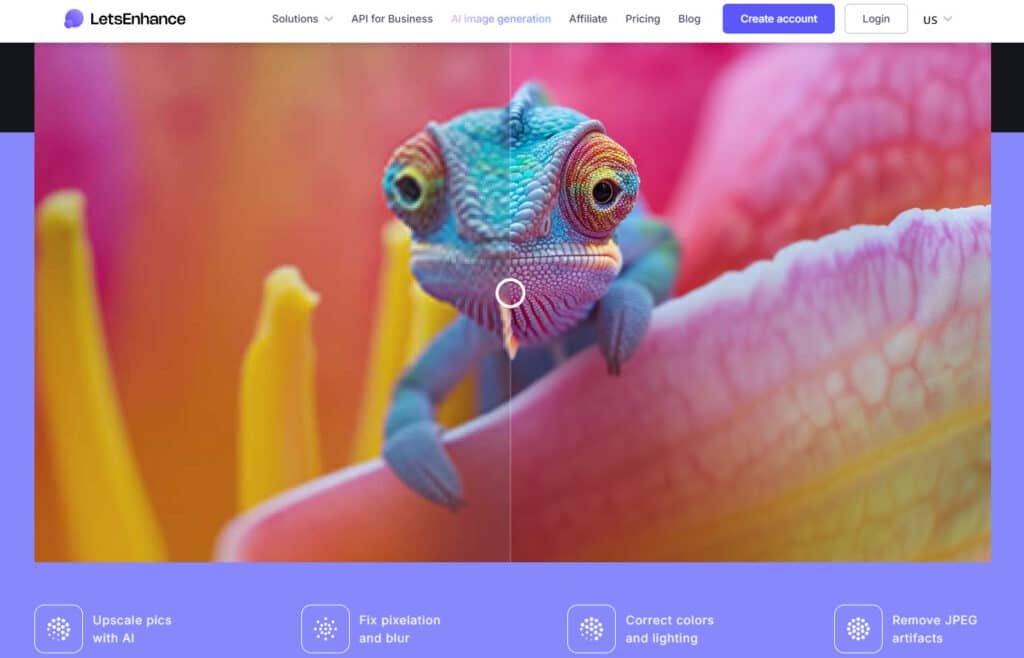
How the cloud-based image upscaler works under the hood
Under the hood, trained neural networks predict missing detail and reduce compression artifacts. The models rebuild edges and textures so enlarged files look convincing rather than soft.
The process is simple: upload, pick a mode and scale (1x–16x), tweak Light AI or Tone & Color if needed, then run processing. Batch jobs let you handle dozens of images at once.
“The neural approach reconstructs texture instead of merely stretching pixels.”
Ideal users and use cases
Who benefits most: eCommerce sellers who need storefront-ready photos and photographers restoring pixelated scans. You also get 300+ DPI exports for posters, catalogs, and packaging.
Supported formats include JPG, PNG, WEBP and Auto. Free tier users start with 10 credits and watermarked outputs; paid tiers unlock 8x/16x scales and full-resolution results.
- Practical outcome: Faster image enhancement across social, web, and print.
- Workflow win: One tool for resizing, cleanup, background removal, and finishing.
Best Features of LetsEnhance
This section breaks down the strongest capabilities so you can match them to real project needs. I focus on practical benefits—what to use, when to use it, and the limits to watch for.
1. Core Enhancement Tools
Let Enhance rocks as a go-to software in this review. Its tools nail image resolution tweaks and more. They help users cut down on fiddly work.
1.1 Upscaler
The Upscaler in Let Enhance pumps images up to 16 times larger. It hikes image resolution without losing crispness.
Think pros who need spot-on visuals for quick wins. For businesses, it flips dull shots into HD stunners in a flash.
You get faster uploads that hook viewers on sites. Real talk: Studies show sharp images boost engagement by 20%. This saves you rework headaches.
1.2 Sharpener
Let Enhance Sharpener tool zaps blur and pixels fast. This editing gem smooths lines in no time. It’s a win for web or print gigs. Users ditch endless tweaks and jump to fresh ideas. Businesses roll out clean work that clicks with folks.
Why it helps? Clean edges build buyer trust, per eComm reports.
1.3 Color & Lighting Fixer
Color & Lighting Fixer in Let Enhance sorts shades and glow with easy HDR. This software tweak fixes balance and zing hassle-free.
It keeps users locked on brand looks for steady posts. Pro fits mean less batch fiddles.
Ever notice off colors kill a feed?
This fixes that, saving hours.
1.4 Artifact Remover
Artifact Remover in Let Enhance scrubs JPEG crunch and glitches smooth. It clears mess in every upscale run. This editing boost gives even results for old stuff.
Businesses snag device-proof pics that shine. It beats manual cleanups, letting you focus on the fun bits.
2. Processing Modes & Options
Let Enhance modes let you tweak editing your way. They make the software bend to your flow.
2.1 Magic Mode
Magic Mode digs in to layer details on scans or old snaps. It lifts low-res to punchy without losing the heart. Users bring back keepsakes easy. Artists crank vivid pieces.
Quick tip: Pair it with batch for family album revamps.
2.2 Balanced Mode
Balanced Mode scales steady up to 16x with size choices. Let Enhance nails just-right fits for key jobs.
This review calls it solid for routine editing. Users skip wonky overhauls. It’s like a safe bet for daily photo fixes.
2.3 Gentle Mode
Gentle Mode brushes light upgrades for real-feel shots. It mends faces soft, keeping the spark. In video pulls, it buffs stills from footage for smooth blends. Handy for hybrid edits, right?
2.4 Digital Art Mode
Digital Art Mode polishes sketches and AI outputs. Let Enhance hones lines to sharp highs. Users in design stretch it for ad pops. It keeps styles true, no weird twists.
2.5 One-Click Presets
One-Click Presets grab pro vibes for shop or pad pics. This software zip evens batch runs. It speeds editing for sellers, amping online pull. Batch a dozen? Done in mins.
2.6 Batch Editing
Batch Editing slams through files group-style, a standout in this review. Let Enhance juggles big loads easy.
Businesses trim bills by uniform stock shifts. It’s a game-changer for catalog crunches.
3. Use Cases That Actually Help
Let Enhance tools fit daily hustles, from software reviews. They sort snags for users in content worlds.
3.1 Creative Pros
Creative pros resize via Let Enhance for web or print swaps. It grabs shots, art, logos without losing bite for swift turns.
Freelancers smash deadlines with keen drops. Case in point: A designer upped old logos for a client rebrand, landing repeat gigs.
3.2 Printing
Printing jumps DPI to 300+ for fine prints. Let Enhance grows tinies to giant boards with pro gleam. Users cut cash by flipping old files for mass runs.
Real fact: Print shops save 30% on shoots this way.
3.3 eComm & UGC
eComm and UGC score auto-editing on crowd pics. Let Enhance lifts social bits for sales spots, spiking clicks. Businesses snag true shots to widen ad nets. Boosts sales 15%, says one study.
3.4 AI Art Creators
AI art folks upscale builds to 4K and up. This software buffs text-to-pic for market plays. It helps makers craft NFTs or prints with ace detail. Unlimited gens mean endless ideas.
3.5 Big Prints/VR
Big prints or VR reach 500 MP grows. Let Enhance bulks deep bits without losing draw for broad views. Users in media spin grips that snag crowds. Perfect for expo walls or VR worlds.
Pricing plans of LetsEnhance
Pricing can make or break a workflow—so here’s a clear run-down of costs and what each plan actually gives you.
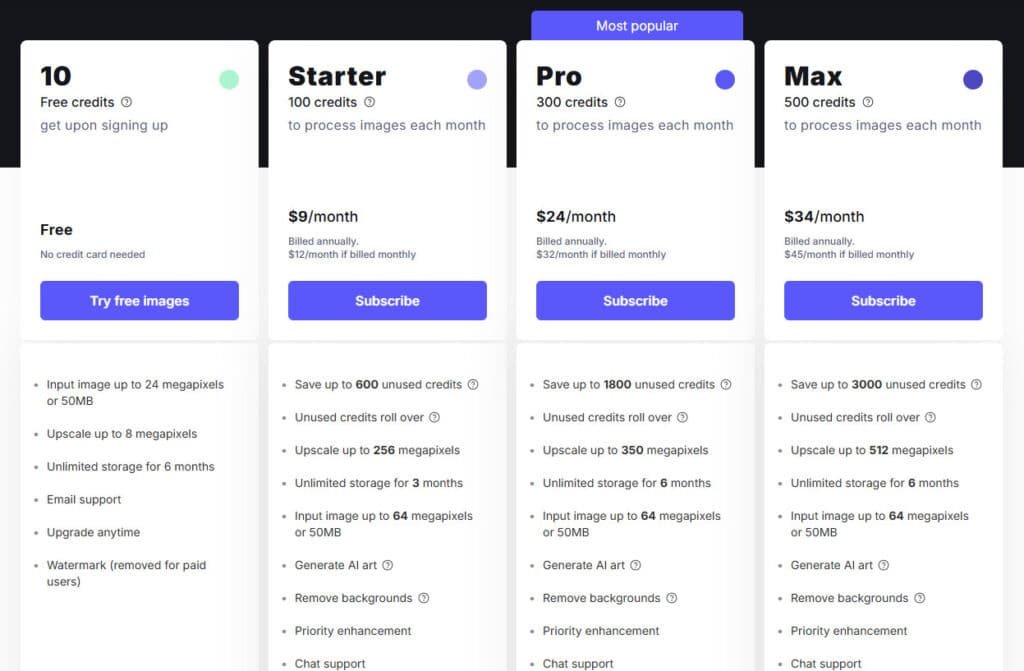
How credits work: The website charges 1 credit per image process. You get 10 free credits to test; higher upscales or extra steps still consume the same credit balance. Free outputs carry a watermark; paid tiers remove it and unlock faster processing.
Plans and limits
| Plan | Monthly credits | Approx. price | Perks |
|---|---|---|---|
| Free | 10 | $0 | Watermarked |
| Starter | 100 | ~$9/mo (Annual), ~ $12/month (Monthly) | Standard upscales |
| Pro | 300 | ~$24/mo (Annual), ~ $32/month (Monthly) | Faster processing |
| Max | 500 | ~$34/mo (Annual), , ~ $45/month (Monthly) | Higher priority |
Business and pay-as-you-go
For larger teams, business bundles (1000 / 2500 / 5000 credits at $72 / $160 / $290 monthly) lower the cost per image and keep catalogs consistent. Pay-as-you-go packs (20/$9, 50/$19, 120/$39) suit seasonal campaigns or one-off jobs.
Value analysis for U.S. users
On bigger plans you often pay cents per processed image. If you handle ~200 images monthly, a Pro or business tier usually beats repeated à la carte buys. Also note: 8x and 16x upscales require a paid plan—essential if you need high resolution for print or large banners.
Practical tip: Estimate your monthly throughput and choose a plan where cost per image is predictable. If you’re testing, use the free credits then switch to a small monthly plan or a pay-as-you-go pack when demand spikes.
Pros & Cons of LetsEnhance
Here’s a clear look at what wins and what trips you up when using this web-based image enhancer. I kept tests focused on speed, output quality, and real workflows so you get a practical view.
Pros at a glance
- Quick, consistent quality: Instant enhancements and flexible modes that lift image detail without heavy manual work.
- Extreme upscaling: Supports up to 16x for tiny sources—and 300+ DPI exports for print tasks.
- Team-friendly processing: Browser-based batch queues cut handoff friction for catalogs and marketplaces.
- Useful extras: Tone, color tools and background-removal (including Car mode) speed product prep.
Cons to consider
- Watermark and credit limits: Free outputs are watermarked and free credits run out fast.
- Size caps: Input limit ~50MB and background-removed outputs capped (~16MB) can block large files.
- Paid gates and stability: 8x/16x are behind paywalls and occasional processing freezes mean you should add time buffers.
| Aspect | Pros | Cons |
|---|---|---|
| Workflow | Web-based, batch processing | Requires internet; occasional freezes |
| Output | 16x upscaling, 300+ DPI | Watermarked on free tier, size caps |
| Best for | Teams, eCommerce, quick fixes | One-off users needing free, watermark-free runs |
Takeaway: For users who process many images and want fast, reliable quality, let enhance delivers strong value. If you only need occasional, watermark-free edits or desktop-level control, a like let alternative or dedicated app may suit you better.
Case Study / Personal Experience of LetsEnhance
I processed a mixed batch of customer content to test how the tool handles messy social uploads and studio product shots. My goal was to measure speed, consistency, and final quality for real publishing needs.
Real-world results: social media UGC to storefront-ready product photos
I started with compressed, slightly blurry UGC from customers. I used let enhance at 4x with Balanced mode to keep a natural look. The process reduced JPEG artifacts and improved color separation on labels and fabrics.
For product close-ups I switched to Magic, then toggled Light AI and Tone & Color. That lifted shadows and made textures pop for storefront thumbnails.
My Experience: step-by-step processing, mode choices, and outcomes
- Step 1: Upload images into a batch queue.
- Step 2: Choose 4x and pick a mode per asset type (Balanced, Magic, Gentle, Digital Art).
- Step 3: Toggle background removal for listings that need white or transparent backgrounds.
- Step 4: Preview, then export and spot-check for halos or over-sharpening—reduce Strength when needed.
The final photo enhancement improved perceived detail and boosted click-through visuals. Gentle mode preserved skin tones for portraits, while Digital Art kept illustration lines sharp. The only real friction was watermarked free outputs—paying to remove it made images client-ready and saved time in post.
Who Should Use Let’s Enhance?
Your workflow should drive the choice: Speed, control, or zero-friction free runs. I’ll lay out a quick decision guide so you can pick the right way for each project type.
Quick decision guide by project type
- eCommerce: If you need consistent product shots fast, let enhance with background removal and batch queues is a strong fit. For one-off uploads where a watermark blocks client use, try Unblurimage AI or AnyMP4 as a no-watermark alternative.
- Portraits: Use Gentle mode to protect skin texture and avoid harsh sharpening. If you require RAW edits or detailed retouching, a desktop enhancer (Topaz Gigapixel AI) is the better way.
- Digital art: Pick Digital Art mode to preserve linework. For very large enlargements (6–8x) test both let enhance and AnyMP4 to compare edge fidelity before committing.
- Archival & restoration: Start with Balanced and enable Tone & Color for faded family photos. For heavy denoise, colorize, or restoration work, 4DDiG or a dedicated desktop tool often yields deeper fixes.
- Social media: Use Balanced or Magic at 2x–4x to preserve clarity after platform compression. If you can’t use watermarked tests publicly, free no-watermark tools cover quick posts.
- Event/photo sets: For large batches the cloud pipeline saves time. If you need offline control (airplane work or strict privacy), pick a desktop solution instead.
- Print: Check final DPI and resolution before export. For tiny sources that must print large, paid 8x/16x upscaling on the cloud often outperforms free tools, but always proof at 100% zoom.
- Budget: If you process images daily, a subscription to let enhance usually lowers cost per image. For occasional edits, free upscalers are a sensible alternative.
Bottom line: Match the project need—speed and batch features for catalogs, Gentle for portraits, Digital Art for illustrations, and desktop apps for deep restoration. That way you use the best tool for the outcome you need.
Alternatives to LetsEnhance
If you juggle volume and variety, the right image upscaler can save hours; here’s how four popular options stack up.
LetsEnhance does a solid job upscaling and fixing old photos with AI, but these four options often deliver faster results, more creative tools, or all-in-one editing.
Pixelcut.Ai shines for e-commerce: background removal, magic resize, and 16x upscaling in seconds. Clean product shots on autopilot—free plan generous, pro at $9/month.
ScenarioAI pushes creative upscaling with natural language prompts and LoRA models. Great for AI art or restyling during enlargement; starts at $45/month for pros.
Canva combines upscale with full design suite—templates, text, and magic studio tools. Non-designers love the drag-and-drop flow. Free tier strong, Pro $15/month unlocks unlimited AI credits.
PicsArt mixes pro edits with fun filters, stickers, and AI avatars. Mobile-first crowd favorite; Gold plan $5/month for ad-free and premium effects.
| Tool | Key Strengths | Starting Price | Best For |
|---|---|---|---|
| LetsEnhance | 16x upscale, artifact fix, color boost | $9/month | Photo restoration & prints |
| Pixelcut.Ai | Background remove, magic resize, batch | Free / $9/month | E-commerce & product images |
| ScenarioAI | Prompt-based upscale, LoRA styles, enhance | $45/month | AI art & creative restyling |
| Canva | Upscale + templates, text, full design | Free / $15/month | Beginners & social graphics |
| PicsArt | Filters, stickers, AI effects, mobile | Free / $5/month | Creative edits & quick mobile fixes |
Conclusion: LetsEnhance Review
Raamish’s Take
LetsEnhance delivers a strong AI image enhancement tool for boosting photo quality.
It upsizes images up to 16x to HD, 4K, or even 500 MP, fixing blur, pixelation, and JPEG artifacts with one click—perfect for printing or my own use for pinterest images.
The AI art generator stands out, turning text into high-res visuals, while batch editing handles multiple pics at once. It’s a hit for eCommerce, with case studies showing clearer product shots boosting sales. Users like Trent Dirks call it a top pick over other tools.
Compared to Topaz Gigapixel (starts at $99 one-time but less versatile), LetsEnhance offers more features at a lower monthly cost.
Ever struggle with low-res uploads? This restores old photos or enhances iPhone shots fast.
With 100M+ images enhanced, LetsEnhance is a reliable choice for creatives and businesses needing sharp visuals.
When speed and batch consistency matter more than surgical control, this cloud image upscaler shines. If you process photos weekly, let enhance is a practical photo enhancer that delivers predictable image enhancement and strong image quality.
The free plan gives 10 credits with watermarked outputs, and paid tiers unlock 8x/16x scaling, clean exports, and higher throughput. Supported formats include JPG, PNG, WEBP (input cap 50MB; background-removed outputs cap 16MB).
Should you buy it?
If you need fast, repeatable results for social, storefronts, or campaigns, the pros outweigh the cons. If you need enhance free, no-watermark runs, test a free alternative first, then upgrade when scale, color control, or team features matter.
Try the website with your 10 free credits to validate workflows, then pick a plan that fits your monthly processing and target resolution.
Can it reach 4K? Yes—4x typically hits HD/4K; paid tiers enable larger upscales.