
You need a fast draft for a presentation, but creating a deck eats time. You juggle research, themes, and deadlines—then wonder if the tools on the market actually help.
I’ve tested the Google Slides add-on that promises to turn a short text or topic into a deck inside your workspace. Adoption looks strong (10M+ installs), yet mixed trust scores and some billing glitches make users cautious.
What I find useful is speed—type a topic, paste text, and get a draft slide set fast. The developer positions it as a convenience-first tool; core features work well for quick outlines, though advanced imports and exports are still “Coming Soon.”
If you want to save time on templates and rough drafts, this tool can be the fast lane—especially for students and busy teams. I’ll walk you through features, pricing, pros and cons, and practical tips next. Let’s dive in.
Key Takeaways: Slides AI Review
- The add-on creates a draft deck from short text directly in google slides.
- Speed and convenience are its biggest strengths for busy users.
- Some promised features (document and video imports) remain in development.
- Market signals are mixed—high installs but lower third-party ratings and some reliability concerns.
- The free plan limits outputs to a few presentations per month, so weigh needs before upgrading.
Slides AI Review: An Overview

Raamish’s Take
SlidesAI makes building presentations a snap right in Google Slides or PowerPoint. I like how you just paste text, notes, or a link, and it generates slides with outlines, themes, and even AI images in seconds.
No design chops needed – it handles layouts and summaries automatically.
What stands out is the editing power. Tweak themes, remix slides, shorten text, or translate to 100+ languages on the fly.
Users say it saves hours, like turning paragraphs into bullet points with subtitles. A teacher noted it outlined a 26-slide story from a prompt alone.
Compared to Beautiful.ai, SlidesAI integrates natively for free basics. Ever dread blank slides? This gets you from idea to polished deck fast, perfect for busy pros.
With 15M+ installs, it’s a reliable time-saver for clear, engaging talks.
Introduction to Slides AI: Where It Fits in Today’s AI Presentation Landscape
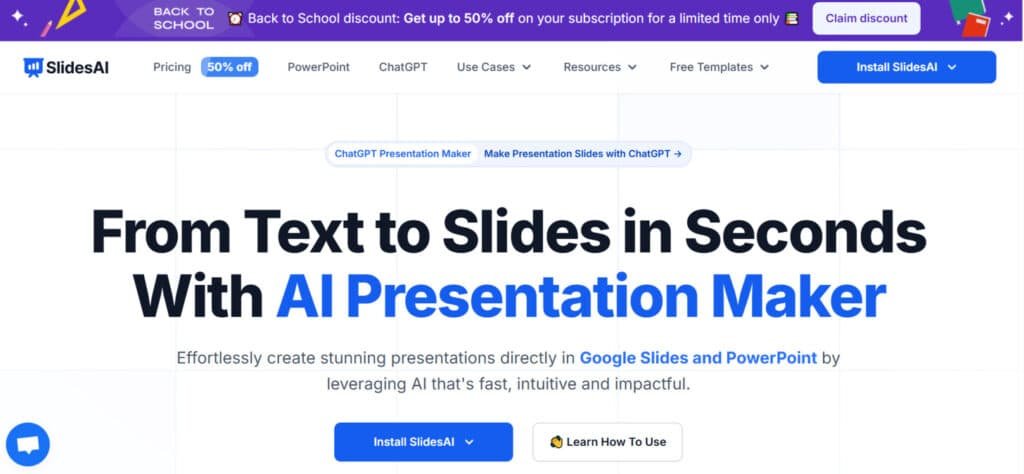
I’ve used the Google Slides add-on that converts a short topic or pasted text into a starter slide set. You stay inside your editor, set a slide count, and the extension drafts an outline and basic content in seconds.
Students, educators, and busy teams want faster ways to move from idea to presentation. That speed frees time for research, rehearsal, and polishing visuals.
- How it evolved: Built as a native add-on, install via Extensions and work without switching apps.
- Practical workflow: Type a topic, pick slides, then refine the generated outline and text.
- Market signals: Massive reach (10M+ installs) and a ~4/5 store rating, though third-party sites flag glitches and billing issues.
For classrooms, it lowers friction in lesson planning. For a cross-functional team, it standardizes a fast starter deck. If you expect a fully polished, visually appealing presentation straight away, you’ll still need to edit—the add-on is scaffolding, not a designer.
Example uses include unit overviews, campaign briefs, and sprint outlines — quick ways to get information into slides, then make it yours.
What is Slides AI?
I often start with a tight topic and watch the extension turn that idea into a usable deck in minutes. The tool lives inside google slides, so you skip file swaps and keep everything in Drive.
How it works inside Google Slides
Install from the Google Workspace Marketplace, open the extension, then choose “Generate Slides” (or Generate Outline).
Type a short topic or paste text—some flows cap input around 200 characters on basic tiers. Click Generate and the add-on drafts an outline for each slide.
Pick appearance and layout, hit Create, and the extension assembles headings and basic content. Edit slide by slide in the native editor.
Who benefits most
Educators can jumpstart lesson intros and unit overviews. Business users get quick scaffolds for status reports, proposals, or project briefs. Creators can spin up draft decks for videos or workshops.
“Treat it as a creation accelerator—get a working outline, then refine with your voice and data.”
- The extension workflow means zero context switching and native collaboration.
- Best results come from tight inputs; long, nuanced text can yield generic output unless your plan increases input limits.
- Plan a quick editing pass—instances of thin content or uneven slide counts happen, but the time saved is real.
Slides AI: Strengths, Gaps, and How It Fits
In practice, the tool delivers fast first drafts, but you’ll still spend time polishing. The core promise—speed and simple creation inside Google Slides—holds up. For quick internal presentations, it cuts setup time and gives a usable outline.
Reality check: Output quality is inconsistent. I saw thin text, generic phrasing, and occasional blank slides that needed deletion.
What works
- Speed: Rapid outline and slide population.
- Convenience: Native editor workflow keeps everything in Drive.
- Good for first-pass drafts and internal briefs.
Limitations to note
- Design inconsistencies—colors and fonts sometimes fail to apply.
- Input caps limit nuance; higher tiers promise larger inputs but results vary.
- Several features remain marked “Coming Soon” (document/web/video imports, some export options).
“I treat it as a scaffold—fast outline, then manual polish for tone, data, and layout.”
| Area | Strength | Common Gap |
|---|---|---|
| Speed | Quick draft generation | Sometimes creates fewer slides than requested |
| Design | Basic templates available | Colors, fonts, and graphics may not apply |
| Features | Outline and text creation in-editor | Video and import tools still limited or unavailable |
Best Features of Slides AI
I lean on the tool’s fast drafting when I need a usable deck in under ten minutes. Below I outline the standout capabilities, what they do today, and where the experience still needs polish.
1. Core Creation Features
SlidesAI streamlines presentation creation with versatile input methods and efficient workflows, enabling users to produce professional slides quickly. These tools benefit readers seeking a fast, intuitive alternative to manual slide design, saving time for students, educators, and professionals.
1.1 Text to Presentation
Users can paste text (notes, scripts, or lists) into SlidesAI, which generates structured slides with titles, subtitles, and bullet points. This feature helps readers with existing content, like lecture notes or reports, by automating formatting, ensuring a polished presentation in minutes without design skills.
1.2 Topic to Presentation
Enter a topic (e.g., “renewable energy”), and AI builds a complete deck. Currently in beta, this feature aids readers who need quick ideation, providing a structured outline for projects or pitches, reducing brainstorming time.
1.3 Document Upload
Upload files (e.g., lesson plans) for AI to convert into slides (Pro/Premium). This supports readers with documents, enabling seamless conversion into visual formats, ideal for educators or professionals repurposing content.
1.4 Link Input
Extract content from URLs to generate slides. Readers researching online can directly transform web data into slides, streamlining workflows for time-sensitive tasks like client presentations.
1.5 Workflow
A 3-4 step process (input, customize, review outline, generate) creates slides in under 2 minutes. This efficiency helps readers meet tight deadlines, automating structure and visuals for any account type.
1.6 Outline Generation
AI provides a pre-generation outline for review, ensuring content alignment. Readers benefit from customizable structures, refining key points before slide creation, perfect for tailored pitches or lessons.
1.7 Theme Selection
Choose templates or customize with logos, fonts, and colors. Readers can create branded, professional slides effortlessly, enhancing visual appeal for corporate or academic settings.
2. Platform-Specific Integrations
SlidesAI integrates with popular platforms, offering flexible access. These integrations help readers use familiar software, reducing learning curves and enabling seamless account management.
2.1 Google Slides Integration
Install via Google Workspace Marketplace; works with any Gmail account. Readers can create/edit slides in Google Slides, with mobile support and add-ons for charts, ideal for collaborative or data-driven tasks.
2.2 PowerPoint Integration
Launched in 2025, this add-in supports web/desktop PowerPoint. Readers benefit from stock image searches and PPT exports, perfect for educators or professionals needing desktop-friendly software.
2.3 ChatGPT Integration
Start via ChatGPT prompts; slides save to Google Slides. Readers can use conversational inputs for quick creation, ideal for mobile users or those preferring no-install alternatives.
3. Editing and Enhancement Features
Advanced editing tools refine slides instantly. These help readers polish content and visuals, ensuring clarity and engagement for diverse audiences.
3.1 Content Editing
Rephrase, shorten, or expand text; remix or add slides via the Magic Write panel. Readers can refine messaging for clarity or depth, suiting exec summaries or detailed lectures.
3.2 Visual Editing
Apply themes or generate/AI-insert images (e.g., “sunrise skyline”). Readers enhance slides with professional visuals, streamlining design for impactful presentations without external tools.
3.3 Translation
One-click per-slide translation into 100+ languages. Readers targeting global audiences can create multilingual decks, boosting accessibility for international teams or classrooms.
3.4 Presets and Preview
Save settings for reuse; preview before finalizing. Readers streamline repetitive tasks and ensure error-free slides, ideal for frequent presenters.
4. Language and Accessibility Features
Multilingual and user-friendly options enhance accessibility. These aid readers needing global or flexible solutions.
4.1 Multilingual Support
Generate/translate in 100+ languages. Readers can create localized content, supporting diverse audiences in education or business.
4.2 Input Limits
Vary by plan (2,500–12,000 characters). Readers can scale usage based on needs, ensuring flexibility for small or large projects.
4.3 Account and Security
Auto-created via Google account; secure API use. Readers retain content ownership, safely managing slides across platforms.
4.4 Mobile Support
Google Slides/ChatGPT outputs enhance mobile editing. Readers can work on-the-go, perfect for students or professionals.
5. Additional and Upcoming Functionalities
Extra tools and future enhancements expand capabilities. These help readers stay ahead with innovative features.
5.1 Video Export
Convert slides to videos (coming soon; 120–240/year). Readers can share dynamic content for virtual presentations.
5.2 AI Credits System
Powers generations/edits (120–1,200/year). Readers maximize advanced features within plan limits, ensuring cost-effective usage.
5.3 History Management
Save presentation history (opt-out via account). Readers track past work, streamlining revisions or reuse.
5.4 Support and Feedback
In-app chat button and blog tips (e.g., 2025 trends). Readers get quick help and stay updated, enhancing productivity.
5.5 Tutorials
Video/blog guides (e.g., charts, translations). Readers master software features, improving efficiency for complex tasks.
Setup and Workflow: How to Use Slides AI Efficiently
Getting started is fast and low-friction. Install the extension from the Google Workspace Marketplace, then open it from the Extensions menu inside a Google Slides file. No separate login is needed after install, so you get straight to work.
Installing the extension and getting started
I install from the Marketplace, open a new deck, and choose the add-on from Extensions. Pick “Generate Slides” or “Generate Outline,” enter a concise topic or paste text, then click Generate.
From topic to outline to finished deck
The process I use: tight input first, generate an outline, tweak titles, pick themes and templates, then Create Slides. Keep inputs focused—short prompts yield clearer results and reduce the editing burden later.
Editing tips: blend generated content with native tools
After generation, use Google Slides’ master slides, Theme editor, and Arrange tools to fix spacing, color, and fonts quickly. If Remix rearranges poorly, undo and pick layouts manually from the Layouts menu.
- Quick wins: apply a clean base template, then layer generated content.
- Polish: pair paraphrasing tools with your data points to add substance.
- Limits: free plan caps at three presentations per month—pace your usage or consider upgrade.
“Treat the add-on as a fast scaffold—then refine with native editing for a clean, shareable deck.”
| Step | Action | Tip |
|---|---|---|
| Install | Marketplace → Extensions | No extra login after install |
| Generate | Enter topic or paste input → Generate Outline | Keep prompts concise for better output |
| Edit | Use master slides, theme editor, arrange tools | Fix color and fonts; check templates |
Pricing of Slides AI
SlidesAI offers flexible pricing subscription tiers tailored to individual users, with a limited-time 50% discount on subscriptions, making it an accessible AI presentation tool.
Plans scale from free entry-level access to unlimited professional use, including monthly and annual billing options (annual saves up to 50% on Pro/Premium).

Basic Subscription Plan
The Basic plan is free at $0/month, ideal for beginners testing core AI generation without commitment.
It includes 12 presentations/year, 2500 character input/presentation, and 120 AI credits/year, enabling limited text-to-slide conversions and basic edits for occasional users.
Pro Subscription Plan
Pro costs $10/month or $5.83/month annually (billed $70/year, 50% savings with promo), suiting students with expanded capacity.
Features: 120 presentations/year, 6000 character input/presentation, 600 AI credits/year, document upload for notes-to-slides, and 120 video exports/year (coming soon), supporting iterative projects like lesson plans.
Premium Subscription Plan
Premium is $20/month or $8.33/month annually (billed $100/year, 50% savings), designed for educators and pros needing unlimited scale.
It offers unlimited presentations, 12000 character input/presentation, 1200 AI credits/year, document upload, and 240 video exports/year (coming soon), perfect for high-volume, multilingual decks with advanced AI visuals.
Value analysis
Reality check: Video exports, docs/web/YouTube imports are still often marked “Coming Soon.” Test the free tier to verify promised features before committing to an annual plan.
| Tier | Monthly Presentations | Character Cap | Credits / Video Exports |
|---|---|---|---|
| Basic | 3 | ~2,500 | 10 credits / 1 video? |
| Pro | 10 | 6,000 | 100 credits / 10 videos |
| Premium | Unlimited | 12,000 | 250 credits / 20 videos |
If multiple team members rely on this tool, tally per-user costs against how many full decks you need each month.
For light use, Basic or Pro may suffice. If you expect the promised imports or robust video exports, confirm availability first.
Pros & Cons of Slides AI
When speed matters, this tool slashes the time it takes to move from concept to a usable slide set. Below I list practical advantages and honest drawbacks so you can decide if it fits your workflow.
Pros
- Speed: Faster from idea to slides than starting from scratch—great for tight deadlines.
- Ease of use: No new app to learn; work stays inside Google Slides and Drive.
- Low learning curve: Clear prompts and outline generation make it friendly for new users.
- Collaboration: Native sharing and comments let teams iterate together.
- Good for rough drafts: Helps you beat the blank-slide problem and get a working scaffold.
Cons
- Reliability: Some sessions create blank or off-target slides; you’ll need to watch for glitches.
- Design control: Colors, fonts, and layouts sometimes fail to apply, reducing visual consistency.
- Content quality: Outputs can be generic or thin—expect to revise for tone and accuracy.
- Limits: Credits and monthly caps can constrain frequent use for power users.
- Reputation: Mixed user feedback and reported billing issues mean you should test before committing.
Summary: I use this tool when I need speed over polish. I plan a short editing pass to regain control and tighten the final presentation. If these drawbacks are deal-breakers, consider an alternative with stronger design systems or deeper slide-level control.
“Fast scaffold, then polish—works well for drafts and internal decks.”
Alternatives to Slides AI
If this tool misses a need—design polish, slide-by-slide edits, or richer templates—there are solid alternatives to explore.
Decktopus
I like Decktopus as my top pick for control. It works inside both editors, supports long inputs and many file types, and offers slide-by-slide prompting. Professional templates, AI editing, and Live snapshots (auto-updating charts) make it great for data-heavy decks. A 7-day trial and pricing around $10–$20/month let you test the pro plan.
Orshot
Choose Orshot for visually appealing outputs and elegant assets. It’s a standalone app with sleek templates and strong export to PPT. Note: no direct export back into Google’s editor and the free tier is limited.
Beautiful.ai
Beautiful.ai speeds layout with SmartSlides and DesignerBot. It keeps alignment tidy and is designer-friendly, though granular tweaks can feel restricted. Expect slightly higher pricing if you need advanced features.
Presentations.ai
Good for prompt-to-presentation and imports. It packs dense information well but themes can skew bland. Advanced features often require annual plans (Pro at around $198/year).
| Tool | Strength | Best for |
|---|---|---|
| Decktopus | Slide control, templates, Live snapshots | Data-driven decks, teams using Slides/PPT |
| Orshot | Elegant visuals, assets | Standalone storytelling, quick visuals |
| Beautiful.ai | Design automation, SmartSlides | Designer-friendly, clean layouts |
Other options: Microsoft PowerPoint with Copilot if you live in the Microsoft ecosystem; Prezi for non-linear, zoomable storytelling; Tome for narrative-first decks, one-pagers, and microsites.
“Pick an alternative based on your workflow: add-ons keep you inside your apps; standalone apps often offer bolder design systems.”
- Tip: Use free trials (Plus AI’s 7-day) to test the pro plan features before committing.
- Consider: your apps ecosystem and how well a tool handles data, exports, and video assets.
Case Study and Personal Experience
I ran a live test: a three-line brief turned into a working deck inside google slides in under five minutes.
I asked for eight slides and got a clear outline and draft text quickly. That saved the awkward blank-page phase — a real time win.
Real-world test: from brief topic to shareable deck
The generated content captured the flow, but several sections felt generic. I added my own data points and examples to tighten arguments.
My experience: wins, workarounds, and editing
Theme and color choices didn’t fully apply once, so I opened the Theme editor and set fonts and styles on the master slide. Two sparse slides were merged and I used the Layouts menu to rebalance text and visuals.
“The first 30% of the job (blank page to structured outline) was much faster; the last 70% still needed my hand.”
- Magic Write helped compress bulky text into concise bullets, but I fact-checked everything.
- I hit free-plan credits sooner than expected when iterating.
- For images I used Google Image search and built-in icons — the generator’s picks felt generic.
| Step | What I did | Result |
|---|---|---|
| Generate | Entered short topic, requested 8 slides | Fast outline and draft slides |
| Polish | Set theme/colors/fonts in Theme editor | Consistent look across slides |
| Fix | Merge sparse slides; adjust layouts | Balanced text and visuals |
| Verify | Fact-check and tighten headings | Share-ready deck after editing |
Who Should and Shouldn’t Choose Slides AI
When speed matters more than polish, I find this add‑on serves a clear purpose: move from idea to draft fast. It gives you options for quick outline creation and keeps work inside your editor. That makes it handy for short deadlines and early brainstorming.
Best fit scenarios
- Internal updates: fast drafts for status or team talks where speed beats perfect design.
- Classroom use: instructors and students can scaffold lessons and assignments quickly.
- Solo creators and small teams: low friction creation when one person chops drafts and another polishes.
When to pick an alternative
- If you need pixel-level control over brand fonts and layouts, choose a design-first tool.
- For frequent client‑facing work, reliability and strong templates matter—look elsewhere.
- If guaranteed imports (docs/web/YouTube) or robust video export are essential right now, wait for the features or use another product.
“Use it as a fast scaffold—then polish before you share.”
| Need | Good Fit | Consider |
|---|---|---|
| Speed | Yes | — |
| Design control | Limited | Visme / Orshot |
| Team workflows | Small team | Decktopus (for deeper app integration) |
Conclusion
Raamish’s Take
SlidesAI makes building presentations a snap right in Google Slides or PowerPoint. I like how you just paste text, notes, or a link, and it generates slides with outlines, themes, and even AI images in seconds.
No design chops needed – it handles layouts and summaries automatically.
What stands out is the editing power. Tweak themes, remix slides, shorten text, or translate to 100+ languages on the fly.
Users say it saves hours, like turning paragraphs into bullet points with subtitles. A teacher noted it outlined a 26-slide story from a prompt alone.
Compared to Beautiful.ai, SlidesAI integrates natively for free basics. Ever dread blank slides? This gets you from idea to polished deck fast, perfect for busy pros.
With 15M+ installs, it’s a reliable time-saver for clear, engaging talks.
If you want a fast starter for a deck, this tool gets you out of the blank-page trap in minutes. It drafts a usable outline directly in google slides, giving instant access and saving you precious time.
You’ll still invest time polishing tone, accuracy, and design. Treat generated content as a starting point, not a finished presentation. Pricing can be fair if your need is scaffolding; test the free tier before you buy.
Best fit: internal updates, classroom work, and quick briefs. For client-ready decks consider alternatives like Plus AI, Gamma, or Beautiful.ai for stronger visuals and templates.
Final take: try it on a small project, measure saved time, then decide. Keep an eye on new features and released themes—they could shift value fast.
Frequently Asked Questions
What is Slides AI and how does it work inside Google Slides?
Slides AI is a Google Slides add-on that converts topics or text into a draft presentation — outlines, slide text, and suggested layouts. I’ve used it to generate a first-pass deck: you provide a prompt or upload content, the tool suggests an outline and creates slides with basic themes, and then you refine design, images, and timing using native Google Slides controls.
Who should use Slides AI — students, educators, or business teams?
It’s best for people who need fast drafts: students making class presentations, educators preparing lesson decks, and small business teams that want a quick starting point. If you need polished, brand-compliant visuals or advanced video exports, you might prefer a more designer-focused tool or the Pro/Premium plan for bigger inputs and credits.
What are the main strengths of Slides AI?
Speed and Google Slides-native workflow are the big wins — install the extension, create or remix slides, and share instantly. It handles outline generation, theme suggestions (colors, fonts, layouts), and text refinement (paraphrasing, tone tweaks). For rapid prototyping and collaboration inside Google Workspace, it saves time.
What limitations should I expect?
Expect some generic outputs and occasional formatting glitches — design inconsistencies across slides and input caps on longer documents. Certain advertised features (video export, YouTube or web import) may be limited or “coming soon.” You’ll often need manual polish, especially for visuals, citations, and brand alignment.
How’s the pricing structured — free vs. Pro vs. Premium?
There’s a free tier with monthly caps and limited credits for basic generation. The Pro plan increases character limits, adds more AI credits and some export options (check current video/export limits). Premium offers larger inputs, higher credit allotments, and more production features. I recommend evaluating how many decks and video exports you’ll do monthly before upgrading.
Can Slides AI export videos or import from web pages and YouTube?
Video export and rich import options are advertised but inconsistent — some users report limited access or feature rollouts. If video output is critical, verify the Pro or Premium plan details, and test a sample export. For robust multimedia workflows, consider tools with established video export support.
How customizable are themes, fonts, and layouts?
The tool generates theme suggestions and offers customization for colors, fonts, and layouts, but it’s not as granular as a professional design app. Use the AI to get a base theme, then tweak typefaces and slide masters in Google Slides to match brand standards and accessibility needs.
What editing and version control features exist?
Slides AI includes a History feature for version tracking and rollbacks; Google Slides’ native revision history complements this. I rely on both when iterating — AI drafts quickly, but version control keeps changes reversible during collaborative edits.
Are there limits on input size or number of slides per prompt?
Yes — free and lower-tier plans enforce input caps and monthly credit limits. Pro and Premium lift those caps but still set character or slide generation limits per request. For long documents or multi-hour workshops, plan to split input or upgrade your plan.
How does Slides AI compare to alternatives like Gamma, Beautiful.ai, or PowerPoint with Copilot?
Each tool has a different emphasis. Orshot and Decktopus focus on polished visuals and designer automation; PowerPoint with Copilot is strong if you’re already in Microsoft 365 with robust export and enterprise controls. Slides AI wins for Google Slides integration and quick drafts; choose alternatives if you need elegant templates, advanced animations, or deeper design control.
Can teams collaborate and share decks easily?
Yes — because it’s built for Google Slides, sharing, commenting, and real-time collaboration work as usual. Team controls depend on your Google Workspace settings and the plan’s access options, but collaborative editing is straightforward.
What are practical tips to get better results from the tool?
Be specific in prompts (audience, tone, slide count), provide structured input (headings, bullet points), and use the Remix or Create features to reflow content. After generation, refine visuals, check citations, and run a quick accessibility check — AI gives speed, you add polish.
Is data private and how does Slides AI handle user content?
Data handling depends on the add-on’s privacy policy and Google Workspace permissions. I always review the extension’s access requests and privacy terms before using it with sensitive documents. For confidential decks, test on non-sensitive content or consult your IT team.
Does Slides AI support templates and reusable layouts?
It offers template-like themes and layout suggestions, and you can save custom slide masters in Google Slides for reuse. For organized template libraries and brand kits, pair the tool with a dedicated template system or your team’s shared drives.
How does the tool handle citations, images, and icons?
Text generation can include suggested citations, but it’s often light on sourcing — verify facts and add proper references. Images and icons are suggested or inserted based on availability; for licensed images and brand assets, upload your own or use integrated stock options if available.
What’s a good workflow when using Slides AI for a client presentation?
Start with a clear brief (audience, key messages, slide count), generate an outline, iterate using Remix and Magic Write for tone, then export to Google Slides for design polish and branding. Keep a version history and solicit stakeholder feedback early to minimize rework.