You have long recordings full of great moments, but turning them into platform-ready clips takes hours and a steep learning curve.
It’s frustrating—you miss posting deadlines, struggle with captions and aspect ratios, and watch engagement slip as trends move on. Teams and creators need a faster path from raw footage to eye-catching short-form content for TikTok, Instagram, and Shorts.
In this Vizard.ai Review, I see if it truly speeds up video repurposing. It offers a free starter plan with 60 minutes of upload time and an online editor. The tool auto-generates short clips, captions, and multi-aspect exports so you can publish without mastering complex suites.
I’ll show who benefits most—creators, marketers, educators, and teams—and walk through core features, pricing tiers, pros and cons, and real-world results. Expect clear comparisons and a hands-on case study so you can decide fast.
Ready to see if this tool fits your workflow? Let’s dive in.
Key Takeaways: Vizard.Ai Review
- Vizard.ai speeds repurposing by auto-generating clips and captions.
- Free starter plan includes 60 minutes of uploads and an online editor.
- Best for creators and teams needing fast social media publishing.
- Features include multi-aspect exports, templates, and brand kits.
- Paid tiers add minutes, export quality, scheduling, and collaboration.
- This review covers features, pricing, pros/cons, alternatives, and a case study.
Vizard.Ai Review: An Overview

Raamish’s Take
Vizard.ai is an exceptional tool for anyone looking to transform long-form videos into social-ready clips with minimal effort.
Its AI-powered editing tools, like AI clipping and speaker detection, automatically identify engaging moments and create shareable content for platforms like TikTok, Instagram Reels, and YouTube Shorts.
The platform’s intuitive interface makes it easy to navigate, even for beginners, while features like multilingual captions and platform-specific resizing ensure your content reaches a global audience.
I appreciate how real-time collaboration simplifies teamwork, letting you share previews and manage projects seamlessly.
The analytics tools provide insights into viewer engagement, helping refine content strategies. While the free plan is great for testing, the paid plans unlock 4K exports and watermark removal, making it ideal for professionals.
Vizard.ai’s focus on automation and customization saves hours of editing time, letting you focus on creating impactful content.
Introduction: Where Vizard.ai Fits in Today’s AI-Powered Video Landscape
Short-form clips now shape feed behavior, and modern tools are built to match that rhythm. I find this true across social media, where attention spans favor quick, repeatable moments. The shift means creators and teams need systems that turn long recordings into ready-to-post assets fast.
Why short-form rules in for social platforms
Algorithms push snackable clips because users engage, share, and rewatch them. That trend has reshaped the media landscape: brands and creators must deliver more frequent, bite-sized posts.
Who Vizard serves: creators, marketers, educators, and teams
I’ve used the short clip generator and seen how it helps creators produce steady video output without burning out. Marketers get quicker campaign iterations and clearer testing paths. Educators can chop lectures into review-ready segments for students.
What to expect next: I’ll test clip quality, caption accuracy, export presets for TikTok, Reels, and Shorts, and measure how much time this workflow actually saves. That will show whether routine editing steps are truly reduced—without sacrificing polish for your audience and content goals.
What Is Vizard.ai?
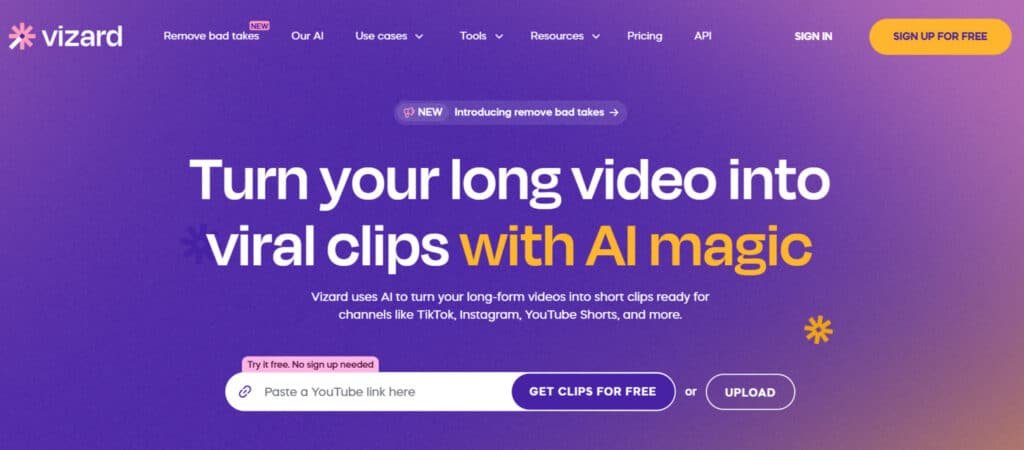
Think of it as a fast lane from raw footage to social-ready short clips. I’ve used the tool to turn hour-long recordings into a stack of shareable moments in minutes. It analyzes long videos, finds highlights, and gives you clip candidates with captions and platform-ready aspect ratios.
How it turns long videos into short clips in minutes
The system accepts uploads or a YouTube link, then extracts highlights automatically. You get multiple short clips that already include captions and mobile-first framing.
Text-based editing makes fine edits simple—edit the transcript to trim precisely, rather than scrubbing timestamps. That speeds up the workflow when you remember words, not moments.
Key benefits at a glance for content creation and social media
- Faster turnaround: AI detection reduces manual trimming so you publish more often.
- Consistent formatting: Auto-adjusted aspect ratios for TikTok, Reels, and Shorts.
- Accessibility: Auto-captions improve reach and engagement.
- Text editing: Cut by editing the transcript—ideal for tight edits.
- Flexible exports: Free plan includes 60 minutes and 720p; paid plans increase minutes and quality up to 4K.
In short, this tool helps you create videos that meet audience expectations with fewer steps. You’ll still review picks, but starting with dozens of candidates beats scrubbing through raw footage every time.
Who Uses and Endorses Vizard for Content Creation
I see the biggest wins among creators and social teams who need steady, platform-ready clips from one recording. The tool is built for short-form destinations and crops videos into vertical, square, and 4:5 layouts so each post looks native.
Use cases span creators, educators, startups, and agencies. Solo creators turn long shoots into YouTube Shorts and Reels without repeated shoots. Social teams slice webinars into clips social media audiences actually watch — short, captioned, and vertical for platforms like tiktok.
Typical users and outcomes
- Course creators: repackage lectures into review segments for students.
- Podcasters: extract moments with framed faces and subtitles for shareability.
- Startups: spin a product demo into micro-stories for press and media.
- Agencies: speed daily posting and manage client calendars under a single plan.
| User Segment | Primary Use | Best Platforms | Plan Needs |
|---|---|---|---|
| Solo creators | Batch long shoots → short edits | YouTube Shorts, Reels | Starter to Creator |
| Social teams | Webinars → captioned highlights | Platforms like tiktok, LinkedIn | Business |
| Educators & Podcasters | Lecture clipping & subtitling | Square/4:5 for LinkedIn | Creator |
First Impressions and Onboarding Experience
Getting started felt refreshingly quick — I was testing clip generation within minutes of landing on the site. The flow is designed to prove value fast, not trap you in a long setup.
No sign-up was required to try the short clip generator. I pasted a YouTube link and, in a few minutes, had several candidate clips with captions ready to review. That made it easy to validate output before committing time or credits.
The dashboard centers the essentials: uploads, active projects, collaboration, and tutorials. Uploading a local video was snappy — progress indicators and background processing let me keep working while renders finished.
The layout is beginner-friendly yet efficient. Controls for aspect ratios, captions, and exports are visible and logical, so you spend less time learning and more time choosing which clips to keep.
For teams, the collaboration tab in the main nav makes feedback loops obvious. Tutorials sit where you expect them, so handing this tool to a teammate takes minimal ramp-up. Overall, onboarding focuses on results and saves you time from first import to final export.
Best Features of Vizard.Ai
I’ve used the editor enough to see which capabilities matter in day-to-day work. The headline is the AI highlight detection — it finds moments that hook viewers so you can produce more content with less effort.
Core editing tools include scene detection, music suggestions, and text overlays. Auto-captions (with multi-language support) improve reach on mute-heavy feeds and lift watch time.
Templates and brand controls speed on-brand creation. Text-based editing simplifies trims—edit the transcript instead of scrubbing, which saves minutes per clip.
- Multi-aspect exports: vertical, square, widescreen for platform fit.
- Real-time collaboration: parallel work for producers and social managers.
- Built-in analytics: compare hooks and retention to refine strategy.
| Feature | Benefit | Best for |
|---|---|---|
| AI highlight detection | Finds high-engagement moments | Creators, social teams |
| Auto-captions & languages | Better accessibility and watch time | Podcasters, educators |
| Templates & brand kit | Consistent, fast on-brand exports | Agencies, businesses |
| Multi-aspect export | Repurpose without extra edits | All users |
In short: the tool balances speed and quality. It trims repetitive steps so your team focuses on story and distribution, not low-level polishing.
1. AI Clip Generator for Viral-Ready Short Clips
Automated clipping finds the moments that hook viewers so you spend less time hunting and more time publishing. I uploaded a 40-minute talk and the tool surfaced intros, punchlines, and Q&A highlights I might have missed by hand.
1.1 Automatic highlight detection and clip length controls
The generator analyzes audio, faces, and pacing to mark candidate clips. You can set target lengths in minutes or seconds—use 20–30 seconds for quick hooks or 60 seconds for fuller explanations.
1.2 Optimizing clips for platforms like TikTok, Reels, and Shorts
Output options map to vertical-first feeds: faces stay centered, subtitles fit, and overlays avoid crowding. It also produces multiple variants so you can A/B test intros and captions without re-editing from scratch.
- I pasted a YouTube link to pull source material quickly.
- Exports are sized for platforms like tiktok and Reels, making videos short enough to stop the scroll.
- The workflow is video repurposing with intent — one recording becomes a week’s worth of posts in under an hour.
Tip: let the system automate the first pass, then tweak crops or captions for polish. In my tests with Vizard, that balance saved real minutes and sped up scheduling for busy social media calendars.
2. Auto-Captions and Video-to-Text Transcription
Clear, accurate captions turn casual scrolls into engaged views with minimal extra work. I’ve found that readable subtitles lift completion rates, especially on phones where many people watch on mute.
The tool auto-generates captions in multiple languages and adds searchable transcripts. You can correct the text directly and push updates live—fast fixes for names, acronyms, or timestamps.
2.1 Why this matters for workflow and reach
Vizard helps create posts that fit real viewing habits: mute-friendly captions, legible fonts, and background shapes that stay visible on busy footage.
- Auto-captions increase completion rates on mobile and boost retention.
- Styling controls let teams match brand fonts, colors, and presets.
- Multilanguage output expands reach without external caption vendors.
- Export options include burned-in captions or sidecar files for flexible delivery.
| Benefit | How it helps | Best use | Result |
|---|---|---|---|
| Auto transcription | Fast searchable text | Interviews, podcasts | Quicker clip discovery |
| Styling presets | Consistent captions | Branded short videos | Fewer review cycles |
| Multilanguage | Wider audience | Global social media | More views and accessibility |
I found the edit pass short—fix a few lines, lock a style, and reuse it across clips. Beyond accessibility, captions also reinforce key phrases so your content sticks with viewers.
3. AI-Powered Editing and Text-Based Edits
When words drive edits, you edit like a writer, not a timeline jockey. I’ve used the text-based workflow to cut long interviews into punchy clips fast.
Editing by transcript is a standout: delete a sentence in text and the corresponding footage vanishes. That makes removing tangents and filler simple. It speeds common video editing tasks and lowers the barrier for new editors.
AI scene detection suggests cut points and flags dead air so you tighten pacing without scrubbing timelines for hours. Background music recommendations and intelligent text overlays apply quickly to keep style consistent.
- Editing by transcript removes ums and pauses in minutes.
- Scene detection tightens pacing without manual searches.
- Quick overlays and music presets save setup time for series.
| Capability | Strength | Limit |
|---|---|---|
| Text-driven cuts | Fast, precise | No advanced compositing |
| Auto scenes | Good for interviews | Basic vs pro suites |
| Exports | Social-ready | Complex color/keyframe work limited |
Bottom line: This tool handles the first 80% of a cut quickly. If you have questions about advanced keyframing or deep color work, expect basic controls. For social-first videos, it saves real time and keeps you publishing more often.
4. Templates, Brand Kit, and On-Brand Video Creation
Brand presets remove guesswork—editors swap footage and keep the same visual language across posts. I use templates to lock in style so teams don’t reinvent layout for every clip.
4.1 Custom fonts, overlays, and branded presets
Brand kits centralize logos, fonts, and color rules so every editor produces on-brand assets without extra calls or files. In my tests, vizard helps reduce inconsistencies that creep in under deadline pressure.
- Features like shared kits and custom fonts (Business plan) keep assets consistent across videos and video series.
- Templates accelerate recurring formats — tweak copy and footage instead of redesigning a layout.
- Text styles and overlays stay legible on vertical clips, which helps create thumb-stopping posts in busy feeds.
- The streamlined editing tools focus on speed and repeatability, not advanced compositing.
I found it easy to clone a template for a new campaign and maintain the same visual rhythm. If you use vizard for multiple clients, separate kits keep assets organized and prevent mistakes—so your content stays consistent at scale.
5. Aspect Ratios and Repurposing for Social Media
Think of one master file that morphs into vertical hits, square posts, and horizontal archives. I find that planning crops and hooks up front is the fastest way to create short, platform-ready assets.
5.1 Aspect Ratios in many formats: 9:16, 16:9, 1:1, and 4:5
Record once, republish everywhere. Keep a high-quality horizontal master (16:9) for long-form archives. Produce vertical 9:16 cuts for TikTok and Reels. Use 1:1 or 4:5 for feed posts that favor taller visuals.
Reframing matters more than resizing. When you create short variants, re-center faces and key text so captions and overlays stay readable in each format.
“Repurposing isn’t just resizing—it’s adapting the hook to match viewer expectations on each destination.”
- I test two or three crops of the same insight to see what performs across platforms.
- Framing helpers keep headline text above safe areas so app UI doesn’t cover captions.
- For youtube shorts, I favor punchy intros and larger subtitles—those often lift completion.
- Reusable templates and aspect presets speed cross-posting without losing visual consistency.
| Aspect Ratio | Main Use | Why It Works |
|---|---|---|
| 16:9 | Long-form archives, YouTube | Wider context & full-stage framing |
| 9:16 | TikTok, Reels, YouTube Shorts | Mobile-first attention; faces centered |
| 1:1 | Instagram feed, LinkedIn | Neutral crop that fits many feeds |
| 4:5 | Instagram feed, Facebook | Taller sightlines for portrait shots |
Practical workflow: export a vertical draft first (short videos), tweak captions, then generate square and horizontal versions for other platforms. This builds a content flywheel: one recording becomes multiple touchpoints across social media platforms.
6. Collaboration, Workspaces, and Team Workflow
Teams win when work feels connected—assets, notes, and approvals live in one place. A shared workspace centralizes templates, brand files, and drafts so stakeholders stop chasing the latest version.
In practice, real-time collaboration lets multiple editors work on the same project at once. Producers can trim and reviewers can leave comments tied to exact timeline moments. That speeds up production and reduces back-and-forth.
Role-based invites make approvals cleaner: editors get edit access, while clients or managers get view-only seats. The Business plan bills per seat and offers unlimited viewers, which helps scale teams without losing control.
- Shared workspaces centralize assets and shorten review cycles.
- Parallel tasks save time across scripting, editing, and scheduling.
- Brand kits lock fonts and colors so posts stay on-brand.
- Comments on the timeline make feedback actionable (no vague notes).
“Centralized workspaces turn sporadic posting into a predictable publishing machine across social platforms.”
| Feature | Benefit | Best for |
|---|---|---|
| Shared workspace | Single source of truth for assets | Marketing teams, agencies |
| Real-time collaboration | Concurrent edits and faster approvals | Producers and content managers |
| Role-based invites | Controlled access and fewer mistakes | Enterprises and clients |
| Brand kit | Consistent fonts, colors, overlays | Multi-brand accounts |
I find that combining exports with a social calendar closes the loop—each clip gets a slot, a description, and a target channel. This workflow makes video creation repeatable and saves real time across production cycles.
7. Analytics and Insights to Refine Performance
Data turns guesswork into action—analytics reveal the hooks that actually work.
I use performance reports to spot which openings earn the longest retention. That helps me pick the next script beats and thumbnail tests.
Knowing where viewers drop makes it simple to re-cut intros or compress explanations. You stop guessing and start iterating with purpose.
- I check per-clip metrics to compare variants—same idea, different first sentence—to see what lands.
- Audience breakdowns show tone and pacing preferences across channels and media destinations.
- Feature-level stats (retention, rewatch, play rate) point to edits that improve overall watch time.
- Treat each short as an experiment: ask focused questions, test, then codify wins into templates.
| Metric | What it reveals | Action to take |
|---|---|---|
| Retention curve | Where viewers drop off | Tighten intro or move hook earlier |
| Play-through rate | How many finish the clip | Adjust pacing or shorten explanations |
| Engagement (likes/shares) | Which moments prompt interaction | Highlight similar segments in future videos |
| Demographics | Who is watching | Tailor tone and calls-to-action to that audience |
Bottom line: Analytics won’t write your script, but they remove uncertainty. Use the data to ask better questions and scale the short-form video content that consistently drives watch time.
Vizard.ai Pricing and Plans
Pricing should map to how you publish—whether you test clips monthly or run a steady schedule for clients. I’ll summarize each plan and call out which use case fits best.
Free Plan
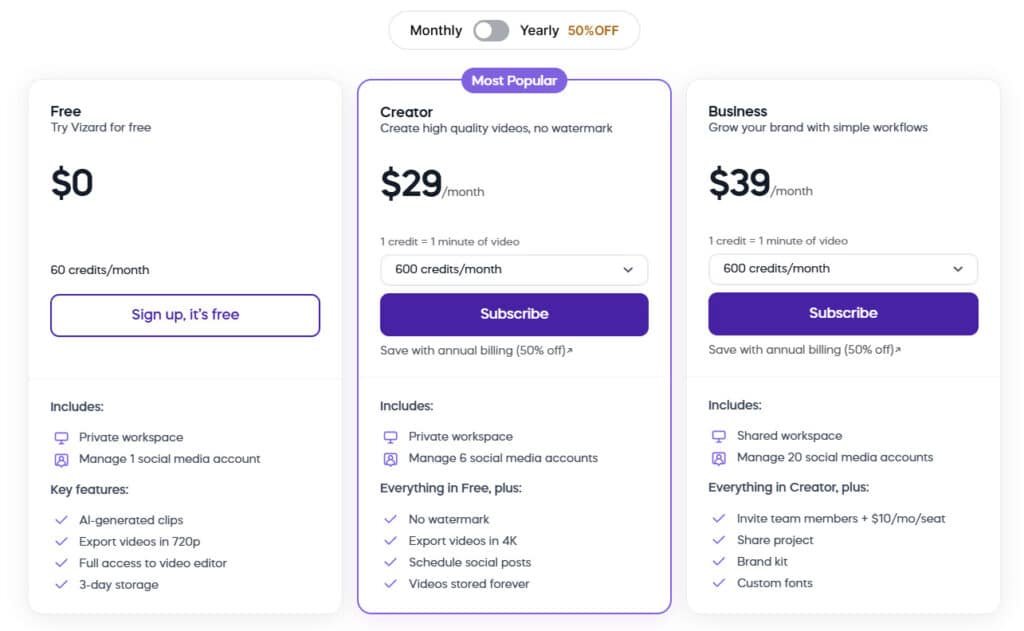
You can try Vizard for free at $0 monthly, perfect for dipping into video repurposing without cost. Annual stays the same since it’s free.
Features: 60 credits/month (1 credit = 1 minute), private workspace, manage 1 social media account, AI-generated clips, 720p exports, full video editor access, 3-day storage.
Creator Plan
The creator plan runs $29 monthly or $14.5 monthly with 50% off annually ($174 billed yearly), great for solo video content creators. Use Vizard here to crank out clips social media loves.
Features: 600 credits/month monthly (7,200/year annual), private workspace, manage 6 social media accounts, no watermark, 4K exports, schedule posts, forever storage, everything in Free.
Business Plan
Grow your brand at $39 monthly or $19.5 monthly with 50% off annually ($234 billed yearly), ideal for teams in content creation.
Features: 600 credits/month monthly (7,200/year annual), shared workspace, manage 20 social media accounts, invite team members (+$10/mo/seat monthly, +$5/mo/seat annual), share projects, brand kit, custom fonts, everything in Creator.
| Plan | Monthly Price | Annual Price (50% off) | Credits/Mo | Key Features |
| Free | $0 | $0 | 60 | Basic clips, 720p, 3-day storage |
| Creator | $29 | $14.5 ($174/yr) | 600 | No watermark, 4K, forever storage |
| Business | $39 | $19.5 ($234/yr) | 600 | Team invites, brand kit, shared workspace |
“If you plan to scale, check minutes and team seats first—those drive the true cost of publishing.”
Pros and Cons of Vizard.Ai
Below are the strengths that accelerate publishing and the trade-offs you should plan around.
Pros:
- Speed: AI-driven clipping, captions, and formatting save serious time versus manual timeline work.
- Beginner-friendly UX: The editor lowers the barrier for consistent publishing—even if you’re not into technical video editing.
- Multi-aspect exports: Built-in crops and captions make cross-platform production fast and repeatable.
- Team features: Collaboration, brand kits, and scheduling centralize steps from edit to publish.
Cons:
- Advanced limits: Deep color grading, complex compositing, and VFX still belong in pro NLEs—this is not a full-on post suite.
- Cloud-only: A stable internet connection is required—offline workflows aren’t supported.
- Manual review: AI-generated picks often need tweaks—plan a quick review pass for any final video.
- Initial setup: Mapping templates, brand assets, and naming conventions takes a little time up front.
Summary: The platform speeds routine edits and helps teams ship more videos with less friction. If you need broadcast-level control or heavy VFX, pair these tools with a professional editor—or check the alternatives in the next section.
Alternatives to Vizard for AI-Powered Video Creation
Not every creator needs the same feature set—choosing the right alternative depends on whether you repurpose or generate new visuals. Below I map solid alternatives by use case and point out when to pick each platform.
Best for repurposing and social distribution
- Quso.ai — Strong at auto-captions, clipping, scheduling, and analytics. Pick it if you want an end-to-end repurposing pipeline with built-in publishing.
- VideoGen — Browser editor with flexible layouts and quick social exports. Good for teams that need simple, fast edits and many format variants.
- Crayo AI — All-around web editor with strong subtitle tools and team features. Choose Veed when you need readable captions and template consistency.
- Domo AI — Template-driven assembly with stock assets and script-to-video flows. Best for marketers who prefer structure and fast ad-style production.
Best for generative video and novel visuals
- JoggAI, Pika, Luma, Sora — These focus on text-to-video, generative visuals, and creative effects. Use them when you want net-new footage or experimental visuals.
- Canva and Fliki — Easier entry to generative assets and simple video assembly. Ideal for small teams that need branded visuals with minimal learning curve.
“Evaluate platforms by your bottleneck: speed of repurposing, depth of creative generation, or team and brand workflows.”
Practical selection tips:
- Match the tool to your main pain point—clipping speed, generative creativity, or collaborative approvals.
- Check paid plans for minutes, export limits, and team seats before committing—those drive real cost as you scale.
- If you need advanced motion graphics or multi-track finesse, expect to round-trip to a professional NLE for final polish.
| Use Case | Best Alternatives | Why Choose |
|---|---|---|
| Repurposing & Scheduling | Quso.ai, Alphana, Veed | Auto-captions, clipping, social exports, analytics |
| Template-driven Marketing | JoggAI, Canva | Stock assets, script-to-video, consistent output |
| Generative & Experimental | DomoAI, Pika, Luma, Sora, Fliki | Text-to-video, novel visuals, advanced creative effects |
Bottom line: Pick an alternative that fixes the limits you hit earlier—speed, collaboration, or creative depth. For many workflows, combining a repurposing tool with a generative app gives the best balance of volume and originality.
Real-World Results: Case Study and Personal Experience
I ran a live test converting a single webinar into a week of platform-ready posts to measure real savings. The goal was simple: get started quickly and see how much time the streamlined workflow saves compared with manual editing.
From long videos to consistent short clips: outcomes and time saved
I started with a 55-minute webinar and, in one session, produced eight targeted short clips for different channels. The flow was straightforward: paste a YouTube link, generate candidates, review, edit the text transcript, apply my brand template, export, and schedule.
The measurable win was clear—what used to take half a day of manual trimming shrank to about an hour end-to-end to produce a week of posts. Captions needed only light name fixes; otherwise the presets were on-brand and accurate.
My Experience: Workflow, tweaks, and publishing cadence
Text-based cuts made removing side tangents fast. I created vertical versions first, then exported square crops for LinkedIn—each clip had a specific CTA tied to its platform. Publishing cadence moved from sporadic bursts to a steady rhythm: 3–5 videos short per week felt sustainable.
- Eight clips from one 55-minute recording.
- Workflow: import → generate → select → edit → brand → export → schedule.
- Time saved: ~4–6 hours reduced to ~60 minutes for comparable output.
- Lesson: pick tighter durations than instinct—brevity improved early retention.
“Leading with a crisp hook raised retention in the first three seconds—analytics confirmed that the AI-picked openings outperformed my original intros.”
Bottom line: This approach turned backlog content into a consistent stream of discoverable moments. With the right presets, you can reliably create videos that map to platform goals and keep your feed full without burning out on manual edits.
Who Should Choose the Free vs Paid Plans
Match your output goals—testing, weekly posting, or multi-person review—to the right plan.
vizard free is a clear starter option if you want to validate fit without cost. Use it to test clips, check caption accuracy, and process a few videos per month. The free tier includes 60 minutes, 720p exports, and three-day storage—so export quickly or you’ll need to re-upload.
Step up to the creator plan when you publish weekly or need higher fidelity. Creator unlocks 400+ minutes, 4K exports, and scheduling—ideal for a solo creator or a small team who wants to remove watermarks and centralize publishing.
The Business tier fits teams that need shared workspaces, a brand kit, and multiple seats. Choose this if several people edit, review, or must enforce brand consistency across accounts and clients.
- Choose vizard free if you’re testing fit, clipping a few videos monthly, or validating caption quality before committing.
- Free’s 60 minutes works for light use; export promptly given 3-day storage to avoid re-uploads.
- Upgrade to Creator if you publish weekly, need 4K, and want scheduling to centralize your flow.
- Business makes sense when multiple people must edit, review, or enforce brand consistency.
I advise starting on vizard free for one week, measure how many final videos you actually publish, then upgrade once you see a steady cadence. Heavy repurposers should model monthly minutes to avoid caps mid-campaign. For an audience that expects premium quality or for large-screen playback, paid 4K exports are worth the cost.
Bottom line: pick free to test, Creator to scale solo publishing, and Business for team control and brand governance. The right plan reduces friction so you can keep your social media calendar full.
| When to Choose | Key Limits / Perks | Best For |
|---|---|---|
| Testing & occasional clips | 60 minutes, 720p, 3-day storage | Individuals validating workflow |
| Regular publishing | 400+ minutes, 4K export, scheduling | Solo creators, small teams |
| Team & brand scale | Shared workspace, brand kit, seats | Agencies, marketing teams |
Think of this platform as a production shortcut that turns backlog footage into ready-to-post moments fast. vizard provides automated highlight detection, ai clipping, and accurate captions so you start with smart clip candidates instead of a blank timeline.
Use vizard when you want to publish more, faster—without learning a pro editor. The workflow helps create clips with correct aspect ratios and template styling so posts look polished on TikTok, Reels, and Shorts.
I like that vizard provides collaboration features and a brand kit on paid tiers. Creator and Business plans add 4K exports, scheduling, shared seats, and centralized templates; the free tier gives 60 minutes and 720p to test the system.
In short, vizard helps create consistent short-form content by removing tedious first-pass edits. If your goal is speed-to-publish and reliable video repurposing, use vizard to turn long recordings into a steady stream of platform-ready videos.
Conclusion
Raamish’s Take
Vizard.ai is an exceptional tool for anyone looking to transform long-form videos into social-ready clips with minimal effort.
Its AI-powered editing tools, like AI clipping and speaker detection, automatically identify engaging moments and create shareable content for platforms like TikTok, Instagram Reels, and YouTube Shorts.
The platform’s intuitive interface makes it easy to navigate, even for beginners, while features like multilingual captions and platform-specific resizing ensure your content reaches a global audience.
I appreciate how real-time collaboration simplifies teamwork, letting you share previews and manage projects seamlessly.
The analytics tools provide insights into viewer engagement, helping refine content strategies. While the free plan is great for testing, the paid plans unlock 4K exports and watermark removal, making it ideal for professionals.
Vizard.ai’s focus on automation and customization saves hours of editing time, letting you focus on creating impactful content.
My final verdict weighs time saved against advanced-edit limits and suggests a clear starting plan for creators and teams.
If you need to create short deliverables from long recordings quickly, this tool is one of the most efficient options I’ve tested. The combination of highlight detection, captions, multi-aspect exports, and scheduling cuts the production bottleneck.
Quick recommendations:
• Start free to get started, export fast, and test caption accuracy.
• Upgrade to the creator plan (starts ~$19) for 4K and scheduling if you publish weekly.
• Teams should pick Business (starts ~$29) for shared workspaces, brand kits, and seats.
For heavy VFX or cinematic control, pair this workflow with a pro NLE or explore an alternative vizard option. Ready to create videos from your backlog? Set a goal of three short videos per week and iterate with analytics.
If you still have asked questions about fit or limits, check the article FAQs—we’ll cover the most asked questions creators and teams send in.
Frequently Asked Questions
What does Vizard.ai do and who is it for?
Vizard.ai turns long-form videos into short, platform-ready clips quickly — ideal for creators, marketers, educators, and teams who repurpose webinars, podcasts, and recordings into TikTok, YouTube Shorts, Instagram Reels, and LinkedIn clips.
How fast can I create short videos from a long recording?
You can generate short clips in minutes. The platform’s automatic highlight detection and text-based editing speed up selection and trimming, so you spend more time publishing and less time cutting footage.
Does it include automatic captions and transcription?
Yes — it offers video-to-text transcription and auto-captions, including multilanguage support and styling options to improve accessibility and engagement across social media platforms.
Can I customize branding, templates, and fonts?
Absolutely. There’s a brand kit, templates, custom fonts, overlays, and branded presets so your clips stay on-brand across formats and platforms.
Which aspect ratios are supported for repurposing videos?
You can export in common social ratios — 9:16 for TikTok/Reels, 16:9 for YouTube, 1:1 and 4:5 for feed posts — letting one source video fit multiple platforms without re-editing from scratch.
How good are the AI-powered editing tools and text-based edits?
The tools are intuitive — they allow you to edit via transcript, make text-based changes, and generate cuts around highlights. That lowers the learning curve compared with traditional NLEs while still giving precise control.
What are the limits of the free plan?
The free plan typically includes limited minutes, basic storage, and lower-resolution exports (often 720p). It’s great to test repurposing and short-clip workflows before upgrading.
What do paid plans add for creators and teams?
Paid tiers often lift upload and minute caps, remove watermarks, add higher-resolution exports (including 4K on some creator plans), scheduling, expanded storage, shared workspaces, and multiple seats for team workflows.
How does collaboration and team workflow work?
The platform supports shared workspaces, role-based access, and team assets — so editors, social managers, and brand leads can collaborate on the same projects and templates in a centralized environment.
Does it provide analytics to measure clip performance?
Yes — you get analytics and insights to track views, engagement, and the performance of repurposed clips, which helps refine what types of moments or formats work best for your audience.
Is there an easy onboarding and dashboard experience?
The dashboard and upload flow are straightforward. My experience: uploads, transcript generation, and the clip generator are fast and require minimal setup to start producing content.
How does automatic highlight detection work?
The engine scans audio and visual cues to suggest high-engagement moments — you can override selections, set clip length controls, and fine-tune output for different platforms or audiences.
Can I edit videos using the transcript instead of timeline trimming?
Yes — text-based edits let you remove filler words, cut sections, or create clips directly from the transcript, which speeds up editing compared with frame-by-frame adjustments.
What are common alternatives for repurposing and social distribution?
Alternatives focused on repurposing include Kapwing, Veed, InVideo, and quso.ai. If you need broader generative video features, consider Runway, Pika, Luma, Sora, Canva, or Fliki depending on your workflow.
Will the platform work for long-form content like podcasts and webinars?
Yes — it’s built for turning long recordings into bite-sized clips. Use it to pull highlights, emphasize quotes, add captions, and match formats for multiple social networks.
How do I optimize clips for different platforms like TikTok and YouTube Shorts?
Use aspect-ratio presets, caption styling, and platform-specific length controls. Also tailor hooks (first 1–3 seconds), pacing, and thumbnails to the platform — the tool helps automate many of these steps.
Are there built-in templates for social posts and scheduling?
Yes — there are templates and, on higher plans, scheduling features to queue exports to social platforms. Templates speed up consistent creative across posts and campaigns.
Can the tool handle multilingual content and caption translation?
Multilanguage transcription and captioning are supported — helpful for global audiences and improving accessibility across markets.
What are the main pros and cons I should expect?
Pros: fast repurposing, easy text-based edits, strong captioning, and brand controls. Cons: advanced fine-grain editing may still require a traditional editor, and top-tier features sit behind paid plans.
How do I decide between the free plan and paid tiers?
Use the free plan to test the workflow and volume you’ll produce. Upgrade when you need watermark-free exports, more minutes/storage, higher resolution, scheduling, or team seats.
Is this suitable for businesses and agencies?
Yes — businesses and agencies benefit from shared workspaces, brand kits, seat management, and analytics to scale short-form production across clients and channels.