Have you ever spent hours removing a background or trying to upscale a low-resolution photo only to get disappointing results?
Not everyone has the time or skills to learn advanced tools like Adobe Photoshop, honestly many people don’t want to pay for a full subscription either they just need quick edits like upscaling an image removing a background replacing an object or fixing visuals fast without the hassle
I’ve watched AI image editing apps move from simple filters to powerful, production-ready tools throughout the years.
Whether you’re an e-commerce seller needing consistent product photos, a marketer creating social content, or a photographer who wants faster retouching, the right AI editor can save you time and produce professional results.
In this guide I test and compare 11 top AI Image Editing Software options for 2026. You’ll get practical recommendations for different use cases (e-commerce, upscaling, brand consistency, free editors), a quick comparison chart, and hands-on notes about features like background removal, upscaling, generative fill, and batch editing.
Let’s delve in to explore the best AI tools you can use to edit visual creatives and give a massive creative boost to image work efficiency .
What is an AI Image Editing Softwares?
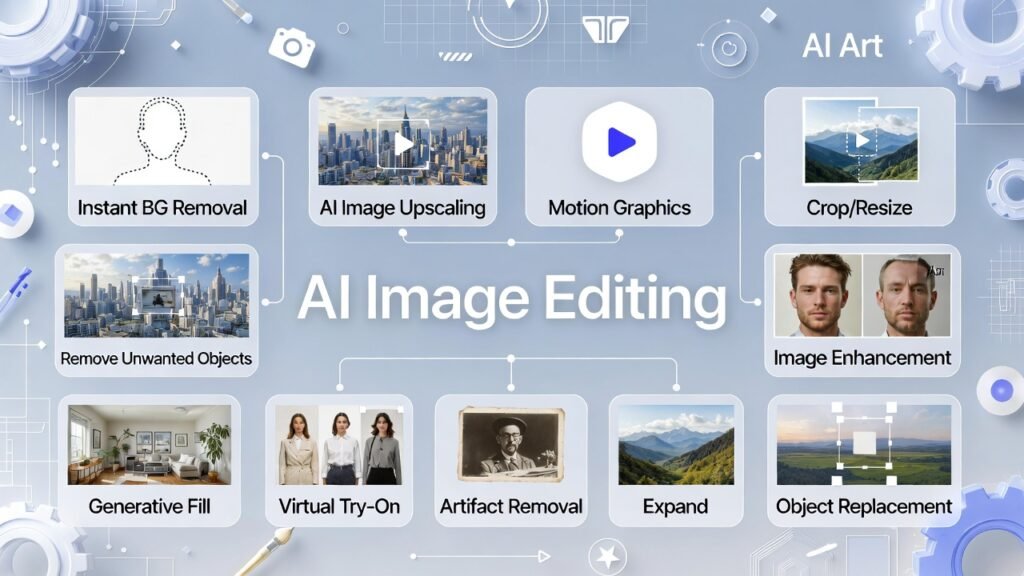
AI image editing software is an AI application that uses machine learning models to automate or augment common photo editing tasks….things that used to need manual selections, complex retouching, or hours in Photoshop.
Instead of relying solely on sliders and brushes, these editors apply trained models to perform tasks like removing backgrounds, upscaling low-res photos, or generating new image content from text.
Common AI-powered capabilities you’ll see in modern editors:
- Background removal & masking: Automatic subject extraction that handles hair, transparency, and tricky edges without manual masking.
- Upscaling & restoration: AI upscalers increase resolution while reducing noise and removing JPEG artifacts—useful for old scans, product photos, and print assets.
- Inpainting / generative fill: Replace or extend parts of an image (remove objects, adding effects, expand canvases, or fill missing areas) using context-aware synthesis driven by text or selections.
How this differs from traditional editors?
AI tools speed up repetitive parts of the editing process and add generative capabilities—like creating image variations from a text prompt—but they aren’t perfect. Expect occasional artifacts, color shifts, or hallucinated details, especially at high zoom.
Also consider ethical and legal limits: Model bias, image licensing, and using someone’s likeness require care.
Who Would Benefit from These AI Image Editing Tools?
Honestly, if you’re anyone who deals with photos regularly but hates spending hours in Photoshop, these tools are a game-changer.
I picked 5 key factors that make sense for real-world use (pulled from what actually matters when testing these tools — speed, quality, ease, cost, and extras).
Image Editing Criteria: How We Evaluated These Tools
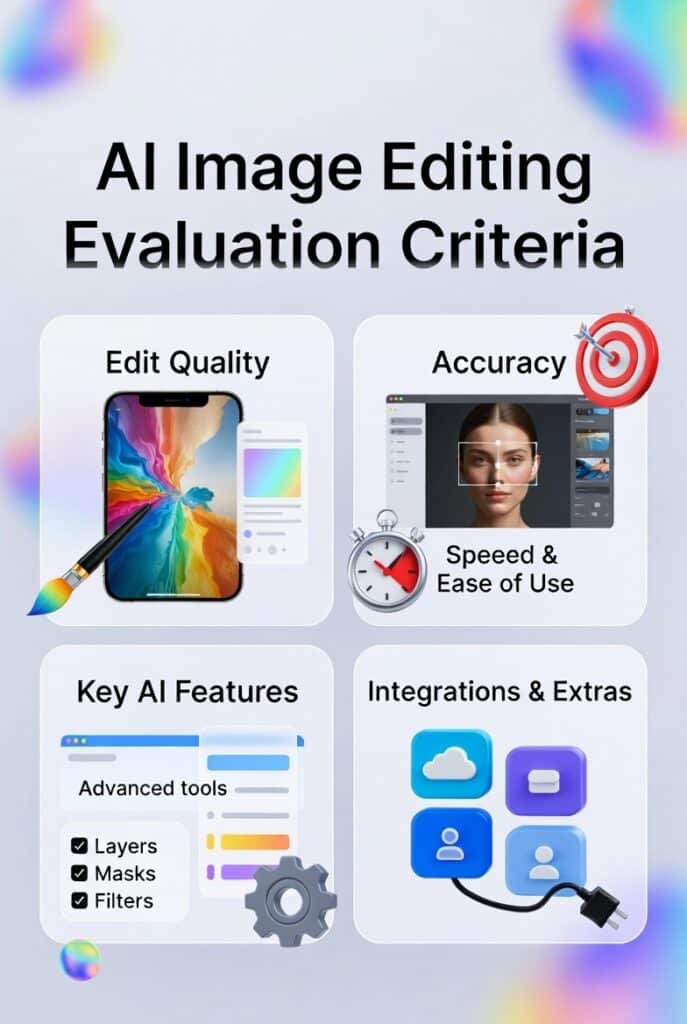
When I tested these 11 AI image editors, I didn’t just glance at features — I actually ran real photos through them (product shots, portraits, old scans, you name it). Here’s what mattered most to me, and probably to you too:
- Edit Quality & Accuracy: Does the background removal stay clean? Do upscales look sharp (not weird/artifacts)? Inpainting or object removal — does it blend naturally or leave ugly edges? I zoomed in 100% every time because bad quality wastes your time later.
- Speed & Ease of Use: How fast is one edit? Is the interface beginner-friendly or confusing? I hate tools that feel like rocket science — the best ones let you fix a photo in seconds without tutorials.
- Key AI Features: Beyond basics, does it do batch editing, generative fill, virtual try-ons, consistent styles, or video? For e-commerce folks, batch + product-specific tools win. For creatives, prompt-based magic matters more.
- Pricing & Value: Free tier strong enough to test? Paid plans worth it (credits, limits, unlimited)? I looked for no hidden gotchas — tools with solid free starts or fair monthly fees scored higher.
- Integrations & Extras: API for bulk work? Team sharing? Brand kits? Zapier/Slack hooks? These save hours if you’re scaling or automating.
We weighed each of these AI tools on this list these based on these factors — like “Will this actually save me money/time?” or “Does it handle my exact use case?” That’s how we ranked them honestly.
Why Should You Trust My Recommendations?
Short answer: I test these tools the way you’d use them. I’m an AI engineer with an MS in Data Science & Machine Learning and a BS in Software Engineering, working professionally on image-processing projects since 2018. Over the years I’ve built and contributed to production AI systems for imaging workflows, so I know how models behave in real-world pipelines — not just on curated demo images.
For this guide I ran hands-on tests across a mix of real-world image types and scenarios (product photos, low-res scans, portraits, and marketing assets). My evaluation criteria focused on speed, accuracy of background removal, upscaling quality, generative fill/inpainting, batch processing, and integration/API support.
In total I spent dozens of hours testing workflows and measuring results so these recommendations reflect practical performance, not marketing copy.
AI Image Editing Software Comparison Chart
Quick reference — features and pricing checked Jan 2026. “From” indicates vendor list pricing or in-app tiers; always verify before purchase.
| Rank | Tool | Key Features | Best For | Ratings | Pricing (Starting Monthly) |
|---|---|---|---|---|---|
| 1 | Pixelcut | Instant BG remove, retouch, upscale, expand, batch edit, ghost mannequin, video gen, team folders | E-commerce & product photography — lightning speed, team workspace | 4.8 | Free plan; Pro from $10/mo (600 credits) |
| 2 | LetsEnhance | 2x-16x upscale, auto enhance, artifact removal, color fix, batch, text-to-image, API | Image upscaling & restoration — high-res upscales (up to 16×) | 4.7 | Free trial (10 credits); Starter from $9/mo (annual) or $12/mo |
| 3 | Claid AI | AI fashion models, product video, custom backgrounds, quality upscale, light/color fix, API | Product catalog automation — product-trained models & virtual try-ons | 4.7 | Free trial (50 credits); Essentials from $9/mo |
| 4 | Getimg.AI | Inpainting, BG swap, restyling, image/video gen, custom models | Text-prompted photo editing — fast inpainting & prompt-driven edits | 4.6 | 120 free credits/day; Entry from $8/mo (annual) or $10/mo |
| 5 | Imagine.Art | Crop/resize, AI BG remover, enhancements, filters, add elements, generation | Free AI editing & generation — browser-based, no watermarks | 4.6 | 100% free (possible premium add-ons) |
| 6 | PhotoAIStudio | Selfie-to-model, virtual try-on, 100+ styles, talking videos, face swap, upscaler | AI model generation & clothing try-on — hyper-realistic humans | 4.5 | Free trial; Paid from $13/mo (approx., credit-based) |
| 7 | Phot.AI | Object/BG remove & replace, enhancer, extender, product shoot, 10k+ templates, API | Marketing visuals & templates — large template library for ads | 4.5 | 25 free photos; Pro from $10/mo (annual equiv.) |
| 8 | PromeAI | Text/sketch-to-image, consistency render, inpaint/outpaint, relight, interior remodel, video | Interior design & architecture — style training from single image | 4.5 | Free with coins; Paid from $16/mo |
| 9 | Flair AI | Bulk gen, on-model photos, product videos, virtual try-on, magic erase, brand assets, API | Brand-consistent product imagery — strict brand kit & reusable templates | 4.4 | Free trial; Starter from $8/mo (approx. range) |
| 10 | Scenario | Custom models, image/video/3D gen, inpainting, pose transfer, weather changer, API | Game assets & consistent style — custom model training & niche editors | 4.4 | Free (50 credits/day); Starter from $10/mo (annual) or $15/mo |
| 11 | Orshot | Canva-like studio, dynamic templates, bulk API gen, video/PDF, integrations, white-label | Bulk content generation & automation — templates + Zapier/Slack integrations | 4.3 | 60 free renders/mo; Paid from $30/mo (starter) |
Top 3 AI Image Editing Software Picks
🥇
Pixelcut (Best Overall)
Best for e-commerce sellers and small teams who need consistent, on-brand product photos fast. Pixelcut combines fast background removal, effects, batch editing, and team workspace features to turn smartphone snaps into ready-to-publish product images.
Why choose this:
Go here if you want the best photo editor for store catalogs and quick turnarounds.
🥈
LetsEnhance (Best for Upscaling)
Best for photographers and print designers who need to recover detail from low-res files. LetsEnhance delivers industry-leading upscaling and artifact removal (up to very large multipliers) while keeping edges and text legible.
Why choose this:
Pick LetsEnhance when you need the best image upscaler for prints, restorations, or high-res exports.

🥉
Claid AI (Best for Product Photos)
Best for sellers with large catalogs who want automated, product-focused results. Claid uses product-trained models to create consistent catalog images, virtual try-ons, and lifelike product videos with minimal manual work.
Why choose this: Choose Claid if you want tools like automated model placement and catalog-ready product shoots at scale.
Top AI Image Editing Software Ranked
1. Pixelcut: Best AI Image Editor for E-commerce
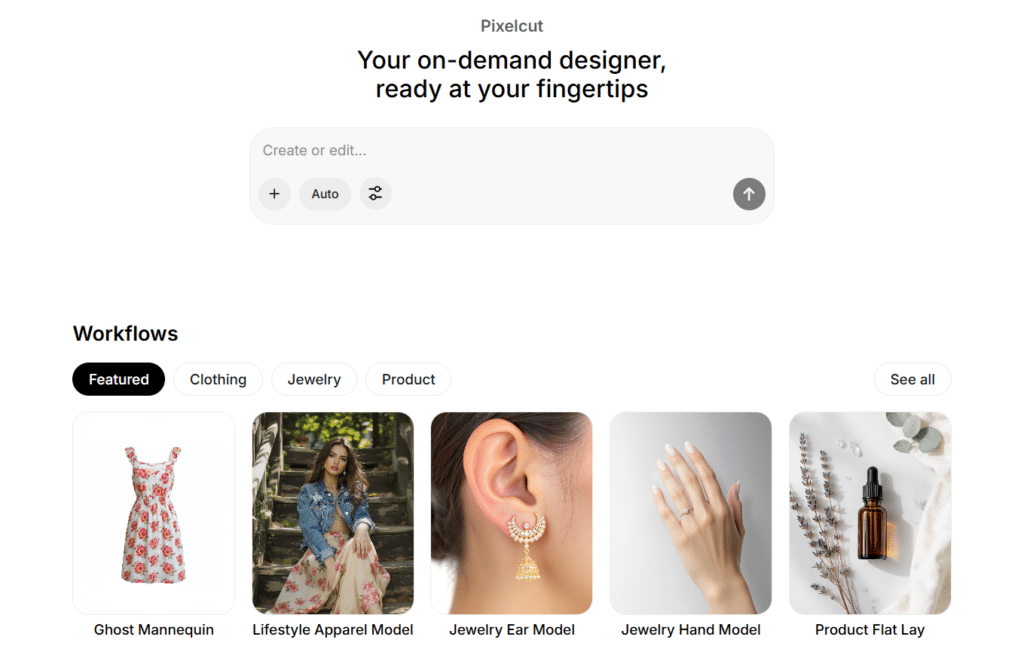
Best for e-commerce sellers who need consistent, on-brand product photos fast. Pixelcut is an AI image editing software built around speed and automation: Fast background removal, batch processing, and a team workspace let non-designers produce catalog-ready images from smartphone shots.
4.8
OVERALL RATING
Key Pain Points Pixelcut Solves
Standout Features
Instant Background Removal
Pixelcut’s background remover is extremely fast and accurate on a wide range of objects. In tests it delivered clean cutouts for clothing edges and reflective items with fewer manual fixes than many general-purpose editors.
Magic Expand
Extend the canvas in any direction and let the AI synthesize plausible fills—handy for creating different aspect ratios for social platforms without awkward cropping.
Batch Editing
Apply consistent adjustments to dozens or hundreds of photos in one run—ideal for stores with large inventories. Batch jobs dramatically reduce turnaround time compared with manual edits.
AI Image Generation
Generate supplemental product imagery from prompts or references. Models integrated into Pixelcut can produce mockups, ghost mannequin shots, and flat-lays to augment real photography.
Real-World Success: Fashion Boutique Case Study
A small boutique reported cutting product photography costs ~80% after switching to Pixelcut: from $2,000/month on shoots to capturing items on a phone and using Pixelcut for editing. Their time-to-list dropped from days to hours, helping them publish new products faster.
Demo Experience
In my tests Pixelcut turned a phone photo of a mug into a marketplace-ready image in seconds: background removal, minor color correction, and a Magic Expand crop for social sizes. Batch processing handled 25 images in under 3 minutes. These time savings matter when you publish many images daily.
Pros and Cons


Integrations & Support
Pixelcut integrates with commerce platforms like Shopify and WooCommerce and supports direct exports for social platforms. Support responsiveness varies; in testing the vendor replied to a query within a few hours.
Pricing
Free plan gives you basic edits with limited credits. Pro starts at $10/month (600 credits) — unlocks unlimited batch editing, team folders, higher-res exports, and video generation. Annual billing drops it a bit cheaper. Great value if you do lots of product photos daily.
Ready to transform your product photo editing?
Try Pixelcut’s AI editing toolkit and speed up your catalog workflow. Start with the free plan to test background removal, batch edits, and template exports—no credit card required.
2. LetsEnhance: Best AI Image Upscaling Software
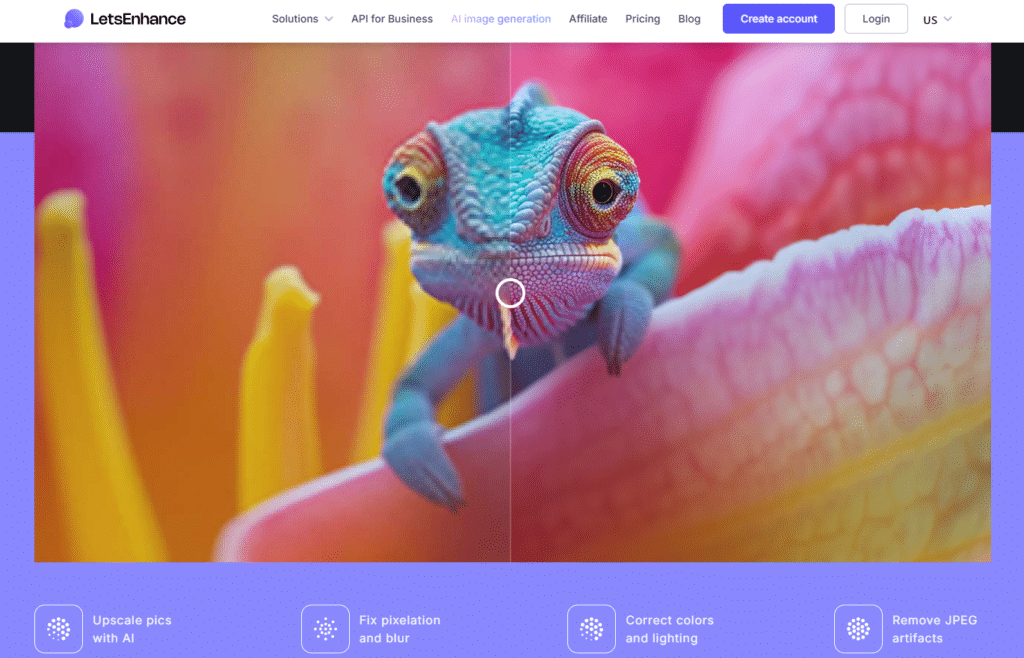
LetsEnhance is the specialist for rescuing low-res photos and preparing high-quality images for print or large displays. This focused image editing software uses dedicated upscaling and restoration models to increase resolution, remove JPEG artifacts, and recover plausible detail—making it a go-to for real estate, print-on-demand, and archival photo work.
4.7
OVERALL RATING
Key Pain Points LetsEnhance Solves
Standout Features
Smart Upscaler
Multiple upscaling modes (e.g., Magic, Balanced, Original) tailor output for different needs. The ‘Magic’ mode can synthesize fine detail that wasn’t visible in the original, while Balanced preserves texture more conservatively—helpful to avoid over sharpening.
Artifact Removal
Automatic detection and removal of compression artifacts, banding, and noise saves hours compared with manual retouching workflows.
Auto Enhance
One-click improvements for contrast, exposure, and color balance that produce natural-looking results—handy for quickly improving batches of listing photos.
Batch Processing
Process hundreds of images with consistent settings—essential for real estate portfolios or e-commerce catalogs that need uniform high-res images.
When to Choose LetsEnhance
Pick LetsEnhance when your priority is resolution and restoration: printing, restoring old photos, or preparing product imagery for large banners. If you need creative edits or prompt-driven changes, use it alongside broader editors rather than as a one-stop editor.
Real-World Success: Real Estate Case Study
A real estate photographer salvaged poorly lit listing photos with LetsEnhance and reported a meaningful increase in inquiries after replacing low-res images with restored, higher-resolution versions. Results like this show the tool’s practical impact on conversions when image quality matters.
Demo Experience
In testing I ran a low-res product image, an old family scan, and a blurry landscape. A 4x upscale kept text legible and edges clean; artifact removal cleared compression noise from the scan. Processing times were quick—about 15–25 seconds per image on average—and the interface makes before/after comparison straightforward.
Pros and Cons
Integrations & Support
LetsEnhance offers API access for automated workflows and integrates with cloud storage providers. Vendor docs include model explanations and recommended modes for different image types; support response times vary.
Pricing
Free trial: 10 credits (good for testing up to 64MP). Starter plan $9/month (billed annually) or $12 monthly — includes 100+ credits, higher MP limits, batch processing, and API access. Higher tiers ($29+) for pros needing 500MP+ upscales. Solid for restoration work.
Ready to upscale your photos?
Try LetsEnhance with starter credits to see how much detail you can recover—ideal for photographers and teams preparing images for print or large-format use.
3. Claid AI: Best for Automated Product Photography
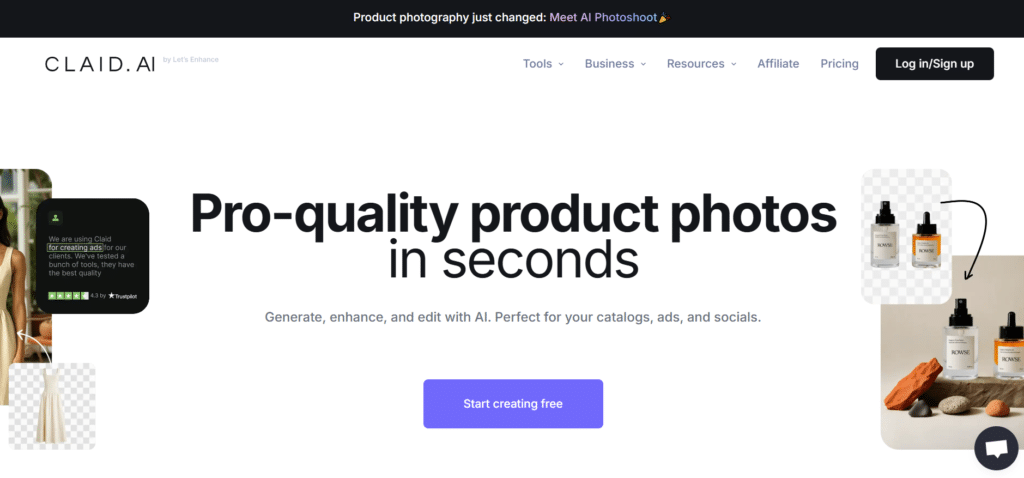
Claid AI focuses on product imagery at scale. Rather than a general-purpose editor, Claid’s models are trained primarily on product photo editors, which helps preserve logos, shapes, and fabric details—making it ideal for sellers who want consistent catalog images, automated virtual try-ons, and fast turnarounds without a full photography pipeline.
4.7
OVERALL RATING
Key Pain Points Claid AI Solves
Standout Features
AI Fashion Models
Upload a product image and Claid can place it on virtual models in natural poses. The result keeps fabric texture and pattern fidelity better than many general editors because the models are product-focused.
AI Video Generation
Turn static photos into short product clips—spins, model motion, or animated lifestyle shots—saving time and budget compared with traditional video shoots.
Background Enhancement & Replacement
Replace or enhance backgrounds using templates or prompts; the AI keeps natural shadows and reflections so products look grounded in the scene.
Quality Improvement
Automated color correction, lighting fixes, and detail enhancement tuned for products (not stylized photography), which helps preserve accurate product appearance for commerce listings.
When to Choose Claid vs. Other Tools
Choose Claid AI if your primary need is pure e-commerce catalog quality at scale—flat-lays, on-model shots, and consistent product pages. If you need aggressive creative edits or text-prompted artistic changes, pair Claid with a tool like Getimg.AI or Imagine.Art. For hands-off brand templates at scale, Flair or Orshot may be better complements.
Real-World Success: Online Clothing Store Case Study
A clothing retailer with thousands of SKUs reported dramatically faster catalog processing after adopting Claid AI: Internal case reports showed image pipeline times shrinking from multi-week batches to days, and a measurable lift in conversions after launching more consistent product pages. (Case study reported by the vendor.)
Demo Experience
In hands-on tests, Claid AI turned a flat-lay tee into multiple on-model renders in minutes while preserving pattern detail. Background swaps maintained realistic shadows and the batch runs produced consistent output across 30 sample SKUs in under 10 minutes. Results are reliable for catalogs but expect occasional cleanup for complex accessories or very shiny surfaces.
Pros and Cons
Integrations & Support
Claid supports API workflows and integrates with major platforms like Shopify and WooCommerce to automate catalog imports/exports. Enterprise customers can get custom training and dedicated support—verify current integration details with the vendor.
Pricing
Free trial with 50 credits to play around. Essentials plan kicks in at $9/month (annual) — gives you product-trained edits, fashion models, backgrounds, and API. Custom plans for bigger stores (usually $20–$50+/mo). Worth it if you hate hiring photographers.
Ready to scale product photography?
Try Claid AI’s product-focused workflow if catalog consistency and virtual try-ons are priority requirements for your store.
4. Getimg.AI: Best for Text-Prompted Editing
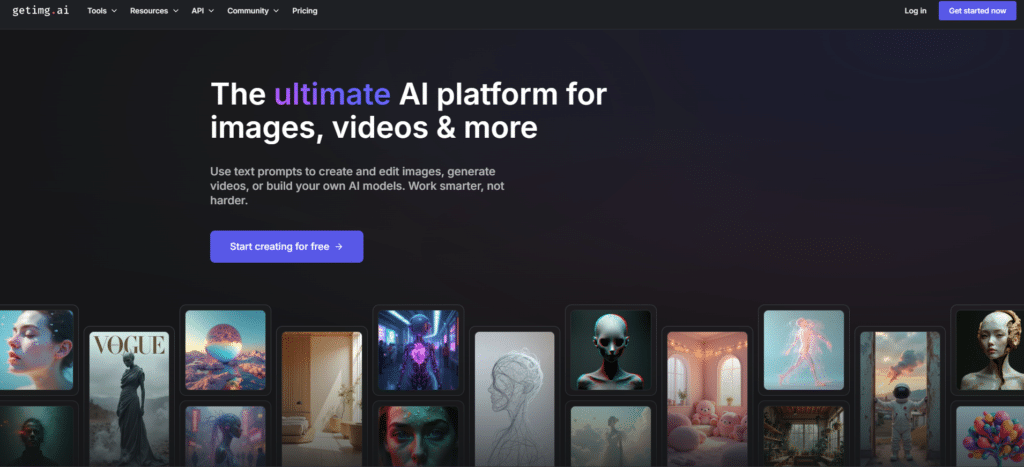
Getimg.AI makes complex edits accessible by letting you describe changes in plain text instead of wrestling with masks and brush tools.
For marketers and creators who need fast, creative edits, Getimg translates short prompts into inpainting, background swaps, style changes, or object edits—often in seconds—so non-designers can produce polished results without deep Photoshop skills.
4.6
OVERALL RATING
Key Pain Points Getimg.AI Solves
Standout Features
generative fill (Inpainting & Image-Image Modifications)
Replace, add, or modify parts of an image using text. I used inpainting to add props and change small scene elements; results blended well with original lighting when prompts were specific.
Background Change
Swap backgrounds by describing what you want—no manual masking. The AI preserves the subject and recreates natural shadows and lighting in most cases.
Style Transfer
Apply artistic looks via prompts like “watercolor” or “vintage film.” The main subject stays intact while the image adopts the requested aesthetic.
Object Removal
Tell the AI which object to remove and it fills the area contextually. Works best on medium-to-large objects; tiny, detailed removals may need iterative prompts or manual touch-ups.
Prompt Tips & Common Failure Modes
Effective prompts are short but specific. Examples that worked well in testing:
- “Add a white coffee mug on the right side of the desk, soft shadow”
- “Change background to a warm sunset with orange light”
- “Remove the chair on the left and fill with wood floor”
If edits look off, iterate: refine the prompt, try a smaller selection area, or run multiple passes (e.g., remove first, then inpaint). Common failure modes include ambiguous prompts, small fine-detail objects, and lighting mismatches—these are fixable with clearer prompts or manual cleanup.
Real-World Success: Marketing Agency Case Study
A marketing team I consulted with used Getimg.AI to empower writers and non-designers to make simple image edits. By moving basic requests out of the design queue, their image turnaround shrank from ~48 hours to minutes for routine edits, freeing designers to focus on high-impact creative work.
Demo Experience
In my tests, edits took ~15–30 seconds each. Prompts like “add a coffee cup on the right side” produced natural shadows and correct perspective most of the time. More complex lighting changes (e.g., “make it look like sunset”) worked well but sometimes required a second pass to harmonize highlights.
Pros and Cons
Integrations & Support
Getimg.AI provides API access for developers and integrates with several creative platforms. Support is mainly via documentation and community, with email responses in about a day during testing (check vendor docs for latest support channels).
Pricing
120 free credits every day (no card needed) — plenty for casual use. Entry paid plan $8/month (annual) or $10 monthly — more credits, faster generation, custom models, video tools. Higher tiers ($29+) for heavy users. Super generous free tier overall.
Ready to edit images with just words?
Try Getimg.AI’s prompt-driven editor to speed social content creation and quick creative edits—start with free daily credits to experiment with prompts and workflows.
5. Imagine.Art: Best AI Image Generator & Editor
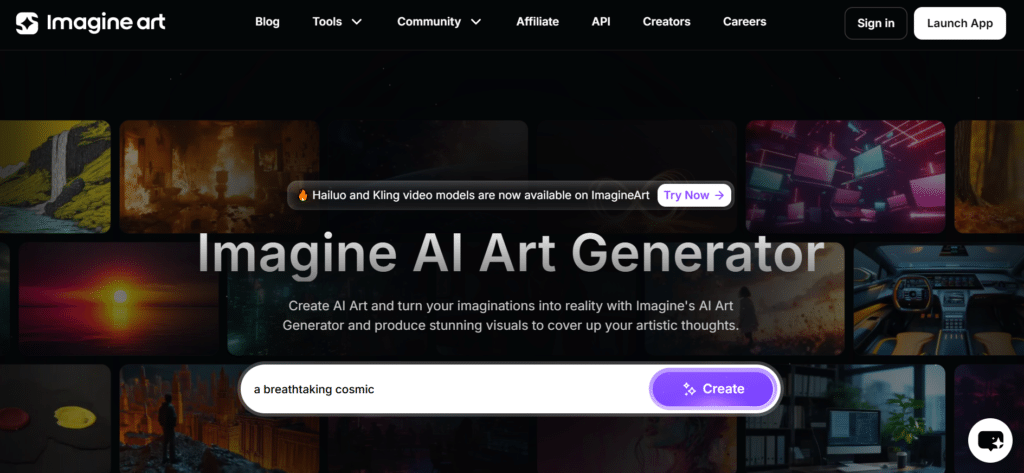
Imagine.Art is a browser-based image editing app that packs surprisingly capable AI-powered features into a completely free experience.
For students, hobbyists, and anyone who needs occasional high-quality edits without a subscription, Imagine.Art combines image generation and layer-based editing without watermarks—making it an excellent choice for prototypes, quick social assets, or school projects.
4.6
OVERALL RATING
Key Pain Points Imagine.Art Solves
Standout Features
AI Background Remover
A robust free background remover that handles hair, semi-transparent objects, and tricky edges well for a browser tool—great for quick product mockups and thumbnails.
AI Enhancement
One-click improvements for lighting, color, and clarity that produce natural, non-over processed results—useful for batch tweaks when you don’t need heavy manual retouching.
Layer-Based Editing
Full layer support (blend modes, masks, non-destructive edits) lets you build complex composites similar to a traditional desktop editor—rare in free web editors.
AI Image Generation
Integrated text-to-image and edit-from-prompt capabilities let you create and modify imagery without jumping between tools, which simplifies many quick creative workflows.
When to Use Imagine.Art
Choose Imagine.Art for fast prototyping, student projects, social post graphics, or when you need a powerful photo editor without paying. It’s ideal when you want a free image editing app with layer control and basic AI features.
Demo Experience
In testing the interface felt clean and responsive. I removed backgrounds, applied AI enhancements, and combined generated elements in layers within minutes. Processing is slightly slower than premium desktop tools, but the lack of watermarks and the layer system make the tradeoff worthwhile for many users.
Pros and Cons
Integrations & Support
Imagine.Art offers community forums and tutorials rather than enterprise integrations. You can download full-resolution images without watermarks, so it fits easily into most workflows despite limited direct integrations.
Pricing
100% free forever — 2,000 credits/month on basic plan (images + editing). No watermarks, full BG remover/upscaler. Paid upgrades (Standard ~$20–$30/mo, Ultimate $80/mo) add credits, privacy, premium models. Crazy strong free tier.
AI Image Generator + Editor In One!
Try Imagine.Art when you need a capable photo editor or quick image editing app without cost—perfect for students, prototypes, and quick social assets.
6. PhotoAIStudio: Best for AI Model Generation
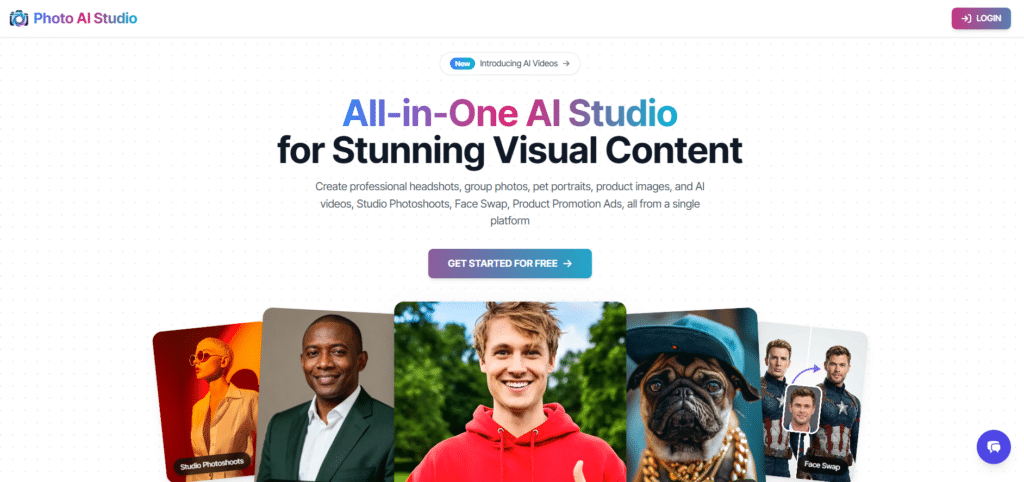
PhotoAIStudio specializes in creating hyper-realistic human models and virtual try-ons from a few selfies or product images.
If you need professional headshots, influencer-style UGC, or scalable on-model product imagery without booking shoots or hiring talent, this tool can produce convincing results quickly—saving time and cost for marketers and small brands.
4.5
OVERALL RATING
Key Pain Points PhotoAIStudio Solves
Standout Features
AI Model from Selfie
Turn a single selfie into dozens of consistent portraits across styles, lighting setups, and outfits. The system preserves facial identity while generating varied looks suitable for headshots and promotional images.
Virtual Clothing Try-On
Apply clothing to AI models with realistic drape, pattern preservation, and fabric rendering—useful for creating on-model product images without in-person fittings.
Style Variety
Choose from 100+ styles, presets and effects—professional, casual, editorial, and more—so a single input can produce campaign-ready variations quickly.
Video Generation
Create short talking-head or motion clips of AI models for testimonials, ads, or social posts, removing the need for expensive video shoots.
When to Use PhotoAIStudio
Pick PhotoAIStudio when photorealistic humans and influencer-style content are your priority. For catalog-level automation and strict brand templates, pair it with a product-focused editor like Claid or Flair; for simple template-based marketing visuals, Phot.AI may be faster.
Privacy & Likeness Notes
When creating models from real people, get explicit consent and understand legal limits on likeness use. Retain original inputs and document permissions—this protects users and brands when assets are published.
Real-World Success: Startup Case Study
A fashion startup used PhotoAIStudio to produce on-model images without an expensive photoshoot budget. Reported results showed a fast catalog launch and improved visual consistency; specific cost and conversion figures come from vendor-supplied case material and should be verified for your situation.
Demo Experience
In testing, a single selfie generated high-quality portraits across multiple styles within minutes. Virtual try-on preserved fabric texture and fit well in most examples; occasional artifacts appeared on complex hairstyles or accessories and required manual cleanup.
Pros and Cons
Integrations & Support
PhotoAIStudio offers API access for bulk processing and e-commerce integration; vendor docs and tutorials support common workflows. Verify specific integration options and rate limits for your use case.
Pricing
Free trial for testing realistic headshots/try-ons. Paid plans start around $13–$20/month (credit-based) — unlimited models, talking videos, face swaps, more styles. Higher credits cost more. Good for UGC or influencer work.
create Customizable & Editable realistic AI models!
Try PhotoAIStudio’s free trial to evaluate headshots, virtual try-ons, and quick video outputs for your campaigns.
7. Phot.AI:Best for Marketing Visuals & Templates

Phot.AI is built for marketers, agencies, and product teams who need fast, conversion-focused visuals. With a large library of sales-ready templates and automated editing tools, Phot.AI turns a single product photo into dozens of ad creatives, social variants, and A/B test assets in minutes—no heavy Photoshop work required.
4.5
OVERALL RATING
Key Pain Points Phot.AI Solves
Standout Features
Template Library & Batch Exports
Choose from extensive templates optimized for ads, product pages, and social — then batch-export dozens of images with dynamic text and product variants applied.
Object & Background Tools
Automatic object and background removal plus smart replacement lets you swap settings or apply studio-style backgrounds across templates.
Enhancer, Extender & Restorer
Built-in enhancers, upscalers, and restorers help you clean and prepare source photos before they enter templates—useful for older assets or user-generated content.
API & Integrations
API access and common integrations let teams automate bulk generation from product feeds or trigger creative builds via Zapier/Slack for campaign workflows.
Sample workflow
Upload a product photo → pick a marketing template → apply color/label variables → run batch export for multiple sizes and ad variants. Typical result: one source image → 10+ ready-to-use creatives in minutes.
Best for
Phot.AI is ideal for marketers, e-commerce managers, and agencies who need photo editors focused on templated, high-volume delivery rather than pixel-level retouching.
Pros and Cons
Integrations & Support
Phot.AI supports API integration, letting developers embed its AI photo editing, object/background removal, and image generation tools into apps, websites, and workflows with an API key and documentation. This enables automation and custom use of its visual AI capabilities across platforms and services.
Pricing
25 free photos to start (no card). Pro plan $10/month (annual equiv.) — 1500 credits, full templates, object removal, API. Higher tiers ($29+) for unlimited. Solid choice for marketing visuals on a budget.
Ready to scale creative production?
Try Phot.AI to convert one product photo into dozens of ad and social variations using templates and batch exports—great for teams that need fast, consistent results.
8. PromeAI:Best for Architecture, Interiors & Consistent Styles
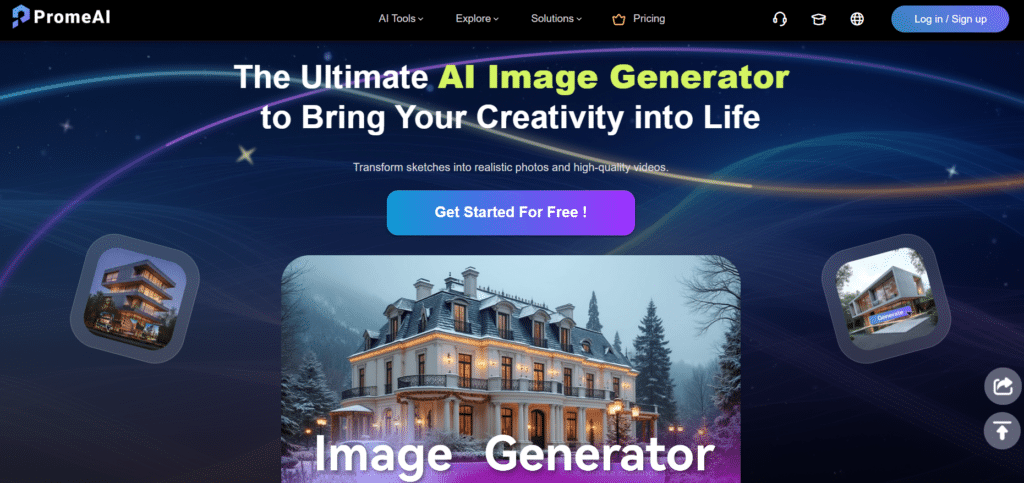
PromeAI is tailored for architects, interior designers, game artists, and anyone who needs consistent space renders or style-accurate imagery.
The platform emphasizes style training, consistency across multiple images, and tools that understand spatial contexts—so you can remodel a room, relight a scene, or render multiple angles that share the same design language.
4.5
OVERALL RATING
Key Pain Points PromeAI Solves
Standout Features
One-shot Style Training
Train a model to mimic a specific aesthetic from a single reference (a design board or image). Once trained, the style can be applied to new images and prompts so all results share the same look and feel.
Inpaint / Outpaint & Relight
Edit rooms by removing or placing furniture, extend canvases for wider shots, and relight scenes to preview different times of day or lighting schemes.
Interior Remodels & Consistency Renders
Quickly generate before/after remodel visuals, consistent asset packs for client proposals, or game-ready concept images that maintain style coherence across multiple views.
AI Video & Community Features
Create short walkthroughs or animated renders; plus, community-shared models and templates speed up typical tasks.
Example Workflows
Train a style from a single design board → upload room photos or sketches → run a batch remodel to produce consistent before/after variations for client review. Or feed a game asset sketch and get multiple consistent viewpoints in the trained style for concept art.
When to Choose PromeAI
Use PromeAI when visual consistency and spatial understanding matter: Interior redesign proposals, architecture presentations, or concept art where a single aesthetic must apply across many images. For simple product photo editing or general creative edits, a different tool may be faster.
Pros and Cons
Integrations & Support
PromeAI integrates a wide suite of AI creative tools…including text-to-image, sketch rendering, image-to-video, image variation, background removal, HD upscaling and animated effects — into one platform.
It also supports controllable AIGC model libraries and workflow tools for designers, architects, and creators to generate images, videos, and animation efficiently.
PromeAI can be embedded in design pipelines for architecture, product design, and gaming, with API-style automation potential and collaboration support, enabling AI image generation and editing across professional tools and workflows.
Pricing
Free forever with coin system (earn more via invites). Paid starts at $16/month — faster gens, higher-res, video tools, no limits. Higher tiers $39+ for pros. Free coins make it feel almost free for light users.
PromeAI also offers engagement systems (coins, invites) that can subsidize usage for active contributors.
Ready to scale creative production?
Try Phot.AI to convert one product photo into dozens of ad and social variations using templates and batch exports—great for teams that need fast, consistent results.
9. Flair AI: Best for Brand-Consistent Product Imagery
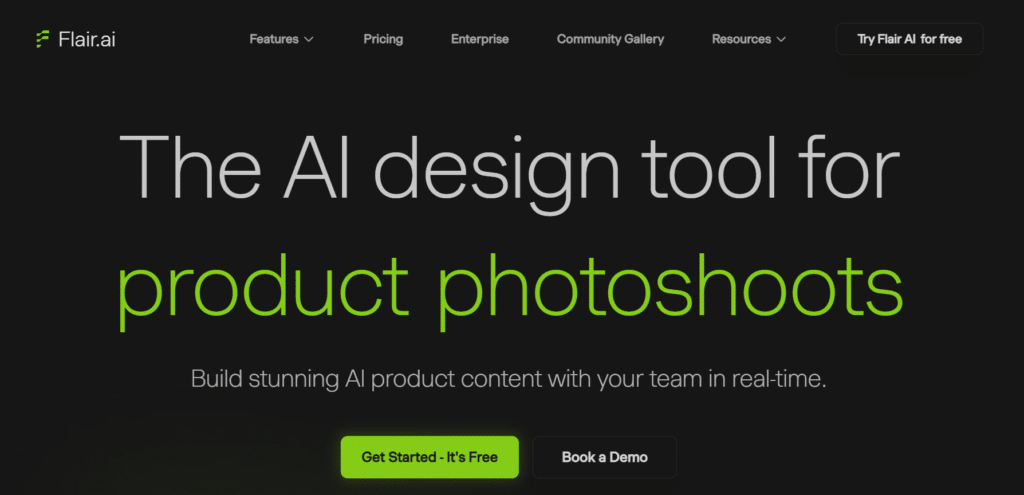
Flair AI is built for brands that need pixel-consistent product images and videos at scale. Its core value is strict brand-kit control and reusable templates so every output matches color, lighting, and composition rules—ideal for teams that must keep product imagery on-brand across channels and marketplaces.
4.4
OVERALL RATING
Key Pain Points Flair AI Solves
Standout Features
Brand Kit & Reusable Templates
Set exact brand colors, logo rules, and layout constraints in a central kit. Templates then enforce these rules across all generated images so creative stays consistent even when multiple team members run batches.
Bulk Generation & On-Model Photos
Generate thousands of on-brand product photos and on-model shots from a single source image—useful for marketplaces, social ads, and product pages where consistency improves conversion.
Product Videos & Virtual Try-On
Create short product clips and virtual try-on experiences that follow brand motion and lighting guidelines—helpful for e-commerce listings and ads.
Magic Erase & Retouching
Remove unwanted objects and apply automatic retouching tuned for product photography so assets look polished without heavy manual work.
How Flair Enforces Brand Consistency
Flair AI’s brand kit acts like a guardrail: Once a kit is set, templates and generation tools reference it to automatically apply approved colors, backgrounds, and logo placement. This reduces back-and-forth between design and marketing and keeps product imagery aligned with brand guidelines at scale.
Example Use Case
A DTC brand replaced disparate marketplace images with Flair-generated product sets and reported clearer, consistent listings across channels (vendor-reported improvement). For brands, consistent imagery reduces perceived friction for shoppers and can improve conversion when messaging is uniform.
Pros and Cons
Integrations & Support
Flair AI offers a comprehensive API that lets businesses embed its generative content capabilities—product images, videos, and marketing assets…directly into workflows and systems.
Developers can use SDKs and examples to integrate at scale, automating large-volume content generation and streamlining creative pipelines across platforms.
Pricing
Free trial to test brand edits. Starter/Pro from $8–$35/month — bulk gen, try-ons, videos, brand kits, API. Team plans scale up. Fair pricing if you need strict brand consistency.
Need on-brand product images at scale?
Try Flair AI if strict brand control and repeatable templates are critical to your ecommerce or marketing workflows.
10. Scenario AI: Best for Game Studios & Niche Asset Generation
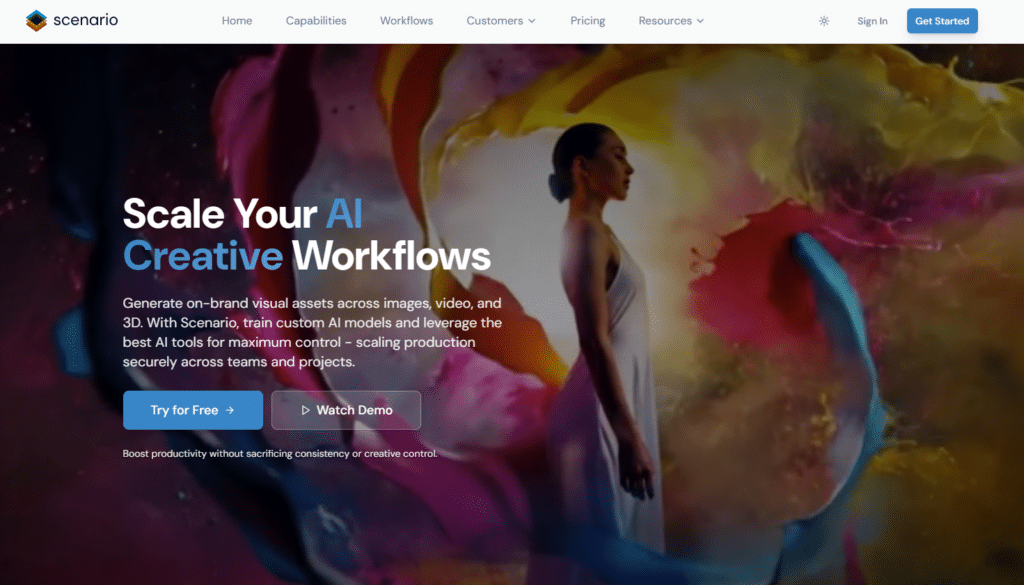
Scenario AI is a specialist platform for teams that need highly controlled, repeatable asset generation—think game studios, animation teams, and technical marketing groups.
Instead of a single generic editor, Scenario offers a suite of niche tools (pose transfer, turnaround sheets, weather/lighting transforms, and more) and the ability to train or fine-tune models for a consistent visual pipeline.
4.4
OVERALL RATING
Why studios and technical teams pick Scenario AI
Standout Features
Pose Transfer & Turnarounds
Move poses between characters and generate turnaround sheets (360-style) to accelerate rigging, animation, and asset review processes—valuable for character and prop pipelines.
Weather & Lighting Transforms
Apply environment-level edits (rain, fog, snow, time-of-day relighting) consistently across a set of assets so scenes remain coherent in different conditions.
Model Training & Consistency Tools
Train a custom model on studio references to ensure every generated image matches the art direction; useful when you need large batches of stylistically consistent assets.
API & Export Options
Robust API, multiple export formats, and integrations let you plug generated assets directly into game builds, animation comps, or asset management systems.
When to Use Scenario
Choose Scenario if you’re building a large set of assets that must obey strict stylistic or technical rules—game art, animated character turnarounds, consistent concept packs, or marketing assets that require exacting control. For one-off creative edits or simple social content, a general best image editor or template tool will be faster.
Typical Studio Workflow
Train a model on reference artwork → run pose transfer or batch generation → apply lighting/weather transforms → export turnarounds and sprite sheets via API to your asset pipeline.
Pros and Cons
Integrations & Support
Scenario AI offers a REST API that lets developers embed its full suite of AI image and asset generation, custom model training, and asset management into applications and workflows. Using API keys and standard REST endpoints, teams can automate creative pipelines, dynamically generate visuals, and scale content production programmatically across platforms.
Pricing
Free: 50 credits/day. Starter $10/month (annual) or $15 monthly — 1500 credits, custom models. Pro $30, Max $50 for more credits/teams. Enterprise custom. Built for game studios — good value for style control.
Need production-grade asset tools?
Try Scenario if your team requires repeatable, style-consistent image generation and specialized editors designed for game and animation production.
11. Orshot: Best for Automation & Bulk Personalized Visuals
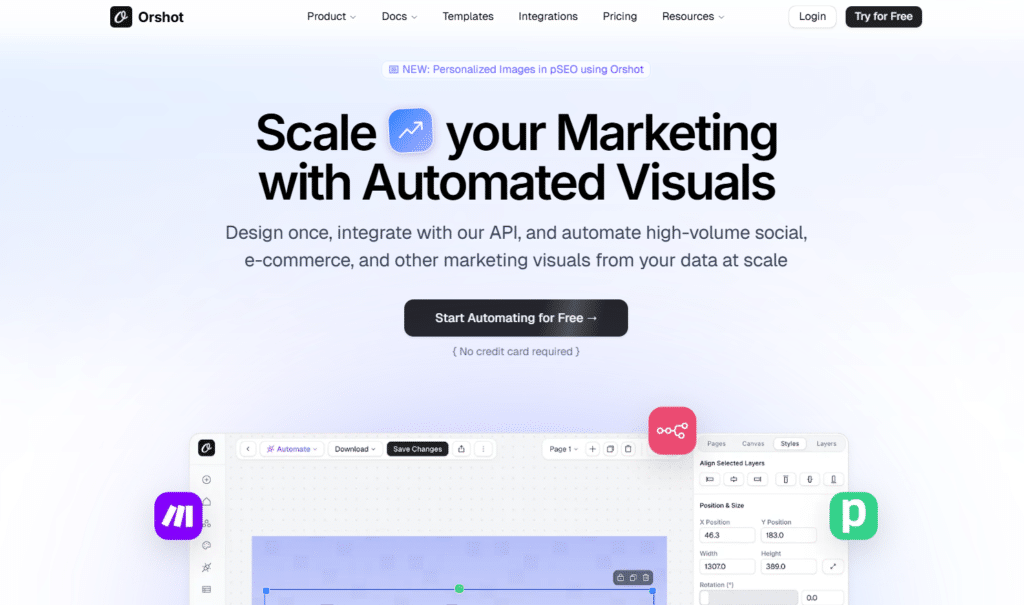
Orshot is designed for marketers, agencies, and teams that need to generate large volumes of personalized visuals with templates and automation.
Think of it as a Canva + automation engine: define a template once, feed dynamic parameters (product names, user names, colors), and produce hundreds or thousands of on-brand images, PDFs, and short videos automatically.
4.3
OVERALL RATING
Key Pain Points Orshot Solves
Standout Features
Studio Editor & AI Template Generation
Build reusable templates in the studio editor and use AI to generate template variations or suggest layouts. Templates support dynamic text, images, and style rules for consistent results.
Dynamic Params & Bulk Exports
Upload spreadsheets or connect via API to apply dynamic parameters across templates, then export thousands of personalized images, PDFs, or video frames in one job.
Video & PDF Bulk Output
Create short video variants and multi-page PDFs at scale—useful for ad networks, personalized landing pages, and automated reporting assets.
Integrations & Automation
Zapier, Slack, and webhook integration let you trigger generation from product feeds or CRM events, enabling fully automated creative pipelines for campaigns and emails.
Sample Workflow
Prepare a branded template → provide a CSV with 1,000 product rows (title, price, image URL, color) → trigger a bulk job via API or the UI → receive 1,000 personalized ad images and a combined PDF catalog ready to upload to ad platforms. Typical turnaround is far faster than manual templating and export.
When to Choose Orshot
Orshot is the right choice when automation and bulk personalized outputs matter more than pixel-level manual retouching and photo editing. Use it for campaign-scale personalization, product feed creative, and agency deliveries where speed and consistency are critical.
Pros and Cons
Integrations & Support
Orshot integrates widely with automation and workflow tools like Make, Zapier, n8n, Airtable, Pipedream, cloud storage (Google Drive, Dropbox, S3/R2), REST API, Webhooks, Dynamic URLs, SDKs, CLI tools, and extensions (Raycast, Chrome). These enable no-code and code-based automation for generating dynamic images, PDFs, and videos across platforms.
Pricing
60 free renders/month. Paid from $30/month (starter) — thousands of renders, bulk API, video/PDF, integrations. Overages ~$0.018 each. Higher tiers for teams. Steep start but cheap per render for automation.
Ready to automate creative at scale?
Try Orshot when you need fast, repeatable production of personalized images, PDFs, and video assets for campaigns and automation workflows.
Key Features to Look for in AI Image Editing Software
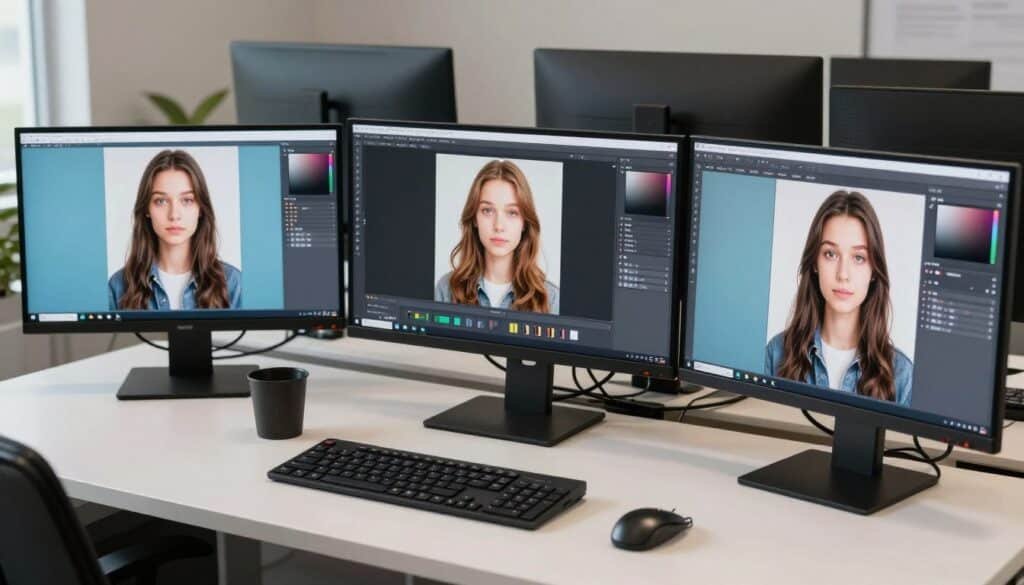
- Intelligent Background Removal – Automated subject extraction that handles complex edges (hair, fur, transparent materials) reduces manual masking time and keeps product or portrait edges natural.
- Smart Upscaling – High-quality upscalers improve resolution while minimizing artifacts; essential for photographers and marketers preparing images for print or large-format use.
- Generative Fill / Inpainting – Extend canvases or replace objects with context-aware synthesis. Powerful, but verify results at 100% zoom—generative fill can hallucinate plausible but inaccurate details.
- Batch Processing & Templates – Apply consistent edits across hundreds of images and use reusable templates to keep brand styling uniform and cut turnaround time for catalogs and campaigns.
- Object Removal & Smart Patching – Remove unwanted objects and let the AI fill the gap with matching texture and lighting. Works best on medium-to-large areas; very small, detailed objects can need manual touch-ups.
- Style Transfer & Consistency Tools – Apply a trained style across multiple assets for a unified visual language—valuable for brand kits, interior renders, or game art pipelines.
- AI-Powered Retouching – One-click portrait enhancements that preserve natural skin tones and facial features without producing an over-processed look; useful for headshots and influencer content.
- Integration & API Capabilities – Look for editors with robust APIs, Zapier/webhook support, or direct platform integrations so the tool fits into your existing production workflow.
How to prioritize features for your use case
- E-commerce: Prioritize background removal, batch processing, API/template support, and realistic on-model generation.
- Photographers / print work: Focus on smart upscaling, artifact removal, and fine retouching.
- Marketers & agencies: Templates, bulk exports, and integration features (Zapier, API) speed campaign delivery.
Trusted accuracy checks
Always inspect AI-edited images at full resolution (100%) and run spot checks on batches. Test output across your actual use-cases (mobile thumbnails, large prints, product pages) since some tools look flawless at thumbnail size but reveal artifacts at full scale.
Finally, balance automation with manual review: use AI to remove repetitive work and accelerate the editing process, but keep a final quality-control step in your workflow for high-stakes assets.
Best Practices for Choosing AI Image Editing Software
Match the Tool to Your Specific Needs
Don’t chase a single “best” editor — pick the one that matches your workflow. E-commerce sellers should prioritize background removal, batch processing, and API/template support. Social media creators need fast templates, aspect-ratio flexibility, and prompt-driven creative tools. Photographers and print designers should favor upscaling and fine retouching capabilities.
Consider Your Technical Skill Level
Tools vary from zero-learning options (text-prompt editors) to more advanced layer-based editors. If you want fast edits with minimal training, choose a prompt-based editor like Getimg.AI; if you need fine control and compositing, a layer-capable editor such as Imagine.Art or a traditional editor with AI features will suit you better.
Evaluate Output Quality at Full Size
Zoom to 100% when judging results. Many editors look fine at thumbnail size but reveal artifacts, over-sharpening, or hallucinated details at full resolution. This check is especially important for printing, product pages, or any high-stakes asset.
Consider Workflow Integration
The right editor fits into your process. Evaluate file-format support, export automation, batch speeds, and whether the tool offers APIs or plugins for your CMS or commerce platform.
In practice, I often combine specialized tools (an upscaler + a prompt editor + a template tool) rather than relying on one solution for everything — that approach saves time and improves results when used as part of a defined process.
Test Before Committing
Always use free trials or starter credits to validate real-world performance with your images. During any trial, run this short checklist:
- Full-size export: export at final delivery resolution and inspect at 100%.
- Batch sample run: process a representative group of 10–50 images to test consistency and speed.
- Integration/API test: if you rely on automation, try the API or an integration (Zapier/webhook) to confirm throughput and formats.
Also keep raw originals and edited outputs for auditability — store both versions so you can compare, revert, or document edits later.
Final Thoughts: Choosing the Right AI Image Editing Software
After hands-on testing across these 11 platforms, Pixelcut remains my top recommendation for most users who need a dependable photo editing, fast editor for e-commerce and content production. It combines accurate background removal, powerful batch processing, and collaboration features into a workflow-friendly package that saves time and produces consistent results.
That said, the best image tool depends on your priorities: LetsEnhance is the go-to for upscaling and restoration, Claid AI is purpose-built for product photography and catalog automation, Getimg.AI shines for prompt-driven creative edits, and Imagine.Art gives you a capable, free photo editor when budget matters.
PhotoAIStudio leads on hyper-realistic human and influencer-style images, while tools like Phot.AI, Flair, Scenario, PromeAI, and Orshot each solve specific needs (templates, brand kits, production assets, interior renders, and bulk automation respectively).
Quick cheat-sheet
Next step: Pick two tools to trial — one specialist (e.g., LetsEnhance for upscaling or Claid for catalog automation) and one generalist (Pixelcut or Phot.AI) — and run a short test with your real images to compare full-size exports and batch performance.
The landscape of AI image editing software evolves fast. New features (generative fill, on-model try-ons, and advanced template automation) appear regularly, so re-evaluate periodically and choose the best photo editor or editing software that fits your current process and team.
When in doubt, test actual workflows and inspect results at 100% to ensure the output meets your standards.
Ready to transform your images with AI?
Start by testing Pixelcut (our top pick) and one specialty tool that matches your core use-case—use free tiers to compare speed, quality, and integration with your existing plan and workflows.